Music lovers, DJs, and party organizers often need to create playlists for different occasions—whether it's a music festival, a house party, a workout session, or a late-night relaxation moment. Instead of spending hours searching for songs one by one, many people now prefer to create Spotify playlists instantly, tailored to their own taste and mood.
With ChatGPT, you can create personalized AI Spotify playlists using simple and flexible commands. In this guide, you'll learn how to use ChatGPT to generate Spotify playlists based on your preferences, easily customize them, and transform any idea into a playable music list in minutes.
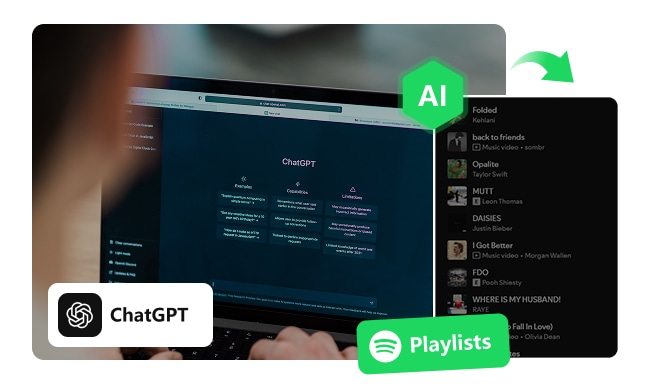
Creating AI-generated Spotify playlists with ChatGPT is simple if you follow these steps carefully. Make sure you have a Spotify account ready before starting.
Step 1 Launch the ChatGPT app on your device or visit ChatGPT.com. Ensure you are logged into your OpenAI account.
Step 2 Click on "Explore GPTs" and search for PlaylistAI. Then click "Start Chat" to begin interacting with this music-focused GPT.
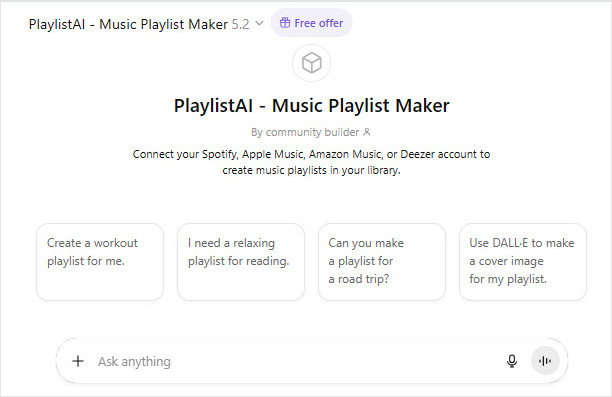
Step 3 Type a specific prompt, such as "Create a sleep playlist with calming ambient sounds", "Build a high-energy workout playlist for running, 45 minutes long", or "Create a jazz classics playlist", and send it. This tells ChatGPT what kind of playlist you want.
Step 4 You will see a prompt asking you to log in to Spotify. Log in and authorize OpenAI to:
Once authorized, ChatGPT will have access to create and save playlists to your Spotify account.
Step 5 After connecting, ChatGPT will return to the chat interface. Now you can continue sending playlist prompts. ChatGPT will generate a list of tracks with cover art and durations. You can:
Creating AI Spotify playlists with ChatGPT is fast and effortless. However, when it comes to downloading these AI-generated playlists for offline listening, things are not as flexible. While Spotify does offer an official offline mode, it comes with device restrictions and subscription requirements that limit how and where your music can be played. For users who want to keep AI Spotify playlists permanently, transfer them across devices, or enjoy offline playback without limitations, using NoteBurner Spotify Music Converter to save playlists as local files becomes a better choice.


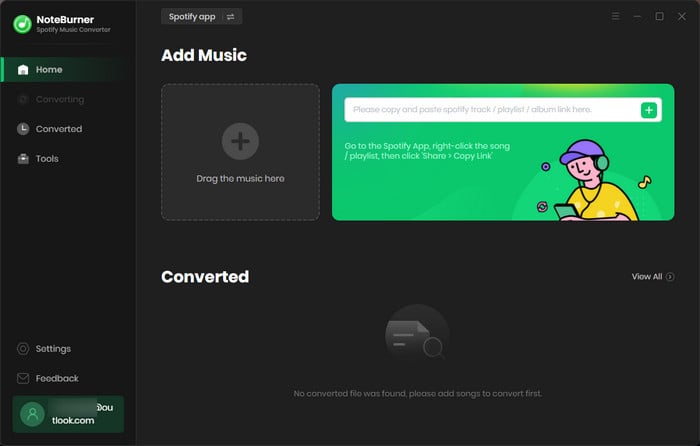
Install NoteBurner Spotify Music Downloader on your device and open it. You can choose to download songs from the "Spotify app" or "Spotify web player".
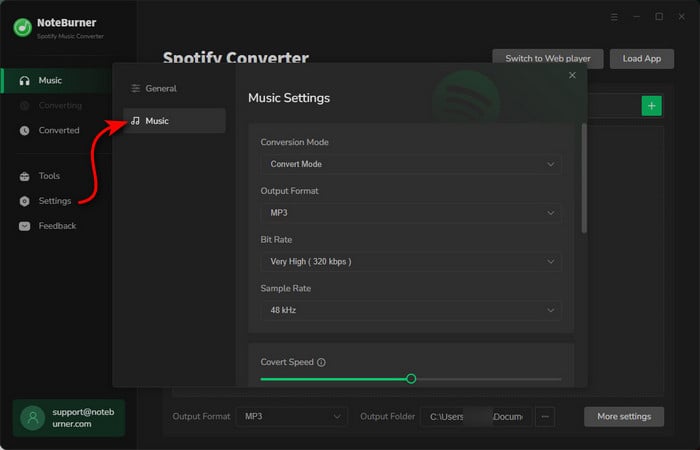
Go to the "Settings" window on NoteBurner, then choose the "output format" for your Spotify music songs. Also, choose the bit rate, sample rate, output file name, output path, and so on.
On the Spotify app or Spotify web player, open the Spotify playlist and click "Add" to add the songs you want to download to NoteBurner.
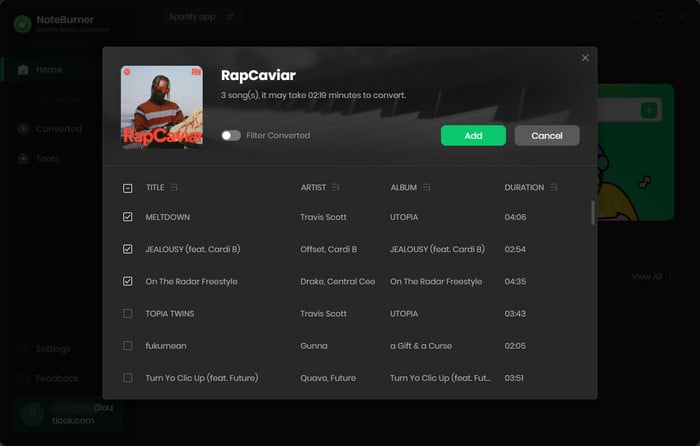
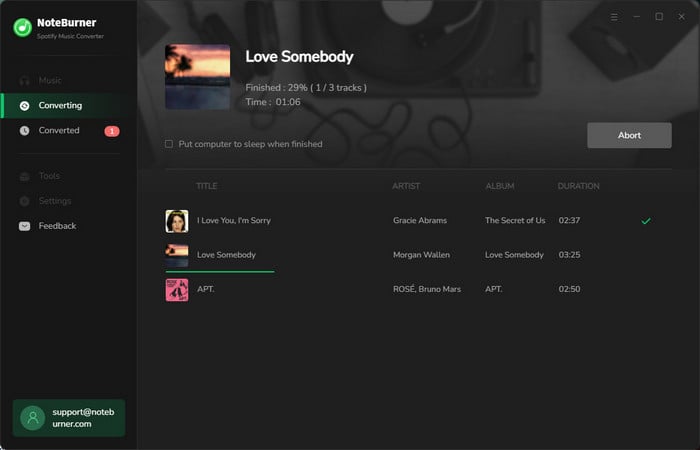
Now, everything is set up. Just hit the "Convert" button to start downloading. Once finished, click on the "History" and hit the "Folder" icon. Then you can find your offline Spotify music files.
Disclaimer: For personal/educational use only. 🚫 Do not distribute downloaded music/video for commercial use.
A: AI Spotify playlists are music playlists generated using artificial intelligence tools like ChatGPT based on your preferences, moods, or specific commands. Instead of relying only on Spotify’s algorithm, AI helps you create customized playlists on demand, such as workout mixes, party playlists, or genre-specific collections.
A: Yes, AI-generated Spotify playlists can be downloaded using Spotify’s official offline listening feature, just like regular playlists. If you want to keep AI-generated Spotify playlists permanently or play them on different devices without restrictions, you’ll need to save them as local audio files, like MP3 format, using a NoteBurner.
A: Yes, you can easily modify an AI-generated Spotify playlist after it is created. You can refine the playlist by adjusting your prompts, such as changing genres, moods, tempo, language, or preferred artists, or by asking AI to add, remove, or replace specific tracks.
A: Using AI tools to generate playlists is generally safe as long as you authorize access through official Spotify login pages and trusted services. Always review requested permissions and avoid tools that ask for unnecessary account access. Sticking to reputable AI playlist tools helps protect your Spotify account and listening data.
A: Yes, AI-generated Spotify playlists can be shared just like normal playlists. You can share them via links, social media, or collaborative playlists, making them ideal for parties, events, or group listening.
🔥Read Also: How to Share Spotify on Twitter/X?
🔥Read Also: How to Share Spotify Playlists?
Using ChatGPT to create AI Spotify playlists makes discovering music feel easier, more flexible, and far more personal than ever before. With just a few simple commands, the AI can help you transform simple ideas into playable playlists in seconds. This article demonstrates how to create, optimize, and save AI-generated Spotify playlists, providing you with greater control over music that truly suits your mood and taste.
Note: The free trial version of NoteBurner Spotify Music Converter allows you to convert the first 1 minute of each audio. You can buy the full version to unlock this limitation.
 What's next? Download NoteBurner Spotify Music Converter now!


One-stop music converter for Spotify, Apple Music, Amazon Music, Tidal, YouTube Music, etc.

Convert Apple Music, iTunes M4P Music, or Audiobook to MP3, AAC, WAV, AIFF, FLAC, and ALAC.

Convert Amazon Music to MP3, AAC, WAV, AIFF, FLAC, and ALAC with up to Ultra HD quality kept.

Convert Tidal Music songs at 10X faster speed with up to HiFi & Master Quality Kept.

Convert YouTube Music to MP3, AAC, WAV, AIFF, FLAC, and ALAC at up to 10X speed.

Convert Deezer HiFi Music to MP3, AAC, WAV, AIFF, FLAC, and ALAC at 10X faster speed.

Transfer playlist between Spotify, Apple Music, Amazon Music, YouTube Music, and more.