
If you use Spotify on mobile or desktop, you’ve probably experienced ads interrupting your listening—whether between songs, when skipping tracks, or while browsing playlists. Alright, it can definitely get frustrating—but for Spotify Free users, ads are part of the experience. Luckily, you’ll find solutions to this problem in this article. In this guide, we’ve tested the most effective Spotify ad blockers and methods available today, along with step-by-step tutorials to help you minimize ads across Android, iOS, Windows, and Mac.
Before diving into the detailed reviews, here’s a quick comparison of the most popular Spotify ad blocker tools we tested. This overview highlights key differences in platform support, usability, and overall performance, helping you get a general idea of which option might suit your setup.
In this section, we’ll take a closer look at each ad blocker for Spotify, showing you how to get them and step-by-step instructions for using them on Android, iOS, Windows, and Mac.
Compatible with: Windows, macOS, and Android
Get it here: https://www.noteburner.com/sp-music-converter-windows.html
While many tools labeled as a Spotify ad blocker app simply try to skip or mute ads during playback, NoteBurner Spotify Ad Blocker offers a more practical solution. As an Ad-Free Spotify Downloader, it allows you to download songs, albums, and playlists locally, so you can listen without any ad interruptions—especially helpful for Spotify Free users. It supports batch downloads at 40x faster speed with full ID3 tags preserved, including title, artist, album, and artwork. You can also save music in high quality, up to 320 kbps MP3 or even lossless formats.

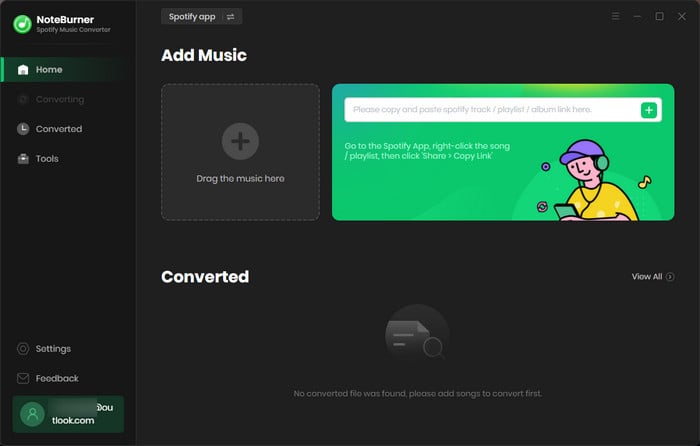
Add Spotify Music
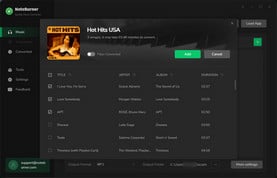
Click the "Add" button to add the Spotify music you want to download.
Set the Output Format
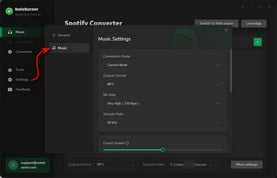
Go to "Settings" to choose audio quality, output path, etc.
Get Ad-free Spotify Music Downloads
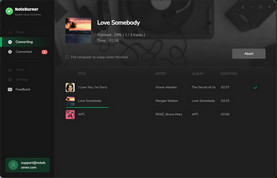
Click the "Convert" button to convert the Spotify music quickly and go to "History" to find the downloaded files.
Disclaimer: All tools are for personal/educational use only. 🚫 To avoid legal issues, do not distribute downloaded music/video for commercial use.
Compatible with: Windows, macOS, Linux, iPhone, Android
Get it here: https://spotube.krtirtho.dev/downloads
Spotube is a lightweight and open-source Spotify client designed for users who want an ad-free music streaming experience without paying for Spotify Premium. Unlike the official Spotify app, Spotube does not include ads at all. It connects directly to your Spotify account, allowing you to access your playlists, albums, and liked songs seamlessly. One unique feature is that Spotube streams and downloads music using YouTube as the download source, enabling you to save Spotify tracks as local files for offline listening. This makes it a great option for users who prioritize free access and flexibility, though audio quality and matching accuracy may vary compared to Spotify’s original streams.
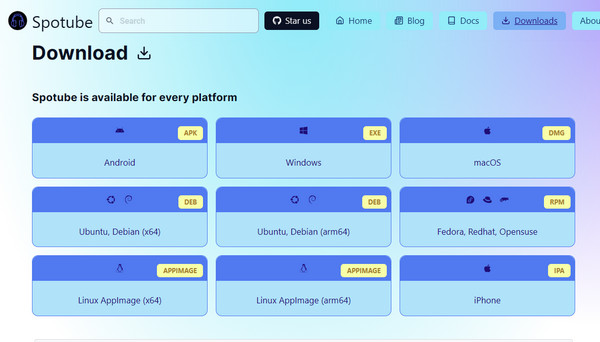
Step 1 Visit the official Spotube download page and download the correct version for your device.
Step 2 Install and launch Spotube. Go to Settings and click on "Connect with Spotify", then log into your Spotify account.
Step 3 Once connected, you can play any song and enjoy completely ad-free streaming without interruptions.
Explore the best Spotify downloader Chrome extensions and top alternatives, including key features, pros, cons, and more stable download options.
Compatible with: Windows, macOS, Linux, iPhone, Android
Get it here: https://soundbound.app/installation/
Soundbound is a cross-platform music app that offers a Spotify Premium-like experience without subscription fees. Originally developed for Android as the successor to Spotiflyer, it now supports multiple platforms including Windows, macOS, Linux, and iOS. The app allows you to download Spotify tracks locally and enjoy them completely ad-free, making it a practical solution for Spotify Free users. While it is highly functional, the app can occasionally be unstable.
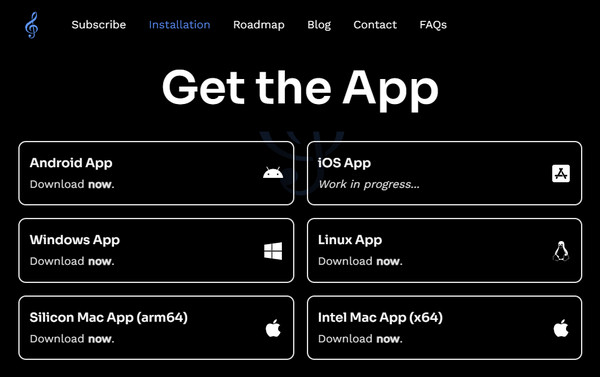
Step 1 Go to the official Soundbound GitHub repository and download the installation file suitable for your device: https://soundbound.app/installation/.
Step 2 After installing, return to the Soundbound installation page and click on "Copy Repo URL" to copy the latest official repository link.
Step 3 Open the Soundbound app. If prompted to include a source, choose "Open Preferences" from the main screen.
Step 4 Under "Available Source Repos", select "Add Repo". Enter a name for the repository, paste the copied URL, and confirm by clicking "Add".
Step 5 Finally, log in to your Spotify account through Soundbound settings. You can now browse your Spotify library and enjoy ad-free music streaming across all supported devices.
Compatible with: Chrome, Edge, Firefox
Get it here: Search “Blockify” in your browser extension store
Blockify is a lightweight browser extension designed for users who listen to Spotify through the web player. As a simple yet effective Spotify ad blocker extension, it works in the background to automatically mute or skip ads, so your music isn’t constantly interrupted. Unlike modified apps or downloaders, Blockify doesn’t require any complex setup—just install it in your browser, and it starts working right away. While it only functions on the Spotify web version and doesn’t offer offline playback, it’s a convenient choice for anyone looking for a quick and easy ad-free experience on a desktop.
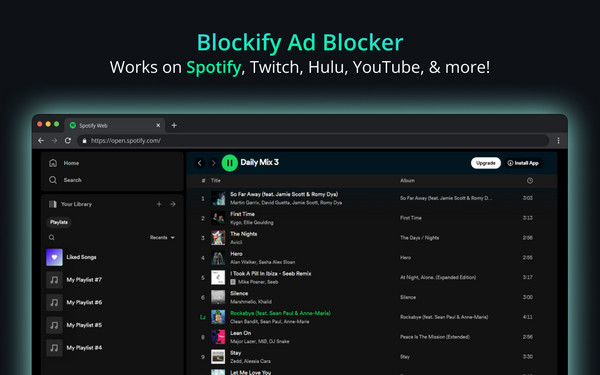
Step 1 Open your browser and go to the Chrome Web Store (or the extension store for Edge/Firefox).
Step 2 Use the search bar to look for "Blockify", then open the extension’s page.
Step 3 Click "Add to Chrome" (or the equivalent button in your browser) and confirm the installation.
Step 4 Visit spotify.com and log in to your account. Start playing any track.
Step 5 Blockify will run automatically in the background, detecting and skipping ads so you can enjoy continuous, ad-free playback.
Compatible with: Chrome, Firefox
Get it here: Search “SpotiAds” in your browser extension store
SpotiAds is a straightforward browser extension built for users who listen to Spotify through the web player and want fewer interruptions. As a lightweight Spotify Ad Blocker Chrome extension, it works by automatically skipping audio ads and jumping straight to the next track, helping maintain a smoother listening flow. The setup is quick and beginner-friendly, making it a convenient option for desktop users. However, since it relies on browser behavior, it may occasionally show errors like “Unable to block ads”, which usually requires refreshing the page or waiting for it to resume normal operation.
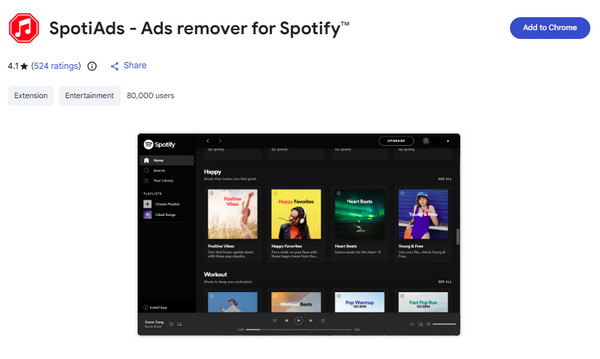
Step 1 Open your Chrome or Firefox browser and go to the extension store.
Step 2 Search for "SpotiAds" using the search bar and open its detail page.
Step 3 Click "Add to Chrome" (or the equivalent button in Firefox) and confirm installation.
Step 4 Visit the Spotify Web Player and log in to your account, then start playing music.
Step 5 SpotiAds will automatically detect and skip ads, allowing you to enjoy continuous playback without interruptions. If it stops working, try refreshing the page.
Compatible with: Windows, macOS, Linux
Get it here: https://spicetify.app/
Spicetify is a powerful customization framework for the Spotify desktop app, primarily used to tweak themes, layouts, and features. While Spicetify itself is not a Spotify ad blocker, it can block ads when users install extensions such as Adblockify, which removes audio and banner ads from the Spotify client. This allows for a smoother, more uninterrupted listening experience. Beyond ad blocking, Spicetify offers extensive personalization options, making it ideal for users who want greater control over their Spotify interface. However, the setup requires multiple steps, and its effectiveness can vary after Spotify updates, so it may not be suitable for beginners.
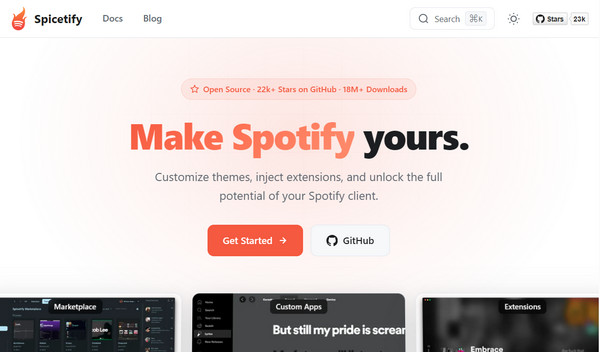
Step 1 Visit the official Spicetify website and follow the installation guide to set up Spicetify on your computer.
Step 2 Open the Spotify desktop app. After installing Spicetify, you should see a Marketplace (shopping cart icon) in the sidebar.
Step 3 Click on the Marketplace icon, go to the "Extensions" section, and search for "Adblockify".
Step 4 Install the extension and restart your Spotify client to apply the changes.
Step 5 Once relaunched, Spotify will run without audio or visual ads, giving you a smooth, ad-free listening experience.
Compatible with: Windows 7-11, macOS, Linux
Get it here: SpotX GitHub
SpotX is an open-source tool that modifies the Spotify desktop client to block audio and visual ads and unlock certain Spotify Premium features. It allows users to block Spotify ads and enjoy a more uninterrupted listening experience without needing a Spotify subscription. SpotX is mainly used on Windows, but it also supports macOS and Linux. Because it works by altering the client directly, installation requires running scripts, so some basic technical knowledge is needed. Its performance may also change after Spotify updates.
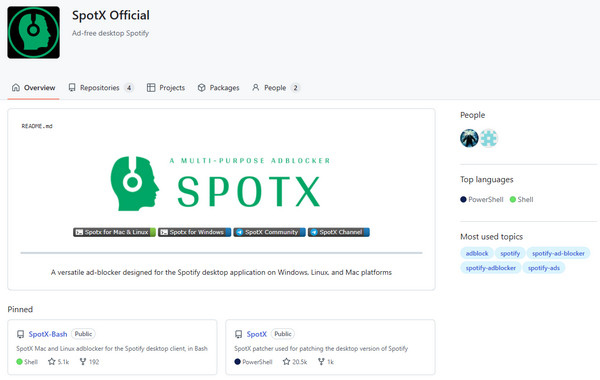
Step 1 Go to the SpotX GitHub pageand find the Fast Install/Update section.
Step 2 Click the triangle next to Full installation to expand the detailed instructions.
Step 3 Download the Install_Auto.bat script from the highlighted link.
Step 4 Run the downloaded script by double-clicking it and grant any required permissions.
Step 5 Once the installation is complete, Spotify will launch automatically with ads blocked and some Premium features enabled.
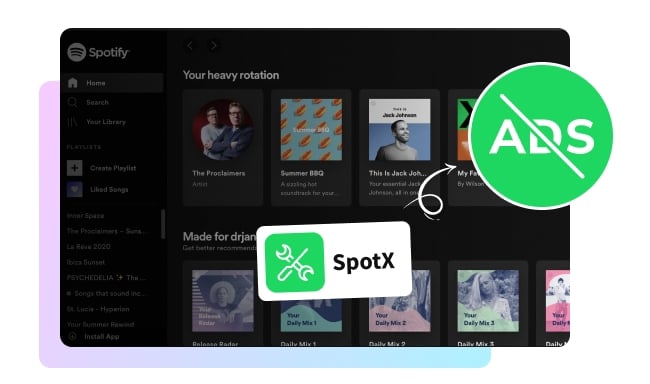
This article will guide you on how to use SpotX to block ads on Spotify in detail. If you're interested, you can also get the best alternatives to SpotX.
Compatible with: Windows
Get it here: EZBlocker GitHub Page
EZBlocker is a simple tool designed to improve your Spotify listening experience by muting audio ads automatically. It functions as a Spotify ad blocker for Windows solution that runs quietly in the background, detects when ads are playing, and mutes them to keep your music playback uninterrupted. The interface is minimal and easy to use, making it suitable for beginners. However, since the project has not been actively maintained for some time, its effectiveness may be inconsistent with the latest versions of Spotify.
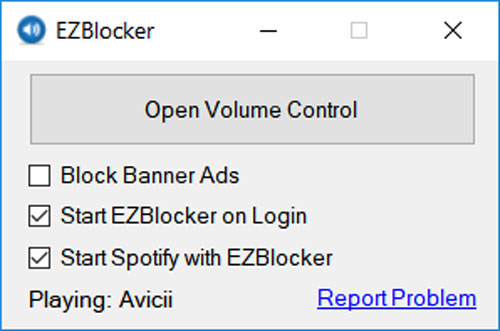
Step 1 Visit the official GitHub page and download the latest version of EZBlocker.exe.
Step 2 Run the downloaded file as an administrator to ensure it works properly.
Step 3 In the EZBlocker interface, enable options like "Start on Login" and "Start Spotify with EZBlocker" for automatic operation.
Step 4 Open Spotify and start playing music. EZBlocker will run in the background and mute ads whenever they appear.
Compatible with: Android
Get it here: Search “SpotMute” on Google Play Store
SpotMute is a free and open-source tool designed specifically for Android users who want a simple way to reduce interruptions while using Spotify. It helps users block Spotify ads on Android phone by automatically muting ads when they play and restoring the sound once the ad ends. This approach means it doesn’t modify the Spotify app or require root access, making it a safer and easier option for most users. However, since it only mutes ads rather than skipping them, and has a few limitations in certain playback scenarios, the experience may not always be seamless.
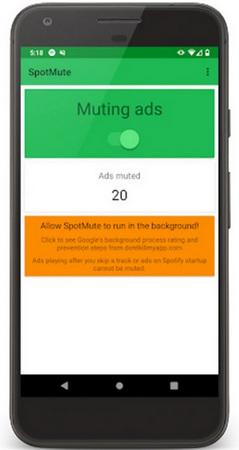
Step 1 Open the Google Play Store on your Android device, search for "SpotMute", and install the app.
Step 2 Launch the Spotify app, go to Settings, and enable "Device Broadcast Status".
Step 3 Close Spotify and open SpotMute. Tap the main switch to activate it.
Step 4 When prompted, confirm that the required setting has been enabled.
Step 5 Start playing music on Spotify. SpotMute will automatically mute ads and restore audio after they finish.
Compatible with: Android, iOS
Get it here: Search “Mutify” in your app store
Mutify is a free mobile tool designed to make Spotify listening less disruptive without modifying the app itself. It works as a Spotify ad muting tool by lowering the volume of ads automatically while music is playing, then restoring normal sound once the ad ends. Running quietly in the background, Mutify also provides handy playback controls like pause, skip, and rewind. Since it doesn’t skip ads entirely, artists can still receive ad revenue, and the app avoids requesting unnecessary permissions. However, similar to other muting-based solutions, it doesn’t fully eliminate ads and is not compatible with Spotify Lite.
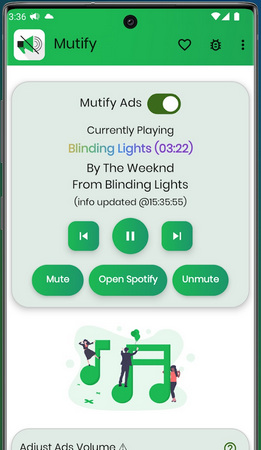
Step 1 Install the Mutify app on your device, then open the Spotify app.
Step 2 In Spotify, go to Settings and enable "Device Broadcast Status".
Step 3 Close Spotify. On your phone, open Settings and navigate to Battery Optimization.
Step 4 Select "All Apps", find Mutify, and set it to "Don’t optimize" so it can run properly in the background.
Step 5 Launch Mutify and confirm the required settings have been enabled.
Step 6 Turn on the "Mute Ads" option. Mutify will now automatically reduce ad volume during playback.
No. Most Spotify ad blockers only remove or mute ads. They cannot unlock core Premium features such as offline downloads or Very High audio quality.
Spotify frequently updates its app and web player, which can break ad blockers. When this happens, the tool usually needs an update or a temporary fix from its developer. If you prefer a stable tool, NoteBurner is recommended.
There is always some risk depending on the tool. Client-modifying or patched apps carry a higher risk, while browser-based or mute-based tools are generally safer.
Some tools only mute ads instead of skipping them. In these cases, Spotify still plays the ad track in the background, which can result in a short period of silence before the next song starts.
In most regions, using ad blockers is not a criminal offense, but it may violate Spotify’s terms of service. Ethically, ads help support artists through revenue, so blocking ads may reduce their earnings from free users.
This article has reviewed and compared a range of popular Spotify ad blocker tools across different platforms, including desktop apps, mobile solutions, browser extensions, and download-based alternatives. Each option works in a different way, from muting or skipping ads to bypassing them entirely through alternative download sources or offline downloads.
Simply check the above section to match your device, usage style, and comfort level with each method to choose the most suitable solution!
Note: The free trial version of NoteBurner Spotify Music Converter allows you to convert the first 1 minute of each song. You can buy the full version to unlock this limitation and enable all its features.



