
spotDL is an open-source tool that uses original metadata matching to obtain high-quality audio, allowing you to download and convert Spotify playlists to MP3 without Premium. This guide will help you get started in just a few minutes, with concise installation and usage instructions, as well as effective solutions to common issues - “Audio Provider Error”. In addition, we compare spotDL with popular Spotify music downloaders so you can see how it stacks up.
spotDL is an open-source Spotify music downloader that enables users to download individual tracks, albums, and playlists by matching Spotify metadata with download sourced from YouTube, saving them locally in formats such as MP3, M4A, or OPUS. This tool runs natively on Windows, macOS, and Linux systems and is completely free to use.
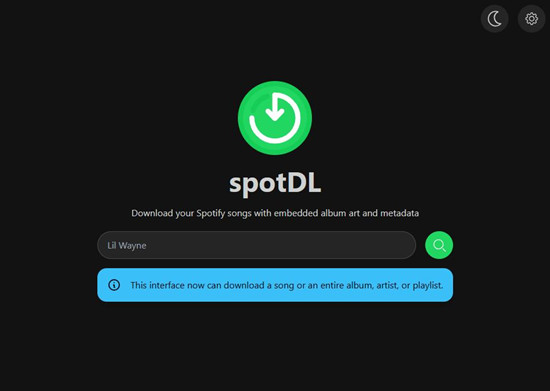
Supports MP3, M4A, and OPUS output.
Standard quality: 128 kbps.
Up to 256 kbps (with YouTube Music Premium).
Automatically embeds song title, artist, album, album artwork, and lyrics (when available).
Keeps your local music library organized and clean.
Download single tracks, full albums, or entire playlists.
Supports batch processing for large collections.
Keeps local files updated when Spotify playlists change.
Ideal for maintaining a mirrored offline library.
Works on Windows, macOS, and Linux.
Easy to transfer and manage music across devices.
Hosted on GitHub with transparent code.
No subscription or paywall.
Community-supported ecosystem.
spotDL allows you to download Spotify music with all metadata (album art, track info) automatically. Before starting, understand which tools are needed and why:
If spotDL feels complicated, save your time and try NoteBurner Spotify Converter — easier to use with more features.
Step 1 Go to the official Python website: https://www.python.org/downloads/ and download the latest version of Python.
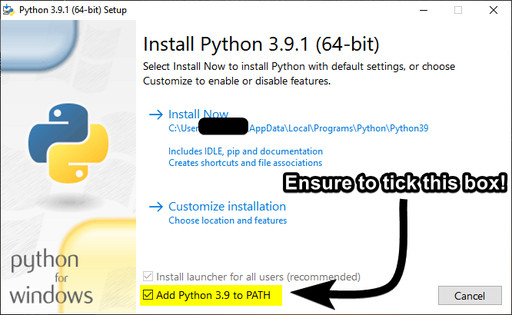
Step 2 When installing Python, select “Add to PATH”, so your system can run Python commands from the command line.
For Windows:
Step 1 Open Command Prompt.
Step 2 Install spotDL by running: pip install spotdl.
For Mac / Linux:
Step 1 Open Terminal (macOS) or Bash/Zsh (Linux).
Step 2 Install spotDL by running: pip3 install spotdl.
For All Systems: (Recommended)
Step 1 Open Command Prompt (Windows) or Terminal (Mac/Linux).
Step 2 Run the following command to let spotDL download FFmpeg automatically to its installation folder:
spotdl --download-ffmpeg
Step 3 Wait for spotDL to complete the download. No need to manually add FFmpeg to PATH.
Option 2 for Windows:
Step 1 Download the “static build” the ZIP from FFmpeg Windows Builds page.
Step 2 Unzip the file to a folder on your computer (e.g., C:\ffmpeg).
Step 3 Add the folder’s bin directory (e.g., C:\ffmpeg\bin) to your system PATH.
Option 2 for Mac:
Step 1 Open the Terminal on your computer and run: brew install ffmpeg.
Step 1 Download from Microsoft official site.
Step 2 Install and restart your computer if prompted.
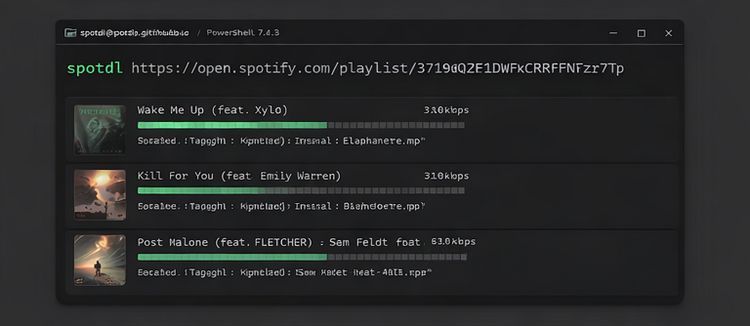
Song: To download a single track, run spotdl download [trackUrl]. Example: spotdl download https://open.spotify.com/track/0VjIjW4GlUZAMYd2vXMi3b
Album: To download an album, run spotdl download [albumUrl]. Example: spotdl download https://open.spotify.com/album/4yP0hdKOZPNshxUOjY0cZj
Playlist: To download a playlist, run spotdl download [playlistUrl]. Example: spotdl download https://open.spotify.com/playlist/37i9dQZF1E8UXBoz02kGID
If you want to customize the output format, download an entire artist’s catalog, or explore more advanced options, you can refer to the comprehensive spotDL Usage Examples guide.
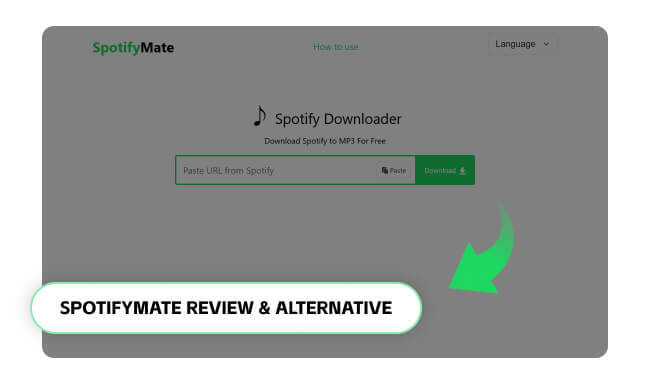
Is SpotifyMate good? Is it safe? Read this article, and you will get a detailed review of it, as well as an excellent alternative.
AudioProviderError: YT-DLP download error is one of the most common issues when using spotDL. However, this is not a single, specific error, but a generic error type triggered by different underlying problems. It can occur when downloading playlists, full artist discographies, or even a single track. The causes may include outdated dependencies, network restrictions, storage issues, or YouTube blocking requests. Below are the most effective fixes.
Outdated versions are the #1 cause of this error. spotDL relies on yt-dlp to fetch audio from YouTube, and when YouTube changes its API or structure, older versions may stop working properly.
pip uninstall spotdl

pip install -U yt-dlp spotdl==4.2.11
Or simply reinstall the latest version:
pip uninstall spotdl

pip install spotdl
💡 4.2.11 is a specific stable version, often used to avoid compatibility issues.
If you suddenly encounter this error after everything worked fine before, updating should always be your first step.
YouTube may block requests from VPNs or proxy IPs, especially if they detect unusual traffic patterns or shared IP addresses.
Solution:
If needed, you can test the proxy manually:
yt-dlp --proxy "user:pass@ip:port" URL
⚠️ Note: Many proxies/VPNs are also blocked by YouTube.
If downloads fail instantly or randomly, network restrictions are a very likely cause.
Some videos require authentication (age-restricted, region-locked, or private content). Without cookies, yt-dlp may fail to access them.
Solution:
cookies.txt from YouTube Musicspotdl <URL> --cookie-file cookies.txt💡 Cookies basically let spotDL “act like your browser”, which improves success rate significantly.
Downloading full artist discographies or large playlists can trigger YouTube rate limits, causing timeouts or incomplete downloads.
Solution:
💡 If downloads start failing halfway through a large playlist, this is likely the reason.
Sometimes the issue is not spotDL itself, but your local system environment.
Possible fixes:
Corrupted cache files may cause repeated failures, even if everything else is correct.
Solution:
~/.spotdlIf matching or downloading fails, you can force simpler formats or adjust behavior:
spotdl <URL> --song-format mp3
💡 This can help avoid codec or compatibility issues with certain tracks.
In some cases, the issue is temporary (e.g., YouTube updates or server-side limits).
Solution:
💡 Many users report that the issue resolves itself without any changes.
Here, we will show you detailed guidance on downloading Spotify++ on iOS or Android devices. It's free to enjoy the Spotify Premium feature.
Unlike command-line tools, NoteBurner Spotify Music Converter offers a simple interface that works almost the same way as downloading music directly within the Spotify app. You just add songs, choose your format, and start downloading—no technical setup required.
NoteBurner supports multiple output formats, including MP3, AAC, FLAC, AIFF, WAV, and ALAC. You can download songs, albums, or entire playlists in batches with all ID3 tags preserved, such as title, artist, album, genre, track number, and album artwork. It lets you download songs in MP3 up to 320 kbps or in lossless FLAC (24-bit / 44.1 kHz), ensuring your downloads sound as good as the originals. Overall, the program is intuitive and stable, making it a great alternative for anyone who wants hassle-free Spotify music downloads.
Step 1 First, download and install NoteBurner Spotify Music Converter. Once it's open, you can choose to download songs either from the Spotify app or the Spotify web player.
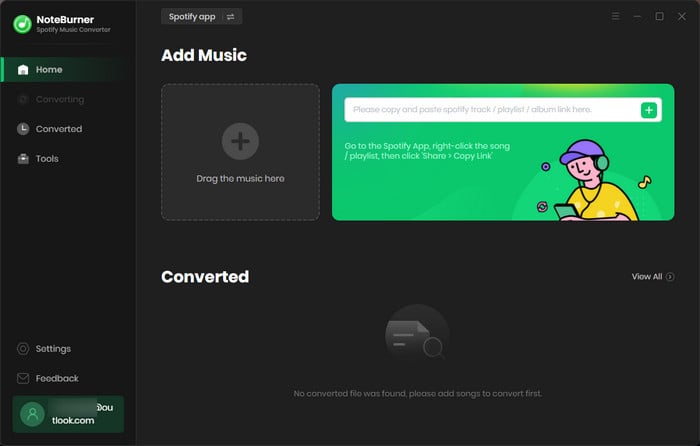
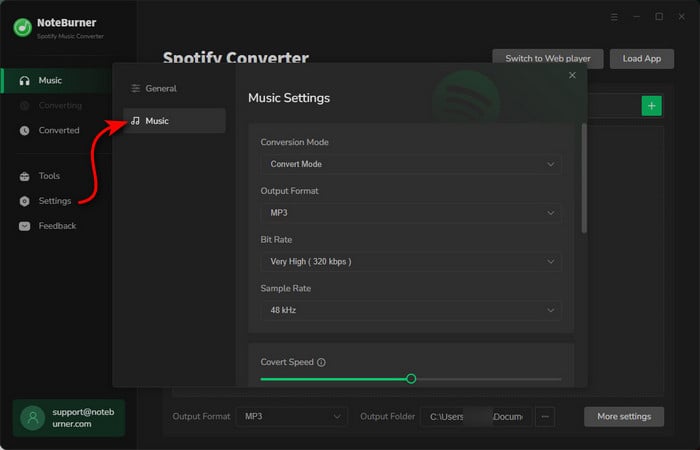
Step 2 Next, go to the "Settings" section on the left side. Here, you can choose things like the audio quality, output path, etc.
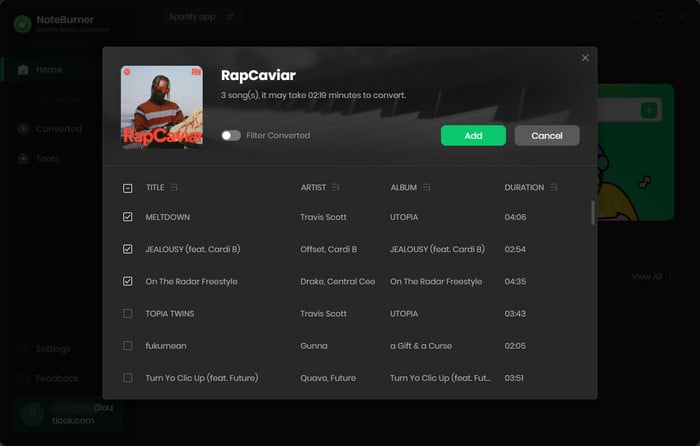
Step 3 Now, go to the Spotify window. Find the album or playlist you want to download and click on its title. Then, just hit the "Add" button in NoteBurner, and it will load all the songs into the download list.
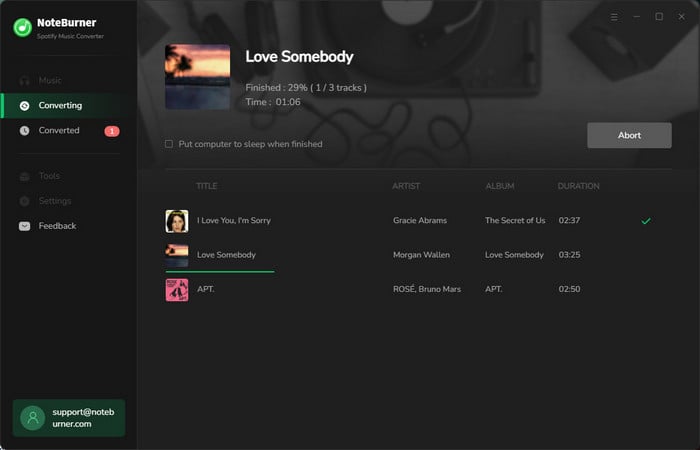
Step 4 Finally, click the "Convert" button. NoteBurner will start downloading your Spotify songs offline. And once it's done, you'll find them saved on your computer. After that, you can easily transfer them to your Android phone and enjoy your music offline!
Disclaimer: For personal/educational use only. 🚫 Do not distribute downloaded music/video for commercial use.
In the previous sections, we’ve taken a detailed look at spotDL and its alternative, NoteBurner Spotify Music Converter. If you’re wondering how spotDL compares within the broader landscape of Spotify downloaders, or why we consider NoteBurner an alternative (even an upgrade), this section will give you a clearer picture.
Below, we compare three of the most common types of Spotify downloaders: Client-based downloader (like spotDL), Desktop app (like NoteBurner), and online Spotify downloaders. Each option has its own strengths and limitations, depending on your needs, technical comfort level, and expectations for audio quality and stability.
| Tool | spotDL | NoteBurner Spotify Playlist Downloader | Spotify Downloader Online Free |
| Price | Free (Open-source) | $44.95/year | Free |
| Ease of Use | Complex | Beginner-friendly | Very easy |
| Output Format | MP3/M4A/OPUS | MP3/AAC/FLAC/WAV/AIFF/ALAC | MP3 |
| Audio Source | YouTube | Spotify app / web player, YouTube | YouTube |
| Download Spotify Playlists | ✅ | ✅ (Keep Music Order) |
Limited support |
| Keep Original Quality | ❌ | ✅ (320 kbps / Lossless) |
❌ |
| Conversion Speed | Normal | 40X Faster | Fast |
| Keep Complete ID3 Tags | ✅ | ✅ | Limited support |
| Classify by Playlist/Artist/Album | ❌ | ✅ | ❌ |
| Free Toolbox | ❌ | CD Burner, ID3 Editor, Format Converter | ❌ |
| Ads / Safety | ✅ No ads, safe (open-source) | ✅ No ads, safe | ❌ May contain ads / pop-ups |
Summary: Among the three options, spotDL, NoteBurner Spotify Playlist Downloader, and online Spotify downloaders each serve different user needs. spotDL is best for tech-savvy users who prefer a free, open-source solution but can handle a more complex setup and limited download source (mainly YouTube). Online downloaders are the easiest to use and completely free, but they come with trade-offs such as lower audio quality, limited features, and potential ads or safety concerns. In contrast, NoteBurner offers the most balanced and professional solution, with high-quality output, full ID3 tag preservation, batch playlist downloads, and a beginner-friendly interface. If the price is within your budget, there’s no need to waste your valuable time on trial and error.
A: Yes, it is safe. Unlike some "Spotify-cracking" tools, spotDL does not inject code into the Spotify client or require you to log in with your credentials for basic downloads. Since it functions as a metadata-matching engine rather than a bypass tool, the risk to your Spotify account is practically zero.
A: No. spotDL does not download audio directly from Spotify's encrypted servers. Instead, it uses Spotify for metadata (track names, albums, and covers) and matches that data to download high-quality audio from YouTube Music. Therefore, a free Spotify account is sufficient.
A: Technically, spotDL fetches audio from YouTube, so the actual quality ultimately depends on the source. In our tests, the retrieved audio quality often fell short of 320kbps. If you have high standards for audio quality, NoteBurner can help.
A: By default, spotDL saves files into the active folder where you ran the command. If you want to save music to a specific location, you can use the -o (output) flag, for example: spotdl [URL] -o "C:\Music\MyPlaylist"
A: This section has already been covered in detail in Part 3. Please click here to jump to Part 3.
Seeking a free Spotify downloader to get Spotify MP3 320 kbps? The page collects several free Spotify to MP3 downloaders, with the best audio quality kept. Learn More →
In 2026, spotDL remains one of the most efficient and cost-effective ways to download Spotify playlists to MP3 with complete metadata. Whether you are a power user comfortable with the command line or a music lover looking for a free, high-quality archiving tool, spotDL offers a unique balance of speed and organization.
While technical hurdles like the AudioProviderError can occasionally arise, the solutions provided in this guide ensure a smooth downloading experience. However, if you prefer a more stable, GUI-based experience, exploring a spotDL alternative like NoteBurner might be the better path for your workflow.
We recommend bookmarking this page for future troubleshooting and version updates to keep your local collection perfectly synced and high-fidelity.
Note: The free trial version of NoteBurner Spotify Music Converter allows you to convert the first 1 minute of each song. You can buy the full version to unlock this limitation and enable all its features.



