
If you've ever enjoyed a carefully curated Spotify playlist, only to be interrupted by songs you're not interested in, then you're probably familiar with Spotify Autoplay. Designed to keep the music playing, Spotify Autoplay often ends up recommending tracks that don't match your taste, which can disrupt the overall listening experience.
Whether you want to understand how Spotify Autoplay works, learn how to turn off Autoplay on Spotify, or fix issues where Spotify Autoplay is not working, this guide will walk you through everything step by step. We'll also share an advanced tip to help you take more control over how Spotify plays music — so it truly plays the way you want.
According to Spotify's official explanation: When you reach the end of an album, playlist, or selection of songs, Spotify automatically plays similar songs so the music never stops.
In other words, Spotify Autoplay is a feature designed to keep music playing continuously. Once a playlist, album, or radio ends, Spotify automatically plays similar tracks to prevent any interruption.
In practice, Spotify Autoplay bases its recommendations on several factors, including:
Stuck with bad Spotify recommendations? Learn how to reset Spotify algorithm and improve music recommendations.
Turning off Autoplay on Spotify isn't complicated, but the steps can vary slightly depending on the device you're using. Here's how to turn off Autoplay on Spotify, step by step.
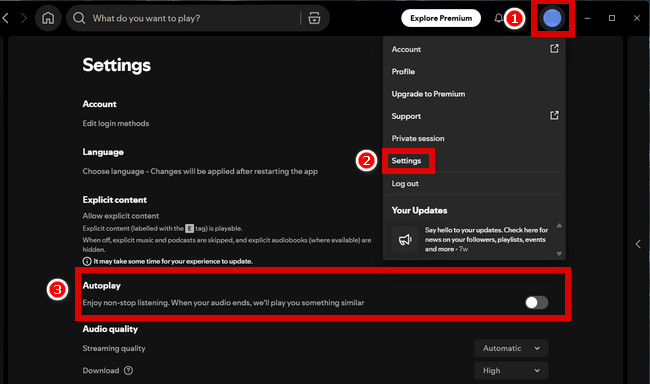
Step 1 Launch the Spotify app on your computer and log in.
Step 2 Click your profile icon in the top-right corner and select "Settings".
Step 3 Turn off the Autoplay.
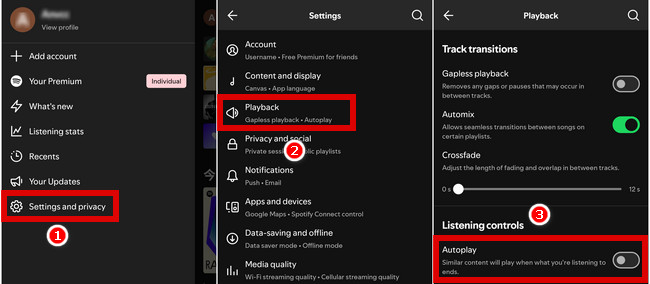
Step 1 Open the Spotify app on your phone and log in.
Step 2 Tap your profile icon in the top-left corner and select "Settings and privacy".
Step 3 Tap "Playback" > Listening controls > "Autoplay"
Select the best Spotify playlist downloader for Android. Easily download Spotify MP3 songs and playlists with the top 8 Spotify APKs and online tools.
"Is there any way to completely stop Spotify Autoplay?"
A practical and reliable solution is to download Spotify music as local files for offline playback. Even if you've already turned off Autoplay in Spotify settings, the app may still continue playing similar tracks in certain situations — such as when a playlist or album ends. This is a common issue many users run into: Autoplay is off, yet music keeps playing anyway.
One simple way to do is using NoteBurner Spotify Music Converter. It lets you download Spotify songs, albums, and playlists as local files with minimal steps. Once downloaded, you can listen offline on your computer, phone, or any other device that supports audio playback, manage your playback order freely, and avoid unwanted tracks being automatically queued by Spotify — making it one of the most effective ways to disable Spotify Autoplay behavior entirely.


Step 1 Launch NoteBurner Spotify Music Converter on your computer.
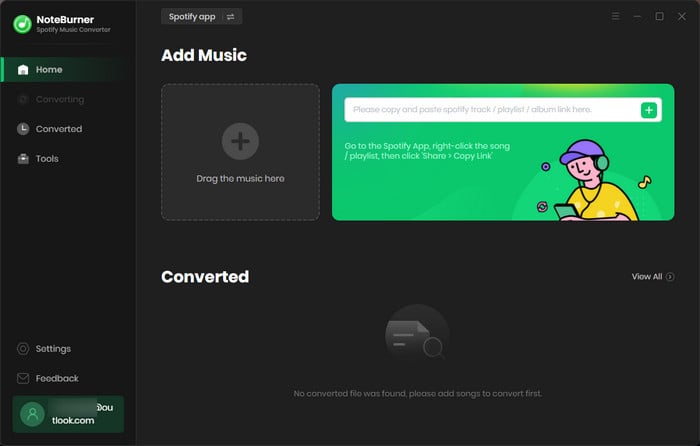
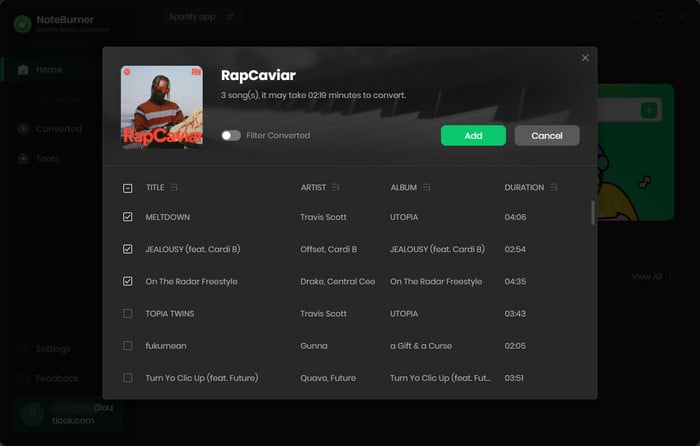
Step 2 Select the playlist you created or like, then choose the songs you want to download and click "Add".
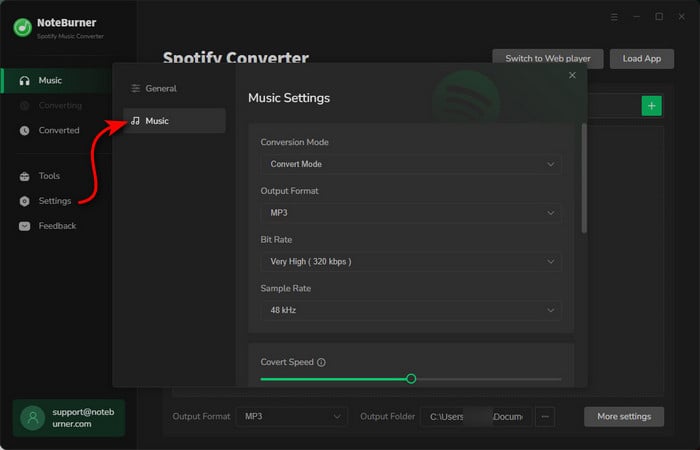
Step 3 Choose your output format (MP3, AAC, FLAC, etc), and set the output folder.
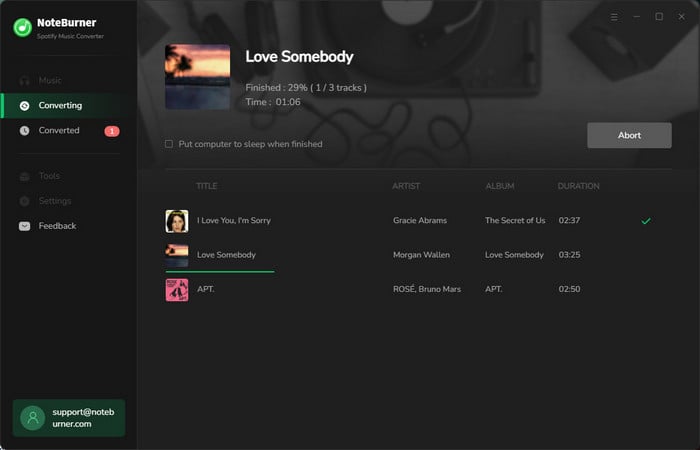
Step 4 Click "Convert", and NoteBurner will begin downloading these songs.
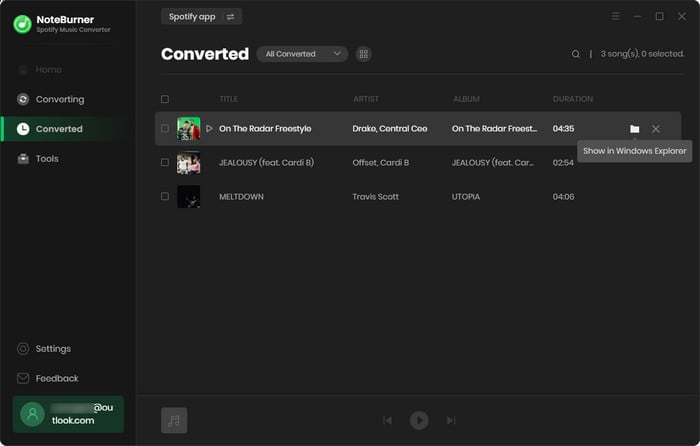
Step 5 After conversion, click "History" to see the songs you downloaded and locate the folder where they were saved.
Disclaimer: For personal/educational use only. 🚫 Do not distribute downloaded music/video for commercial use.
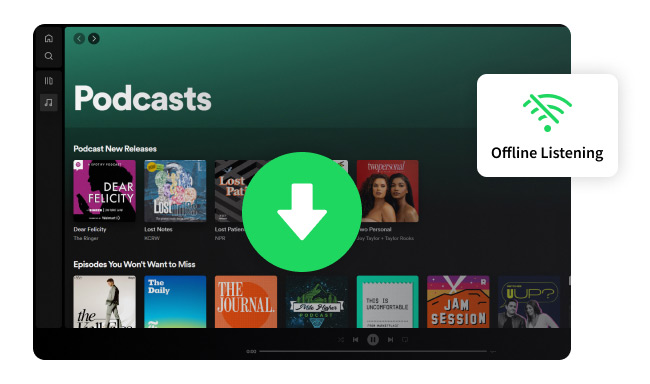
Don't know how to download Spotify podcasts offline? This article reveals two simple methods to download and enjoy Spotify podcasts offline freely.
If you've already turned on Spotify Autoplay but it doesn't start playing recommended songs automatically, you're not alone. This is a fairly common issue. Below are some proven fixes to help get Spotify Autoplay working again.
Restart Spotify or your device: Many minor glitches can be fixed with a simple restart.
Update to the latest version: Make sure Spotify is fully up to date on both desktop and mobile to avoid bugs or compatibility issues.
On desktop: Click your profile icon in the top-right corner > Settings > scroll down and click "Clear cache".
On mobile: Tap your profile icon in the top-left corner > "Settings and privacy" > "Data-saving and offline" > scroll down and tap "Clear cache".
Make sure Repeat is turned off: If Repeat is enabled, Autoplay may not kick in.
Check cross-device sync: In some cases, Autoplay may be enabled on your computer but hasn't synced to your phone yet (rare, but possible).
Turn off battery saver mode: Battery-saving features can limit background activity.
Allow background playback: Ensure Spotify has permission to run in the background so music keeps playing.
Check your network connection: Unstable Wi-Fi or mobile data can interrupt Autoplay.
Yes. Spotify Autoplay works on both free and Premium accounts. However, free users will hear ads while listening, and there's a limit on how many tracks they can skip.
Yes. Spotify Autoplay automatically plays more songs, which can use up more data. If you're on a mobile data plan, it's best to use Spotify Autoplay only when you're connected to Wi-Fi, or turn on Data Saver in the settings (Tap your profile icon in the top-left corner > "Settings and privacy" > "Data-saving and offline" > "Data saver mode").
No. Spotify does not allow Autoplay customization per playlist or album. Spotify Autoplay is a global setting that applies to everything you play.
(1) Spotify Web Player doesn't have Autoplay.
(2) Restrictions on using Spotify across regions:
(3) Regional restrictions: In some countries, due to copyright or local policies, Autoplay may be turned off by default and won't show up in settings.
(4) Account type restrictions: Family or supervised teen accounts may have automatic recommendation features limited in certain regions, which means Autoplay may be unavailable.
Yes. Spotify Autoplay works differently for podcasts. After an episode ends, Spotify may automatically play related episodes instead of music.
By now, you have a solid understanding of Spotify Autoplay. Whether you want to turn it off or try turning it on only to find it doesn't work as expected, this guide has you covered.
More importantly, you now know the most effective way to disable Autoplay on Spotify. With NoteBurner Spotify Music Converter, you can truly take control of your music — skip the ads, play your favorite tracks freely, and enjoy your tunes without relying on Autoplay or an internet connection.
Note: The free trial version of NoteBurner Spotify Music Converter enables you to convert the first 1 minute of each song only. You can purchase a license to unlock the full version.



