
 By Annie Cale
Ever finished a video on YouTube, only to have something completely random start playing next?
That's YouTube autoplay — and while it’s designed to keep you watching, many users find it distracting, hard to control, and even frustrating when it keeps turning itself back on.
In this guide, we’ll walk you through how to turn off Autoplay on YouTube and YouTube Music, along with practical tips to help you stay in control of what plays next.
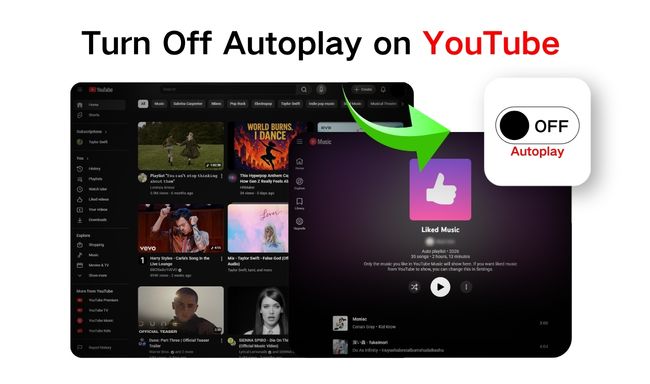
Turning off Autoplay on YouTube is quick and easy on both desktop and mobile — just toggle a switch.
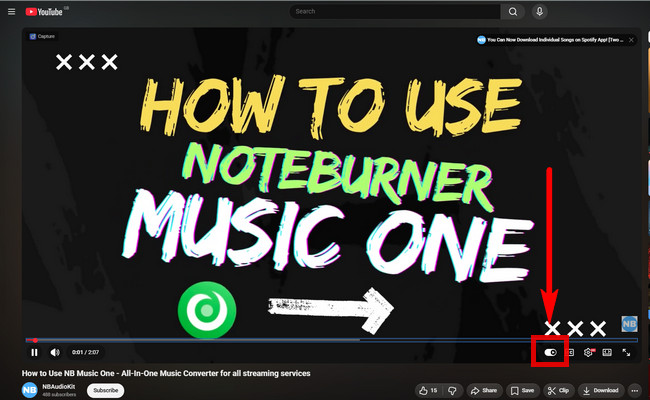
Step 1 Open YouTube in your browser.
Step 2 Play any video that isn't part of a playlist.
Step 3 On the video playback screen, click the Autoplay toggle in the bottom-right corner to turn it off.
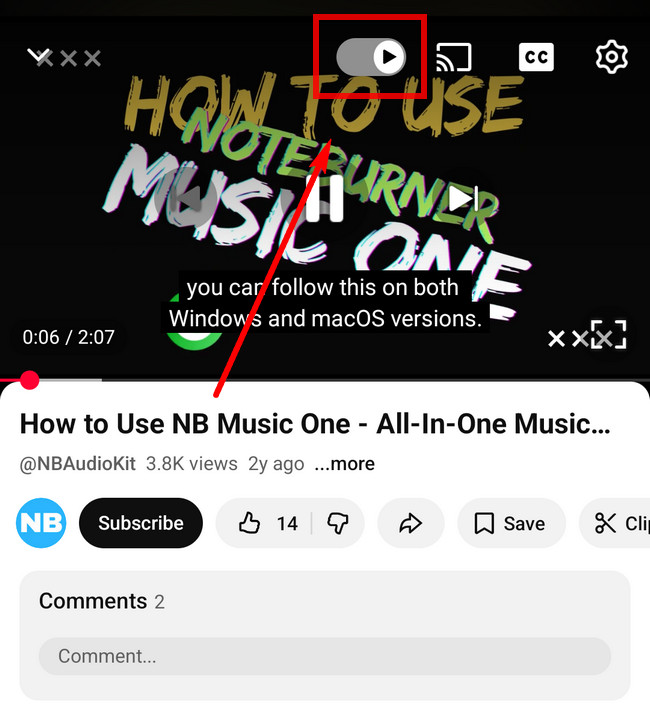
Step 1 Open YouTube on your phone.
Step 2 Play any video that isn't part of a playlist.
Step 3 On the video playback screen, tap the Autoplay toggle in the top-right corner to turn it off.
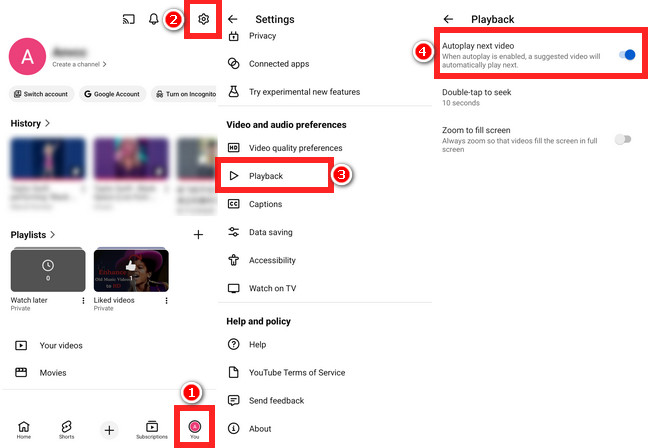
Step 1 Tap the bottom-right corner to open your profile.
Step 2 Tap the gear icon in the top-right to open Settings.
Step 3 Scroll down to "Video and Audio Preferences" and tap "Playback".
Step 4 Toggle "Autoplay next video" off.
Explore the 10+ best YouTube recorders, including apps, online tools, and browser extensions. Capture YouTube videos in high quality on your PC and phone.
Now that you know how to turn off Autoplay on YouTube, you might also want to disable Autoplay on YouTube Music. At first, I had trouble finding this setting too, but it's actually quite easy once you know where to look. Here are the steps:
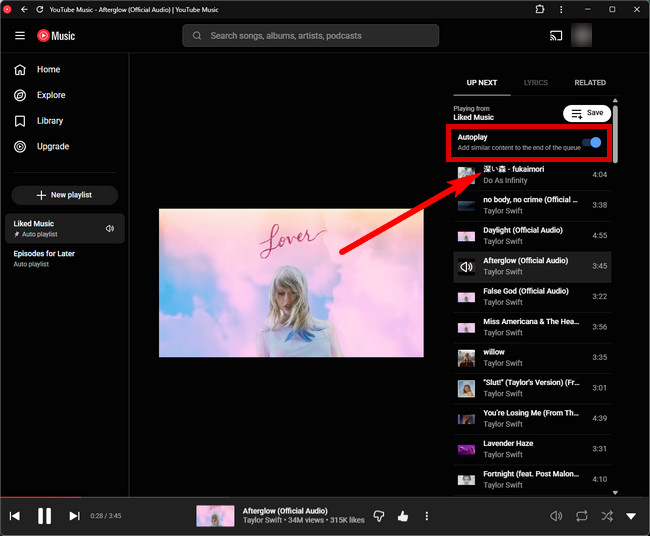
Step 1 Open YouTube Music in your browser.
Step 2 Play a track from your personal playlist or from an artist's album.
Step 3 On the audio playback screen, click the Autoplay toggle in the top-right corner to turn it off.
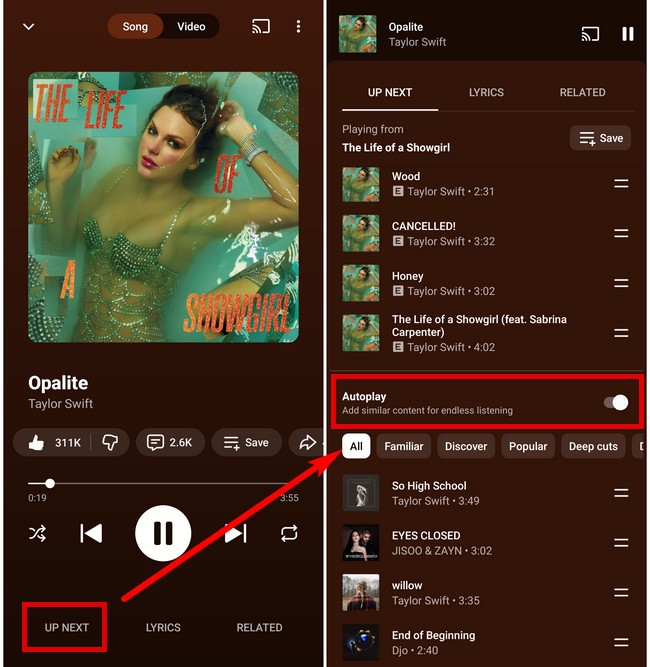
Step 1 Open YouTube Music on your phone.
Step 2 Play a track from your personal playlist or from an artist's album.
Step 3 Tap "Up Next" in the bottom-left corner.
Step 4 Scroll to the bottom and toggle "Autoplay" off.
In this article, we have listed some reasons why YouTube Music suddenly stop working, and the solutions to fix YouTube Music not downloading or not playing.
The Autoplay toggle is, at best, a temporary fix. Many users who listen to music on YouTube or YouTube Music have noticed the same issue: even after turning Autoplay off, it can unexpectedly turn itself back on after an app update, clearing browser cache, or simply switching devices — which can be pretty frustrating. So, if you want a completely interruption-free listening experience — especially for music — some users choose to download their playlists for offline playback.
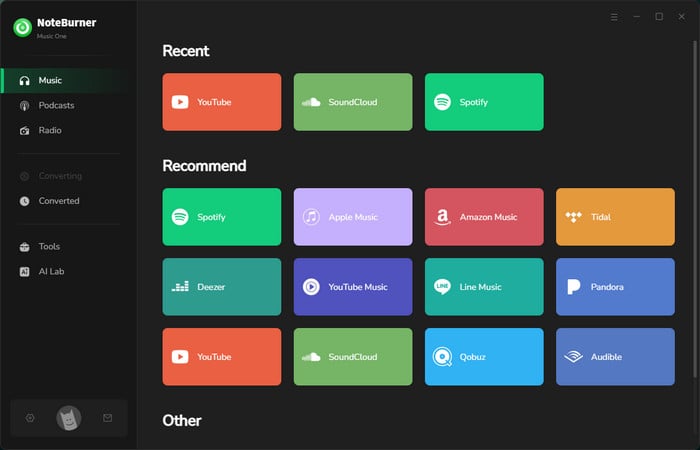
Tools like NoteBurner Music One make this easy. It allows you to download music from YouTube and YouTube Music and save it in common audio formats for offline listening. Plus, it supports multiple streaming platforms, giving you more flexibility in how you enjoy and manage your music.
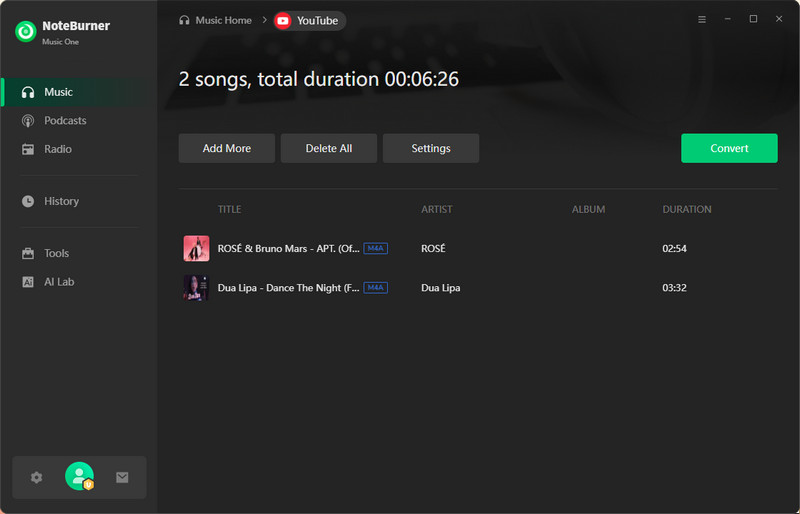
Step 1 Download and launch NoteBurner Music One, then select the YouTube or YouTube Music port.
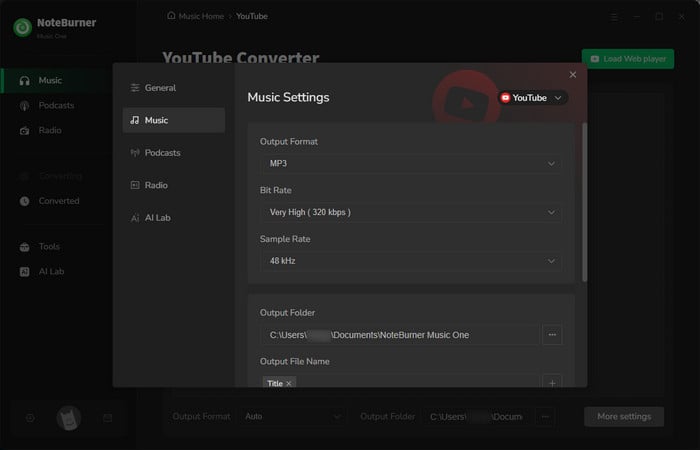
Step 2 Click the gear icon in the lower-left corner to set the output format, bit rate, output folder, and more.
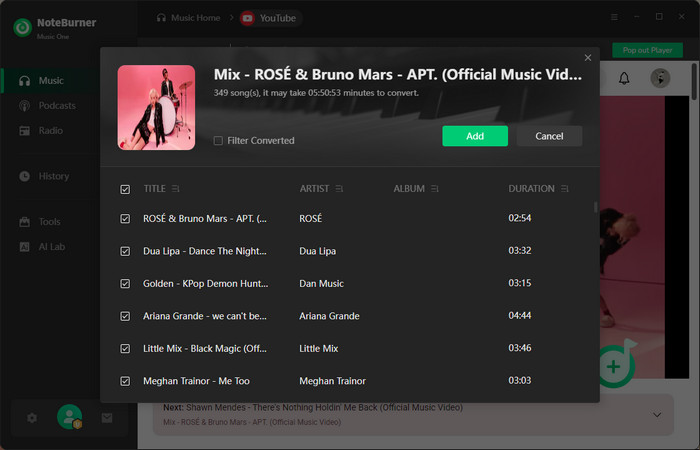
Step 3 Select the playlist you want to download, then tap the floating Add Button in the bottom-right corner. Next, select the songs you want to download and click "Add".
Step 4 Click "Convert" to start the download. Your music will be downloaded shortly.
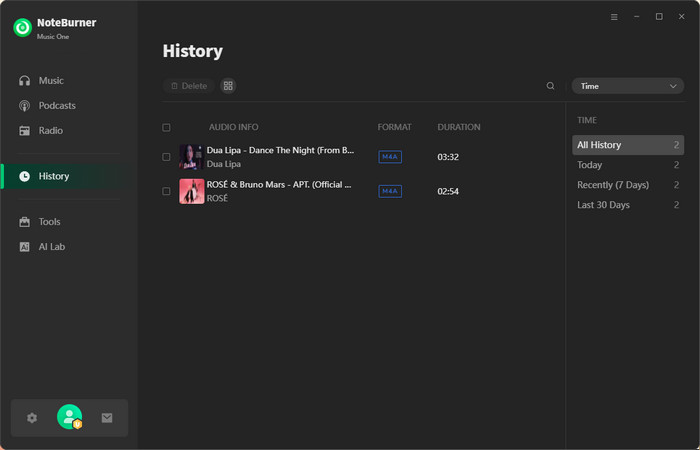
Step 5 Once the music files have finished downloading, you can find and access them in "History".
Disclaimer: For personal/educational use only. 🚫 Do not distribute downloaded music/video for commercial use.
If you can't find the Autoplay button on YouTube or YouTube Music, you're not alone. Many users run into this issue, and the tips below can help you figure out why.
| Page Type | URL Pattern | Autoplay Button | Notes |
| Single Video | https://www.YouTube.com/watch?v=... | ✅ | Autoplay is enabled by default. Button usually at the bottom or top-right of the player. |
| Standard Playlist | https://www.YouTube.com/watch?v=...&list=PL... | ❌ | Autoplay button is hidden. The system enters "playlist mode" with sequential or looped playback. |
| Official Mix | https://www.YouTube.com/watch?v=...&list=RD... | ❌ | Autoplay button hidden. The queue is auto-generated and already plays continuously. |
| Shorts | https://www.YouTube.com/shorts/... | ❌ | Autoplay is not supported. Playback depends on manual swipe. |
| Page Type | URL Pattern | Autoplay Button | Notes |
| Official Album | https://music.YouTube.com/watch?v=...&list=OL... | ✅ | Autoplay is enabled by default. After the album ends, similar artists are recommended. |
| Music Playlist | https://music.YouTube.com/watch?v=...&list=PL... | ✅ / ❌ | Standard Music Playlist:Auto-play is enabled by default. All content is standard music; algorithm recommends similar genres accurately. Mixed Content Playlist:Autoplay button is hidden. Contains unofficial videos, lyric versions, or non-music content. |
| Official Mix / Radio | https://www.YouTube.com/watch?v=...&list=RD... | ❌ | Autoplay is enabled by default. The queue is endless. |
This is a common and frustrating issue for many users. In most cases, it's not something you did wrong - Autoplay can turn back on due to a few system-related reasons:
Solution: Check Autoplay on every device you use and make sure it's turned off everywhere.
Solution: Recheck your settings after updates or cache clearing to make sure Autoplay stays off.
Solution: Make sure you're signed in to the correct account.
No. Turning off Autoplay only stops the next video/song from playing automatically. Recommended content is primarily based on your viewing, listening, and search history.
No. Autoplay is a global switch that applies across the entire YouTube or YouTube Music app. Once you turn it on or off, it affects all videos or tracks you play - not just the one currently on screen.
By now, if you enjoy listening to music on YouTube or YouTube Music, you've learned how to turn off Autoplay and what to do if you can't find the Autoplay button. More importantly, you've discovered a way to permanently stop Autoplay — by using NoteBurner Music One to download all your favorite tracks. With just a few simple steps, you can enjoy your playlists anytime, anywhere, without any unwanted content interfering — giving you full control over your music world.
Note: The free trial version of NoteBurner Music One is limited to convert the first 1 minute of each song. You can buy the full version to unlock the limitation.



