
If you're a true music lover, you've probably wondered about — or even occasionally checked your Spotify stats. From your most-played artists and favorite tracks to unexpected genre trends, Spotify listening data offers a fascinating look at your personal music taste.
In this 2026 guide, you’ll learn exactly how to see Spotify stats step by step, explore 10 popular Spotify stats websites that analyze your listening data, and discover which tool best fits your needs. Most importantly, we'll explain how you can keep your favorite songs accessible using a reliable Spotify music downloader, so your music isn't limited by streaming restrictions.
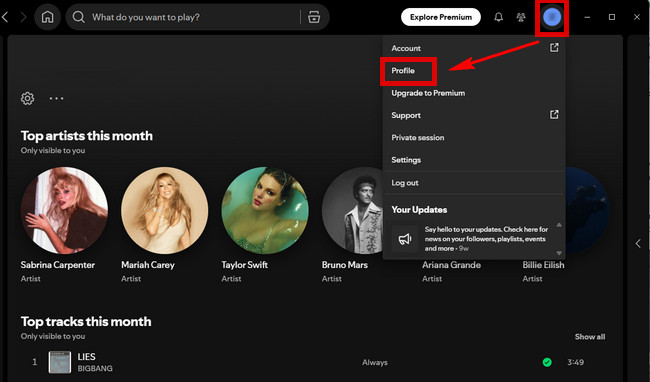
The easiest way to check your Spotify stats is directly through the Spotify app. Below are the step-by-step instructions for checking Spotify stats on both desktop and mobile devices.
Step 1 Launch the Spotify app on your computer and log in.
Step 2 Click your profile icon in the top-right corner and select "Profile".
Note: This also works on the Spotify web player. However, Spotify stats on desktop only show your top artists and tracks for this month.
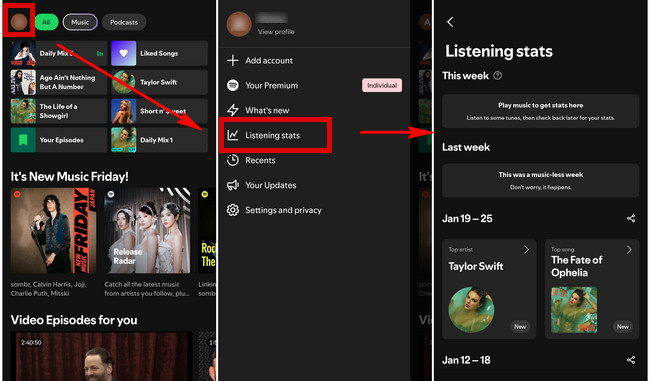
Step 1 Open the Spotify app on your phone and log in.
Step 2 Tap your profile icon in the top-left corner and select "Listening stats".
Note: Spotify stats on mobile typically show your Top artists and Top songs from the past four weeks.
Tip: If you want to see your full-year Spotify stats, you'll usually need to wait for Spotify Wrapped, which is released once a year. Spotify Wrapped typically summarizes your listening habits from January 1 through late October or early November, rather than the entire calendar year.
While Spotify's built-in stats are convenient, they only offer basic insights into your listening habits. If you want a more visual and engaging way to explore your music data, third-party Spotify stats websites can provide deeper and more interesting analysis.
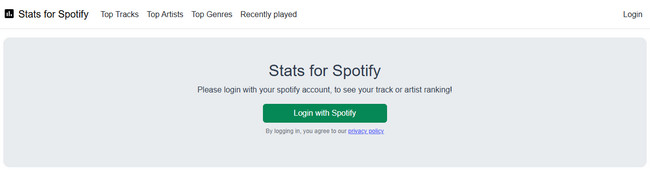
🔎 Overview: Stats for Spotify is one of the most classic and straightforward third-party Spotify stats tools. Its minimalist interface focuses purely on showing your top tracks, artists, and genres across three time ranges: the last 4 weeks, 6 months, and 12 months.
🎯 Best for: Users who value speed and simplicity, and only need basic rankings without flashy visuals or extra features.
⚙️ How-to Guide: Go to Stats for Spotify website > Click "Login with Spotify".
🔎 Overview: Spotify Stats features a clean interface similar to Spotify's official design, but in a lighter and more streamlined format. It pulls basic data from the Spotify API and presents your most-played tracks, artists, and genres in simple rankings organized by different time ranges.
🎯 Best for: Users who want a quick overview of their most-played music without needing in-depth analytics.
⚙️ How-to Guide: Go to Spotify Stats website > Click "Login with Spotify" in the top-right corner.
🔎 Overview: Volt.fm is a beautifully designed personal music hub. More than just an analytics tool, it acts like a "music resume", letting you showcase your listening habits in a stylish, shareable way. You can customize your page to highlight your favorite genres, moods, or energy levels.
🎯 Best for: Users who want a visually appealing personal music page while exploring in-depth listening insights like mood, energy, and genre distribution.
⚙️ How-to Guide: Go to volt.fm website > Click "Sign in with Spotify".
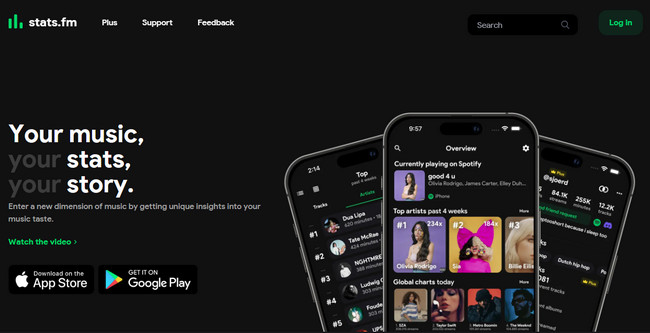
🔎 Overview: Stats.fm is one of the most powerful and comprehensive Spotify stats tools on the market. By importing your raw Spotify data, it can track every second of your listening history since you created your account.
🎯 Best for: Hardcore Spotify fans who want to permanently record every play, duration, and historical detail of their music.
⚙️ How-to Guide: Go to stats.fm website > Click "Log in" in the top-right corner.
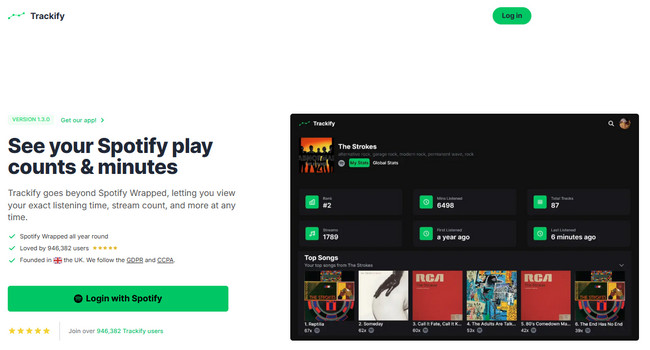
🔎 Overview: Trackify focuses on delivering precise, real-time tracking tools. It shows exactly what users are listening to at the moment and compiles detailed statistical reports.
🎯 Best for: Users who value data accuracy and a variety of charts.
⚙️ How-to Guide: Go to Trackify website > Click "Login with Spotify".
🔎 Overview: Spotify Pie Chart is a wildly popular genre pie chart tool every year on social media. It creates colorful pie charts based on your Spotify listening habits, breaking down your favorite genres in fine detail.
🎯 Best for: Users who want a visually appealing genre breakdown to share on social media.
⚙️ How-to Guide: Go to Spotify Pie Chart website > Click "Login with Spotify".
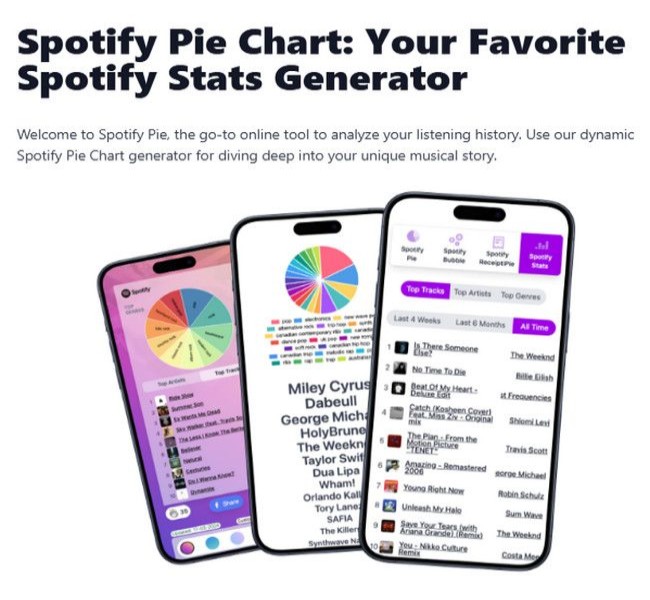
Discover your 2026 music taste, learn how to get your Spotify pie chart, and explore the genres and artists that define your unique listening journey.
🔎 Overview: Receiptify is a highly creative tool that turns your top Spotify tracks from a selected time period into a receipt-style list. It provides a fun, visual way to reflect on your listening habits and easily share them on social media.
🎯 Best for: Users who want a fun, visual way to showcase their listening history in a receipt format.
⚙️ How-to Guide: Go to Receiptify website > Click "Log in with Spotify".
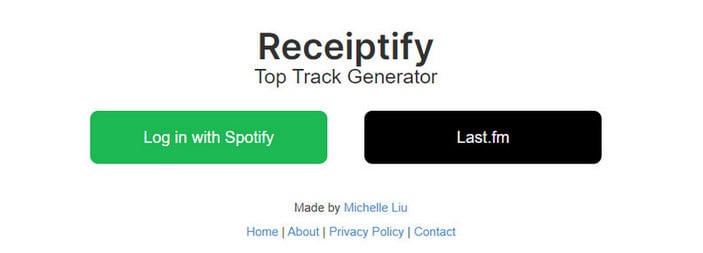
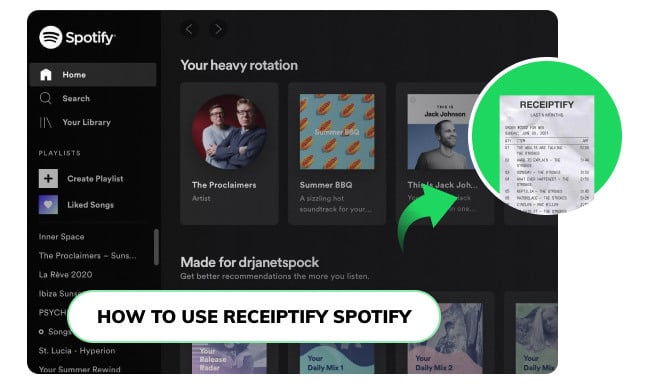
Receiptify is a fun way to display your favorite songs from Spotify. It makes cool Spotify receipts that you can share with friends.
🔎 Overview: Icebergify creates a "music iceberg" based on how often you listen to artists and how popular they are. Well-known artists appear above the surface, while your hidden gems stay below.
🎯 Best for: Users who love showing off their talent for discovering niche artists.
⚙️ How-to Guide: Go to Icebergify website > Click "Create yours", then log in to your Spotify account.
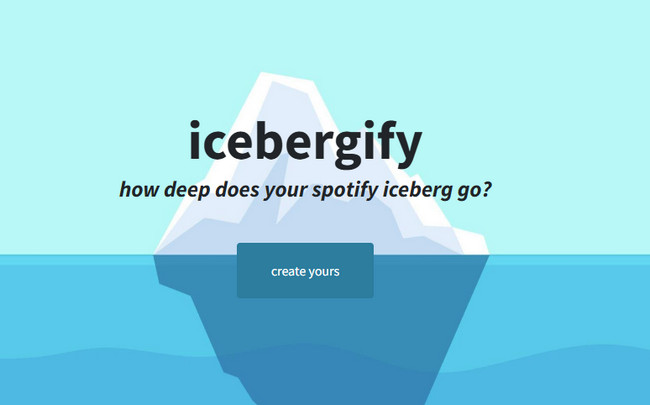

Explore your musical journey with Spotify Iceberg! Learn how to generate your chart, explore artists, and download them for offline listening with ease.
🔎 Overview: Favorite Music Guru is a simple, easy-to-use tool that gives you basic charts and stats for your Spotify listening. It's perfect for users who just want a quick look at their music habits without extra frills.
🎯 Best for: Users who enjoy a nostalgic, minimalist style and just want a straightforward view of their basic Spotify stats.
⚙️ How-to Guide: Go to Favorite Music Guru website > Log in to your Spotify account.

Use Favorite Music Guru to find your top artists, tracks, and discover how to download your Favorite Music Guru playlists for offline listening.
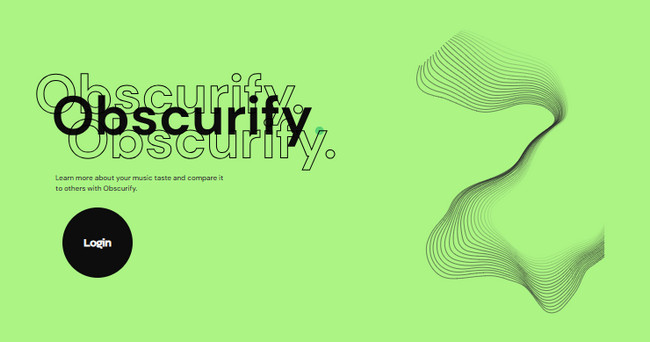
🔎 Overview: Obscurify analyzes how "obscure" your music taste is. It compares your listening habits with the average in your country, giving you a clear picture of whether you stick to popular hits or explore hidden gems.
🎯 Best for: Users who want to see if they follow mainstream trends or have a unique, niche taste in music.
⚙️ How-to Guide: Go to Obscurify website > Log in to your Spotify account.
When Spotify stats reveal your favorite songs, albums, or artists, it’s natural to want to own them forever. This is where a Spotify music downloader like NoteBurner Spotify Music Converter comes in handy. It allows you to download Spotify tracks and convert them into universal audio formats (MP3, AAC, FLAC, etc.) that can be saved to your computer. With your music stored locally, you won’t have to worry about copyright restrictions, and you can enjoy it offline anytime.


Add your Spotify tracks
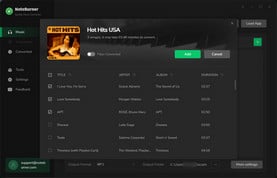
Select from your Liked Songs or a playlist you created, then choose the songs you want to download and click the green "Add" button.
Set the output format
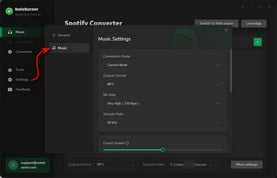
Click the gear icon in the bottom-left corner to set the output format and output folder.
Download your Spotify music
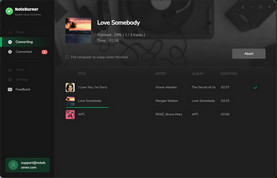
Click the green "Convert" button, and your song will begin downloading. Once the download is complete, click "History" to view the songs you downloaded and locate the folder where they were saved.
Disclaimer: For personal/educational use only. 🚫 Do not distribute downloaded music/video for commercial use.
The third-party websites mentioned above are generally safe to use. However, if you want to revoke access after using them, you can do so at any time through your Spotify account settings. Simply go to Spotify Account > Security and privacy > "Manage apps" > "Remove Access".
The accuracy of the data largely depends on Spotify’s API and how long the website has been tracking your listening activity. In general, tools like stats.fm tend to provide more reliable long-term listening statistics because they continuously track and analyze your listening activity over time.
Different websites use varying data sources, time ranges, and calculation methods. Some platforms track near real-time listening activity, while others rely on the limited historical data available through Spotify’s API. Update frequency also varies — some services refresh data hourly, while others update once per day — which can lead to differences in the results you see across platforms.
No, most Spotify stats websites support both Free and Premium accounts. Whether you're using a free account or a paid subscription, you can view your listening stats as long as you log in and grant permission to your Spotify data.
Common reasons include:
By now, you’ve learned how to see Spotify stats and how different tools can help you focus on specific aspects of your listening habits. Whether you want to check your most-played tracks, favorite artists, or explore how your music taste has changed over time, these insights make it easier to understand your personal listening profile.
If you’d like to keep the songs shown in your stats for long-term listening or play them freely without relying on an internet connection, tools like NoteBurner Spotify Music Converter allow you to convert tracks into common audio formats. This makes it easier to organize your personal music library and enjoy your favorite songs across different devices.
Note: The free trial version of NoteBurner Spotify Music Converter allows you to convert the first 1 minute of each song. You can buy the full version to unlock this limitation and enable all its features.



