
 By Annie Cale
When recording audio that is streaming on your computer, you can use some free audio recording software, like Audacity or OBS Studio, to capture the playing music on your device.
However, to capture recording streaming music (encrypted songs), it's essential to use a dedicated Streaming Music Recorder. NoteBurner Music One stands out as a top recommendation, designed to effortlessly record your favorite tracks from all streaming music platforms including Spotify, Apple Music, Amazon Music, Tidal, and others. It offers three primary recording options: record from a streaming music app (1~10X faster), record from a streaming music web player (10X faster), and 1X real-time recording while playing. You can choose the method that suits you best to save all your favorite music offline.
Moreover, NoteBurner even ensures that the sound quality stays just as good as the original for high-quality streams, including Spotify 320kbps, Apple Music (Hi-Res) Lossless, Amazon Music (Ultra) HD, Tidal HiFi & Master, etc. After recording, you'll get the same great sound without any loss — it's like a perfect copy of what you started with.

Unlike the traditional audio recorder, this NoteBurner tool is super easy to start with. Simply import your streaming audio, choose the desired output format and quality, and then you're ready to record online streaming tracks. Here are the detailed steps:
Step 1 Choose Streaming Music
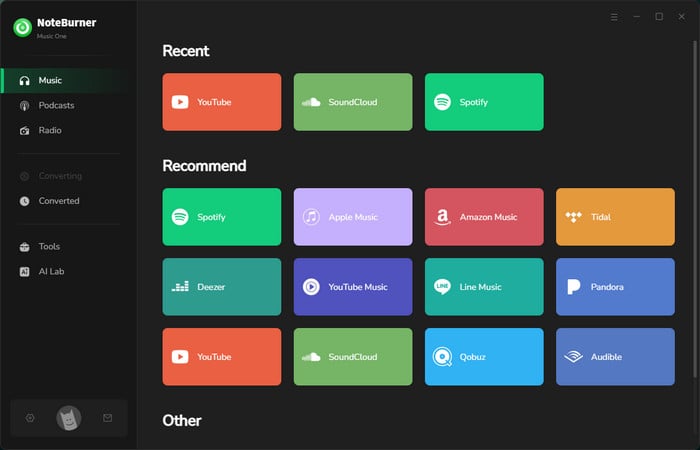
Open NoteBurner Music One, then you will have the main interface as below. The first step is to and pick the streaming service you want to record. For example, let's say "Spotify App" streaming port as an example.
Tips: If you have chosen the music web player as the download source, you will also need to log into your music account in this step. But note that NoteBurner needs to work with a Music account but it will never take any other information from your account other than the songs.
Step 2 Select Output Settings
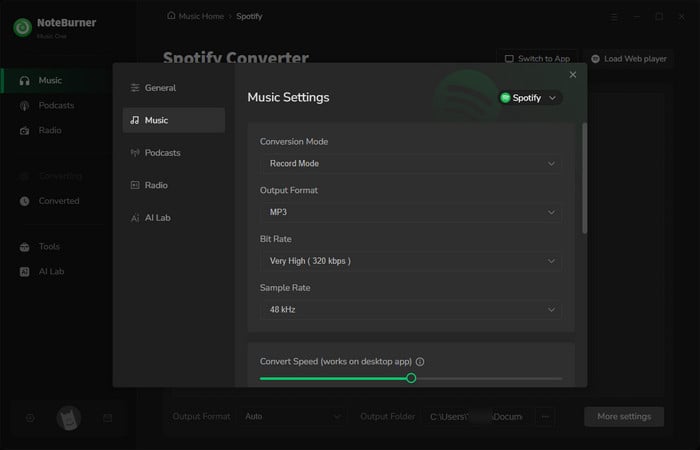
Go to the Settings window on NoteBurner, here you can choose the output format, output quality, where you want to save your recordings, and so on.
Step 3 Add Spotify Streaming Music Playlists
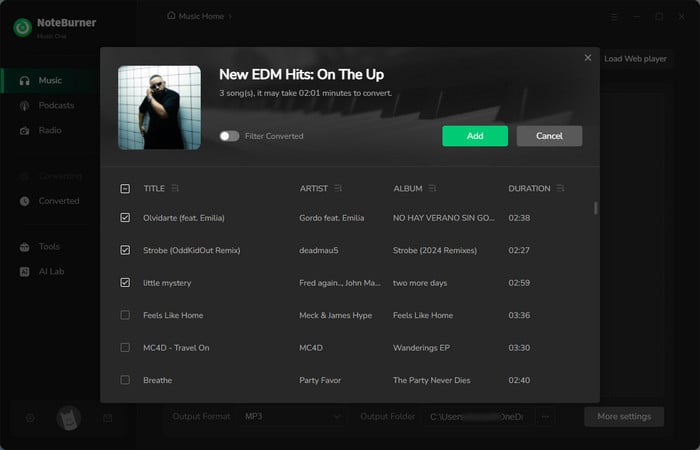
Find the playlist you want to record on Spotify, copy the link, and paste it into NoteBurner. It will load all your Spotify songs automatically.
Step 4 Record Spotify Steaming Music
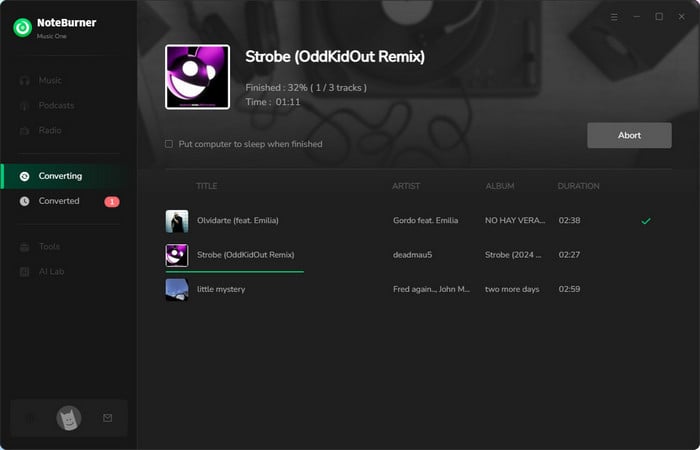
Next, just click the "Convert" button to start recording all your Spotify music songs offline. NoteBurner can do this at 10X faster speed, so it won't take long.
Step 5 Find Downloaded Spotify Streaming Music Songs
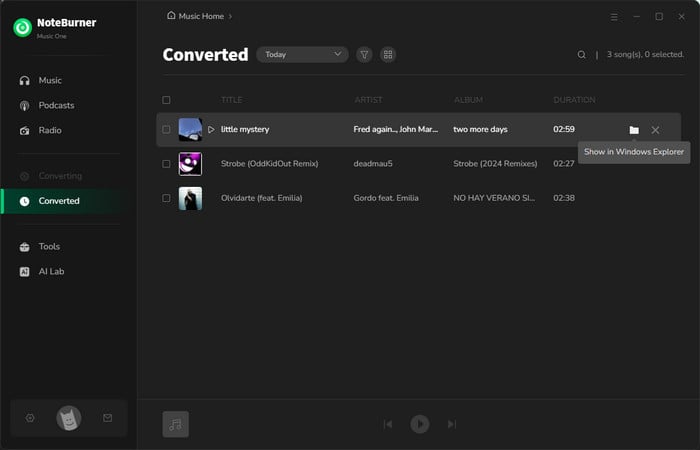
Once done, go to the "History" window on NoteBurner and you should find out all the offline streaming music files. They're saved on your computer, and you can listen to them whenever you want.
Recording streaming music can be an excellent way to save your favorite audios and enjoy them later when you're offline. However, there are still a few confused on this. Here you may get the answers:
Yes, there are online tools like Apowersoft Free Online Audio Recorder, Chrome Audio Capture Extension, and Free Online Screen Recorder available to do so.
But here's the thing: these online streaming audio recording tools can only record songs playing on your computer at normal speed, 1X. Plus, they can only capture songs that aren't protected.
Yes, you can find few free tools to record streaming music. One is Audacity, a popular free software. You can also use Free Sound Recorder or Voice Recorder (for mobile phones) to capture any sounds from your device.
Just remember, these free tools are for recording the audio from your device, not specifically from streaming music services.
The legality of recording streaming audio can vary based on the source of the audio and the usage. For copyright-free sources, just feel free to record your streaming songs for education or enjoyment. While for songs on streaming music platforms, you can only use the recordings for personal use.
In summary, recording streaming music makes it easy to enjoy your favorite tunes offline. NoteBurner Music One is a great choice for good-quality recordings, especially for encrypted songs on various streaming music platforms. NoteBurner is simple to use and works well with recording high-quality streaming music.
If you prefer free options like Audacity, keep in mind they could not record songs from streaming music services, only the open-source instead. Whether you go for a special NoteBurner streaming music recorder or a free one like Audacity, make sure to pick tools that suit you most.
Note: The free trial version of NoteBurner Music One is limited to convert the first 1 minute of each song. You can buy the full version to unlock the limitation.
Explore the top 10+ free and paid streaming audio recorders for Windows, Mac, online, and mobile platforms. Whether it's NoteBurner Music One or Audials Music, explore tools to record and preserve high-quality audio for uninterrupted enjoyment.




