
When you discover a song you truly love on Spotify, the first instinct is usually to add it to a playlist or save it to your Liked Songs. But have you ever wondered how to share liked songs on Spotify with friends, family, or fellow music lovers who share your taste?
In this guide, you'll learn how to share liked songs on Spotify and how to fix Spotify liked songs not showing across devices. Plus, a more flexible way to download your liked songs so you can keep them forever and listen offline. Whether you just want to share a great track with a friend or build a permanent personal music library, this guide has you covered.
When you click the ⊕ icon on a song, Spotify automatically adds it to your Liked Songs. But this action is more than just saving a track — it sends a clear message to Spotify: "This is the type of music I enjoy".
Spotify uses your likes, along with your listening and skipping behavior, to train its recommendation algorithm. This data plays a key role in shaping personalized playlists such as Discover Weekly and Release Radar.
In short, your "Liked Songs" act as a personal music memory bank. They reflect your taste, influence Spotify's recommendations, and ultimately determine what music you'll discover on Spotify in the future.
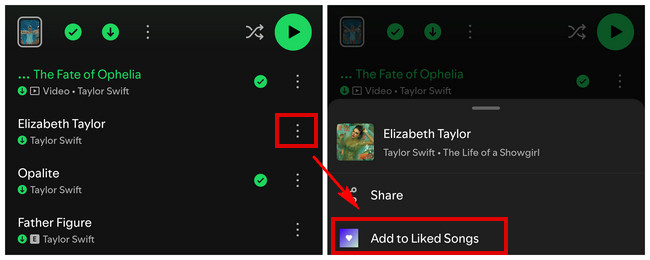
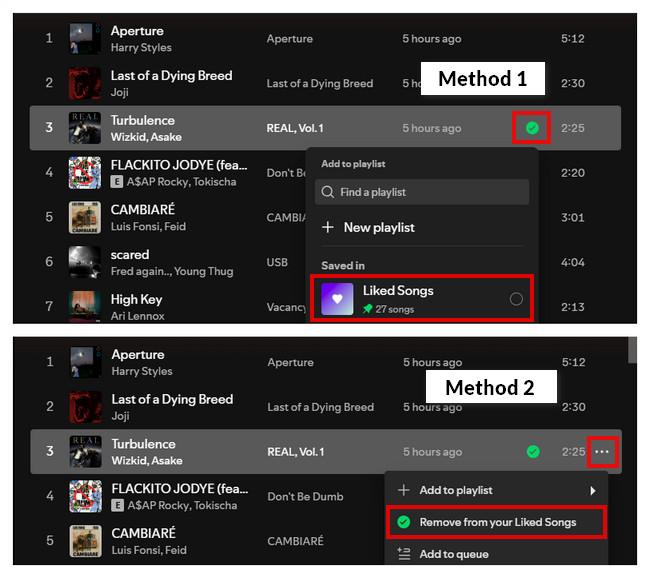
Steps to like a song: Tap the three dots on the right side of the song > "Add to Liked Songs".
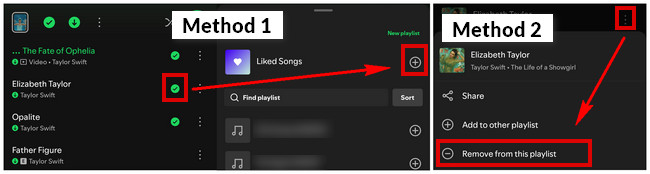
Steps to unlike a song:
Steps to like a song:
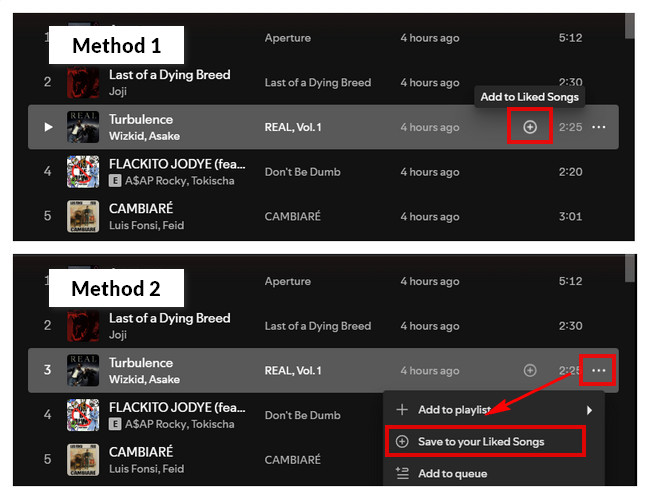
Steps to unlike a song:
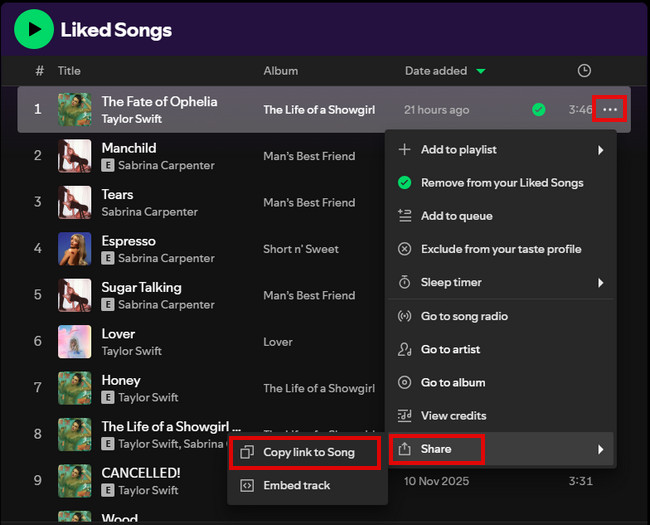
If you want to share your liked songs on Spotify, the process is actually quite simple. Depending on what you're trying to share, there are two common scenarios.
Steps: Click / Tap the three dots on the right side of the song > "Share" > "Copy link to Song". (✅ Works across mobile & desktop)
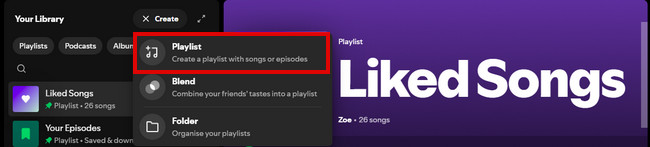
Step 1 Create a playlist, then right-click the playlist > Edit details. And give this playlist a name, you can also add a description.
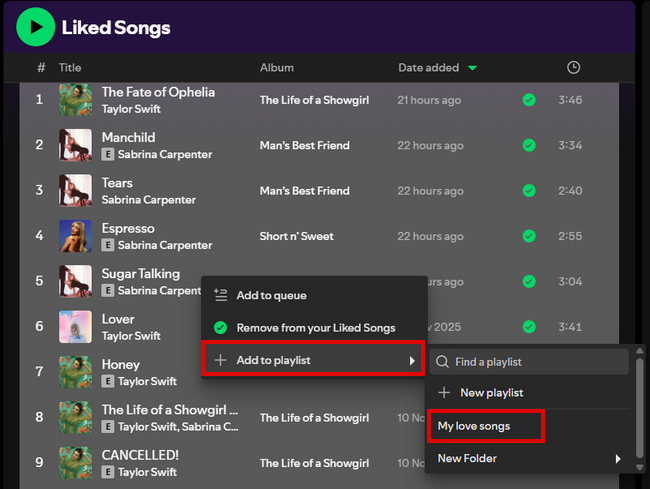
Step 2 Go to "Like Songs" > Press Ctrl + A (Windows) or Cmd + A (Mac) to select all the songs, or hold down the Ctrl key and click on the specific songs with your mouse.
Step 3 Right-click, then add to your new playlist.
Step 4 Tap the three dots below the playlist name > "Share" > "Copy link to playlist".
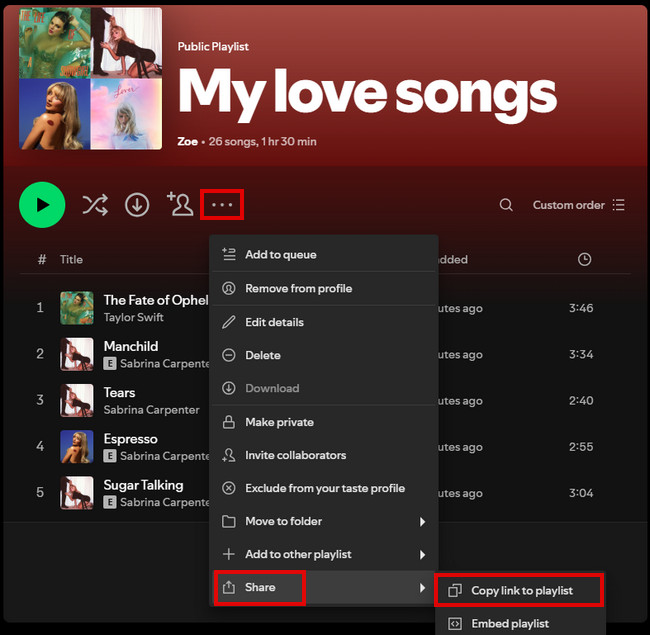
Tips: Once you've created and organized your playlist on the desktop, it will automatically sync to your mobile app. This means you only need to set it up once — no need to recreate your liked songs playlist on your phone.
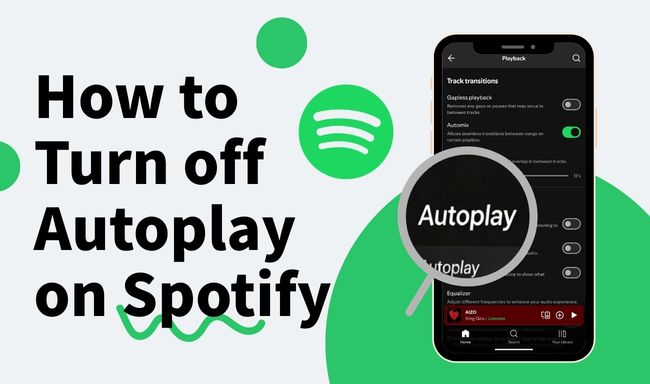
Stop Spotify from playing random songs. Learn how to turn off Autoplay on Spotify and fix common autoplay problems.
Have you ever noticed that when you share songs or playlists on Spotify, what you're actually sharing is just a link. People can't download the music — they can only stream it within Spotify. If you are not a Premium user, ads are unavoidable. Even if you are a Premium subscriber, downloaded tracks are still locked inside the app, meaning you don't truly own or freely share them.
What's more, some of your favorite niche or lesser-known tracks can disappear at any time due to licensing or regional restrictions. Once removed, even tracks you've liked or saved may become unavailable, leaving you with no real control over your music library. These limitations are exactly why many users start looking for ways to download Spotify liked songs.
NoteBurner Spotify Music Converter lets you download your Spotify liked songs as MP3, WAV, FLAC, and other common audio formats. The downloaded music will be stored as real files on your device, enabling offline listening, backup, or sharing with friends. Even if those songs are removed from Spotify in the future.


Add your Spotify tracks
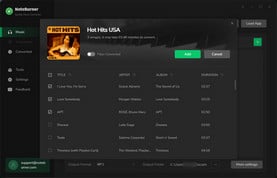
Select from your Liked Songs or a playlist you created, then choose the songs you want to download and click the green "Add" button.
Set the output format
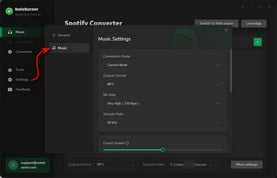
Click the gear icon in the bottom-left corner to set the output format and output folder.
Download your Spotify music
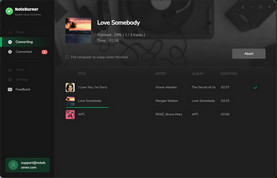
Click the green "Convert" button, and your song will begin downloading. Once the download is complete, click "History" to view the songs you downloaded and locate the folder where they were saved.
Disclaimer: For personal/educational use only. 🚫 Do not distribute downloaded music/video for commercial use.
Learn 4 reliable ways to download Spotify music as WAV in 2026. Keep high audio quality with safe tools, online conversions, and recording solutions.
👉In most cases, your songs aren't actually gone. It's usually a sync or display issue rather than real data loss.
Below, we'll walk you through step-by-step solutions to fix the problem and get your Spotify liked songs showing again.
Sometimes, an accidental double-tap can instantly unlike a song without you noticing.
Try this:
If your internet connection is unstable, Spotify may fail to sync your liked songs across devices.
Try this:
On desktop: Click your profile icon in the top-right corner > "Settings" > scroll down and click "Clear cache".
On mobile: Tap your profile icon in the top-left corner > "Settings and privacy" > "Data-saving and offline" > scroll down and tap "Clear cache".
When basic fixes don't work, try these deeper checks:
If you're using Spotify Family or Spotify Duo, parental controls may hide certain songs.
Try this: Ask the plan manager to review content restrictions.
Due to licensing changes, a song can become unavailable or greyed out, even if you liked it before. If this happens, there's unfortunately no way to restore it.
No, Spotify removed the 10,000-song limit in 2020, so you can now save unlimited songs to your Spotify library.
However, offline playback still comes with restrictions: only Spotify Premium users can download songs on up to 5 devices, with a maximum of 10,000 songs per device.
Yes, Spotify algorithm optimizes your recommendations based on the songs you like. If you remove a song, the algorithm interprets it as a signal that you're not into that style or artist, so similar tracks will appear less often in your recommendations.
Your Liked Songs on Spotify are private by default. Only you can see it. The only way others can see its contents is if you manually create and share a copy as a standard playlist (as described in Part 2.2).
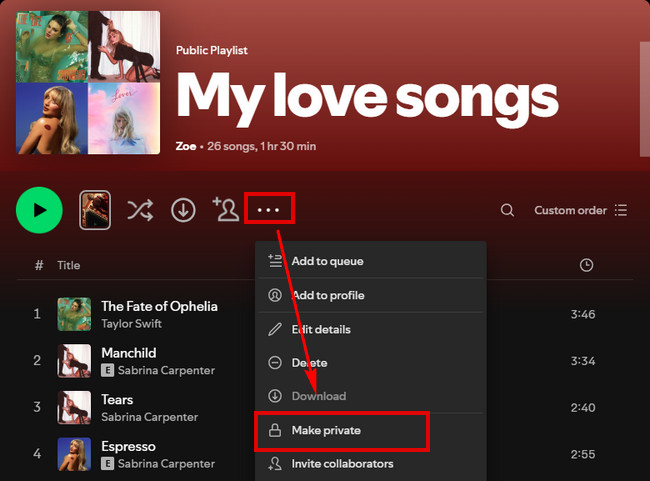
Steps to make your playlist public or private: Tap the three dots below the playlist name > "Make private/public". (✅ Works across mobile & desktop)
Common reasons:
Unfortunately, Spotify doesn't offer a one-click "Remove all" option for liked songs. The easiest workaround is to use the desktop app. In your Liked Songs > press Ctrl + A (Windows) or Cmd + A (Mac) to select all tracks > right-click and choose "Remove from your Liked Songs". This lets you clear your entire liked songs in seconds.
On mobile, however, there's no bulk selection feature. You'll need to remove songs one by one, which can be time-consuming if you have a large library.
1. Spotify applies regional restrictions to accounts. If you've recently changed your location (for example, traveling abroad or using a VPN) but your Spotify account country hasn't been updated, songs in your library may appear greyed out and become unplayable.
Solution: Visit the Spotify website > "Edit personal info" > Change "Country or region" > Click "Save profile", then log out and log back in to Spotify on your device.
2. If you are unable to resolve the issue, please contact Spotify support.
By now, you should have a clear understanding of how to share liked songs on Spotify, whether you’re sharing a single track or an entire collection. More importantly, you’ve learned how to keep your liked songs on Spotify safe and accessible long-term by downloading them with NoteBurner Spotify Music Converter.
No matter which device you're using — or if you switch to a new one — your music stays with you, ready to play, manage, or share anytime you want. This not only gives you more freedom when sharing music, but also turns your collection into something that genuinely belongs to you.
Note: The free trial version of NoteBurner Spotify Music Converter allows you to convert the first 1 minute of each song. You can buy the full version to unlock this limitation and enable all its features.



