By
By
"Recently I wanna burn a few playlists from LINE Music onto a CD to listen to in the car. I know that burning LINE Music songs directly from the LINE Music app is impossible. So I would like to ask if it is possible to burn LINE Music to CD? If it is possible, how do I do it?"
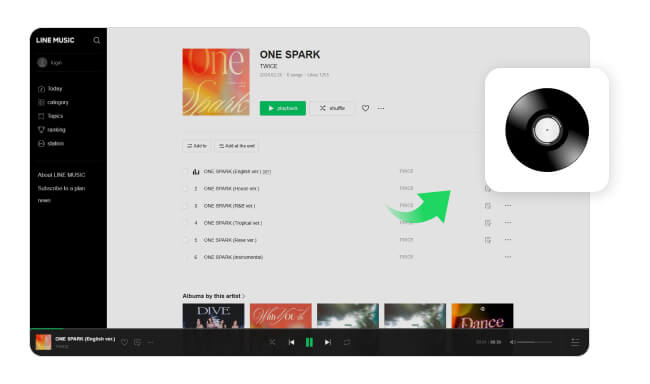
Not directly. LINE Music has no desktop app and no CD-burning feature, and the songs you download in the mobile app are encrypted, so neither the LINE Music app nor a regular CD burner can use them. The workaround is a two-step process: first convert the songs to a standard format such as MP3, then burn the MP3 files to a CD. This guide covers both steps, with NoteBurner's built-in CD burner on Windows, plus Windows Media Player and the Music app on Mac as alternatives.
NoteBurner LINE Music Converter handles both steps: it lets you download LINE Music to MP3, and its Windows version includes a free CD burner.
It records and converts LINE Music songs to MP3, AAC, WAV, AIFF, FLAC, or ALAC format at up to 10X speed with the best audio quality kept after conversion. Here are the key features of the program:


With NoteBurner LINE Music Converter, you can freely download LINE Music songs to the computer and burn LINE Music to CD, then play them on a car stereo or home CD player. First, convert the songs to MP3 with the steps below; then burn them with one of the three methods that follow.
Please make sure you have downloaded the NoteBurner LINE Music Converter to your computer before getting started.
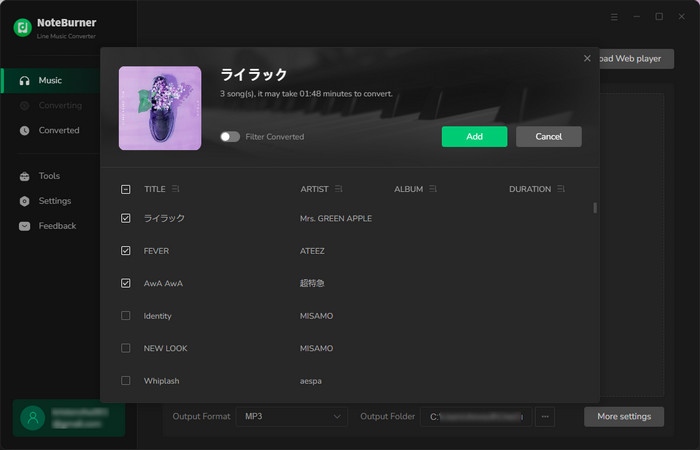
Open the LINE Music Converter and click the "Add" button. A pop-up window will appear where you can select the songs you want to convert.
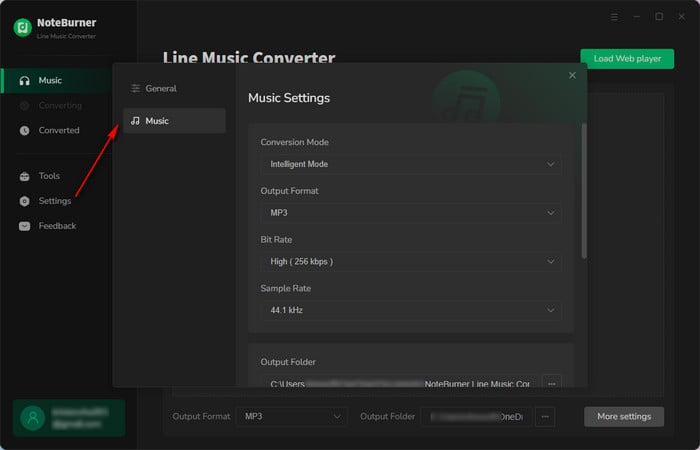
Click the "Settings" button. Here you can choose the output format (MP3, AAC, FLAC, AIFF, WAV, or ALAC). Please select "MP3" as the output format here. You can choose your preferred output quality and output folder here as well.
Click the "Convert" button. NoteBurner will download all the LINE Music songs you ticked to MP3 format and save them in the folder you set in the previous step.
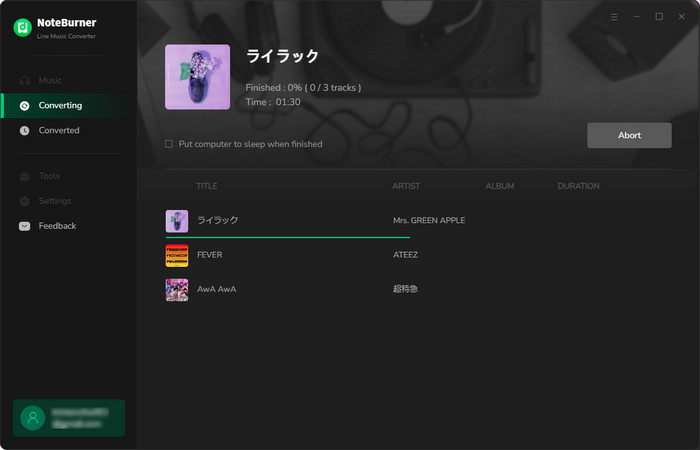
Once converted, you can just tap on the "History" icon (which looks like a clock) on the left side of the app and click the folder icon to open the downloaded files.
Now you have finished converting the LINE Music to MP3. Now move on to one of the methods below to burn them to CD. Before you start, make sure you have a CD/DVD drive that can write discs (many laptops need an external one) and a blank CD-R. Also pick the right disc type for your player: Audio CD works in car stereos and ordinary CD players and holds about 80 minutes of music; MP3 CD holds far more songs but only plays on players that support MP3 discs.
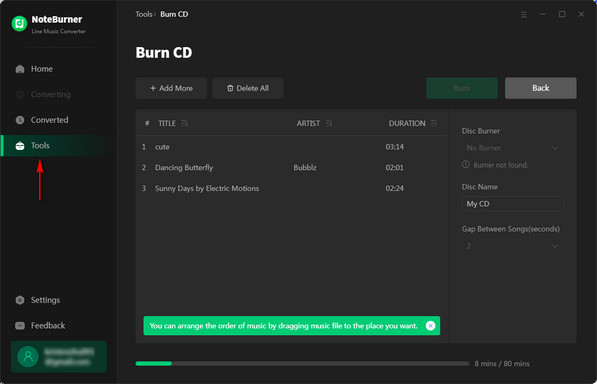
The Windows version of NoteBurner LINE Music Converter includes a free CD burner in its toolbox. Follow these steps:
Step 1 Go to the "Tools" section and click "Burn CD".
Step 2 Drag and drop your converted LINE Music files into it, then insert a blank CD into your PC.
Step 3 Press the "Burn" button to get started.
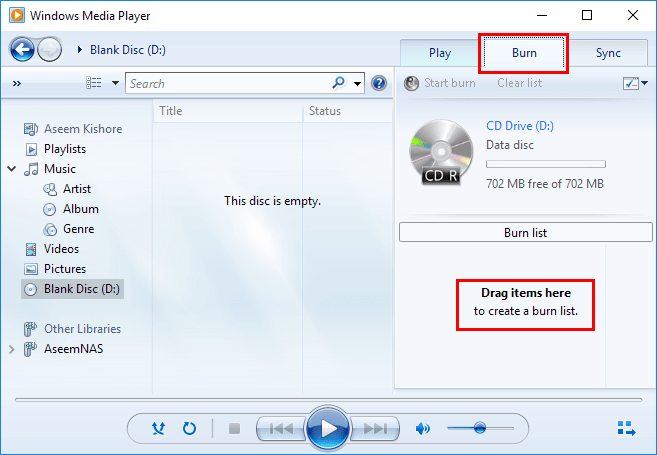
Windows Media Player can also burn audio files to a CD.
Step 1 Insert a blank CD and open Windows Media Player (WMP).
Step 2 Click the "Burn" tab at the top-right, open the Burn options menu and select Audio CD, then drag & drop your LINE Music files from "Library > Music > All Music" into the Burn list.
Step 3 Press the "Start Burn" button.
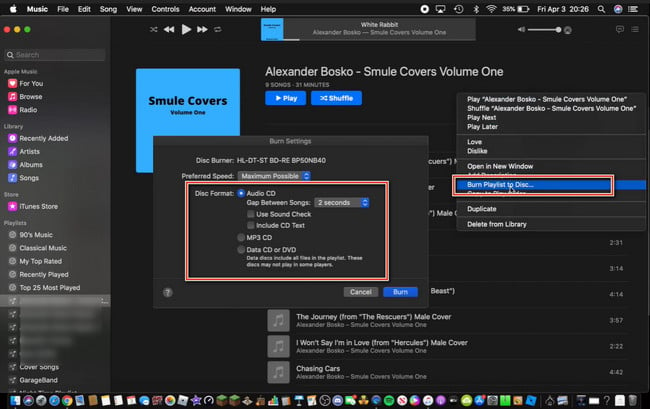
On a Mac, the built-in Music app can burn playlists to CD. Here's how:
Step 1 Open the Music app and click "File > Import...", then select the converted LINE Music files to add them to your library.
Step 2 Create a new playlist with these tracks, insert a blank CD, then right-click the playlist and choose "Burn Playlist to Disc...".
Step 3 Choose Audio CD (for standard CD players) or MP3 CD (only for players that support MP3 discs) in the pop-up window, then click "Burn".
Most CD problems come down to one of these four things:
Whether you're on Windows or Mac, burning LINE Music to CD comes down to the same two steps: convert the songs to MP3 with NoteBurner, then burn them with NoteBurner's CD burner, Windows Media Player, or the Music app. Of the three, NoteBurner's built-in burner is the quickest because everything happens in one program. Convert once, burn as many discs as you like.
Note: The free trial version of NoteBurner LINE Music Converter enables you to convert the first 1 minute of each song. You can buy the full version to unlock the limit.
 What's next? Download NoteBurner LINE Music Converter now!


One-stop music converter for Spotify, Apple Music, Amazon Music, TIDAL, YouTube Music, etc.

Convert Spotify songs, playlists, or podcasts to MP3, AAC, WAV, AIFF, FLAC, and ALAC format.

Convert Amazon Music to MP3, AAC, WAV, AIFF, FLAC, and ALAC, preserving quality up to Ultra HD.

Convert TIDAL songs at up to 10x faster speed with HiRes FLAC quality preserved.

Convert YouTube Music to MP3, AAC, WAV, AIFF, FLAC, and ALAC at up to 10X speed.

Convert Deezer HiFi Music to MP3, AAC, WAV, AIFF, FLAC, and ALAC at 10x faster speed.

Transfer playlist between Spotify, Apple Music, Amazon Music, YouTube Music, and more.