You know how sometimes you really want to sing along to your song but you just can't seem to find the words? Yeah, it's frustrating.
Whether you're a casual listener or a huge music fan, lyrics are an essential part of the listening experience. They help you learn and sing along to your favorite songs and can reveal the deeper meaning and emotions behind the music. If you've been using YouTube Music and can't find the lyrics section, you're not alone.
This guide will walk you through how to see lyrics on YouTube Music and offer solutions if your YouTube Music lyrics are missing. Plus, we'll share a bonus tip on how to save your YouTube Music tracks for offline listening.
If you're wondering how to see lyrics on YouTube Music, the process is simple. Whether you're using an Android, iPhone, Windows, or Mac, YouTube Music makes it easy to view song lyrics while listening.
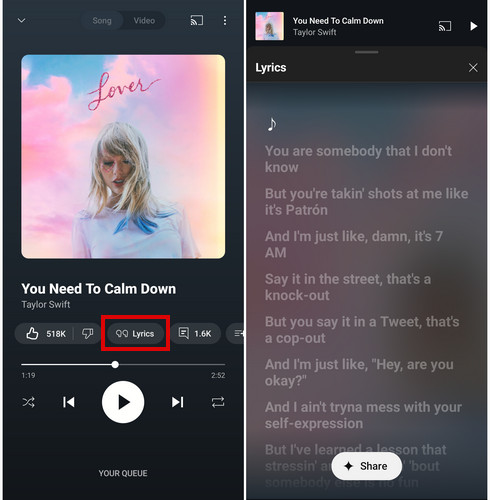
Step 1 Open the YouTube Music app and play a song.
Step 2 Tap the "Now Playing" bar at the bottom of the screen to expand the player.
Step 3 Tap the "Lyrics" tab below the song title.
Notes:
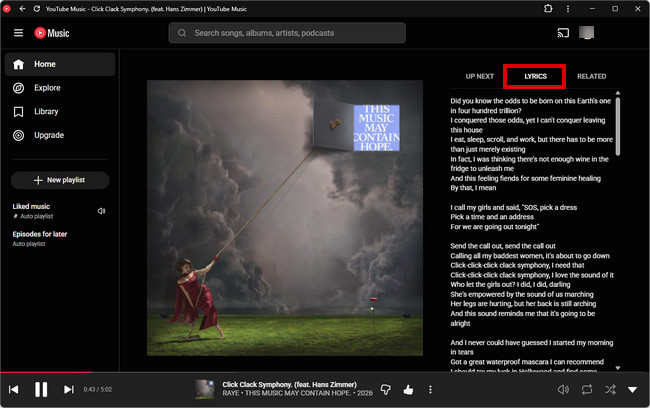
Step 1 Open YouTube Music in your browser and play a song.
Step 2 Click the "Now Playing" bar at the bottom of the screen to expand the player.
Step 3 Click the "Lyrics" tab on the right side of the screen to view the lyrics.
Note: If you're playing a music video instead of the audio version of a song, the "Lyrics" tab may be grayed out and unavailable.
Step 1 After opening the lyrics as described on mobile, tap "Share".
Step 2 Select the lyrics you want to share (up to 5 lines), then tap "Next".
Step 3 Customize the lyrics card with either a solid-color background or an AI-powered background. When you're finished, tap "Share" to save it as an image or post it directly to your social media platform.
Note: Lyric sharing is currently only available in the YouTube Music mobile app. The web player does not support this feature at the moment.
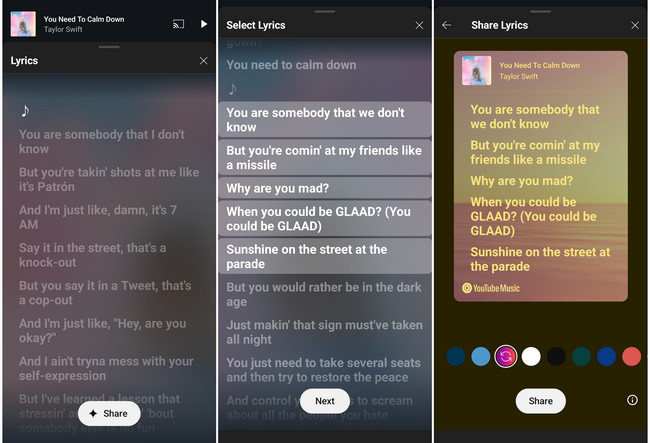
One common question from new users is whether they can enjoy YouTube Music with lyrics for every song. The answer is NO; NOT all songs on YouTube Music include lyrics.
YouTube Music began gradually adding lyrics to its app around 2020 and officially rolled out the live lyrics feature to all users worldwide around 2023. Currently, the platform primarily offers two main lyric formats:
So, which types of songs have lyrics, and which do not?
| ✅️ Songs More Likely to Have Lyrics | ❌️ Songs Less Likely to Have Lyrics |
| Popular and mainstream songs | Obscure and niche songs |
| Tracks by well-known artists | Tracks by independent artists |
| Releases from major record labels | Newly released songs without lyrics |
| Songs included in the lyrics database | Live performances, remixes, and cover versions |
| Tracks with official lyrics licenses | Older songs with incomplete licensing or metadata |
| Songs in widely spoken languages | Songs in lesser-known languages |
| Recently released commercial music | Instrumental and purely orchestral music |
The main reason some songs lack lyrics is due to licensing and copyright restrictions.
This is because the "recording rights" and "songwriting rights" fall under two separate agreements. Therefore, even if YouTube Music has the rights to stream a song, it may not have the legal rights to display the lyrics.
Tip: As of early 2026, YouTube Music has been testing lyric-viewing limits for free users in certain regions. After viewing lyrics for five songs per month, some users may see blurred lyrics along with a prompt to upgrade to YouTube Premium.
Discover the best 10 YouTube Music playlist downloaders of 2026, ensuring seamless offline listening across all devices. Learn More →
If you've followed all the steps but still can't see the lyrics on YouTube Music, or if the lyrics are missing, try the troubleshooting methods below.
Not every song on YouTube Music includes lyrics. Some tracks simply lack lyrics and may need to be uploaded via third-party platforms (such as Musixmatch and LyricFind). If lyrics are unavailable, you may need to wait until they are added by the rights holder or lyrics provider.
If your internet connection is unstable or weak, the lyrics may not load properly. Try switching between Wi-Fi and mobile data, or reconnecting to your network.
Make sure you're using the latest version of YouTube Music. Older versions may contain bugs that prevent lyrics from displaying.
Sometimes, account synchronization issues can cause lyrics not to appear. Signing out and back in may resolve this problem.
Cache file issues can sometimes interfere with certain app features. Clear the YouTube Music cache, then reopen the app and try again.
If none of the above methods work, try uninstalling and reinstalling YouTube Music to fix any potential issues with the app files.
If you're using YouTube Music in a browser, extensions such as ad blockers may interfere with lyric loading. Try disabling them temporarily and refreshing the page.
In this article, we have listed some reasons why YouTube Music may suddenly stop working, and the solutions to fix YouTube Music not downloading or not playing. Learn More →
If you are not a YouTube Music Premium subscriber, you can only stream music online and cannot download or play it offline. Even with a Premium subscription, the downloaded tracks can only be played offline within the YouTube Music app; you cannot save them as local audio files or play them on other devices.
To truly save and play YouTube Music offline, you can use NoteBurner YouTube Music Converter. This program converts songs from YouTube Music into common audio formats such as MP3, FLAC, and WAV, allowing you to listen to YouTube Music anytime, anywhere, even without an internet connection. You can also transfer these songs to any music device. Additionally, the converted files can serve as a personal music backup.


Step-by-Step Guide to Use NoteBurner YouTube Music Converter:
Step 1 Download and open NoteBurner YouTube Music Converter on your computer, then log into your YouTube Music account.
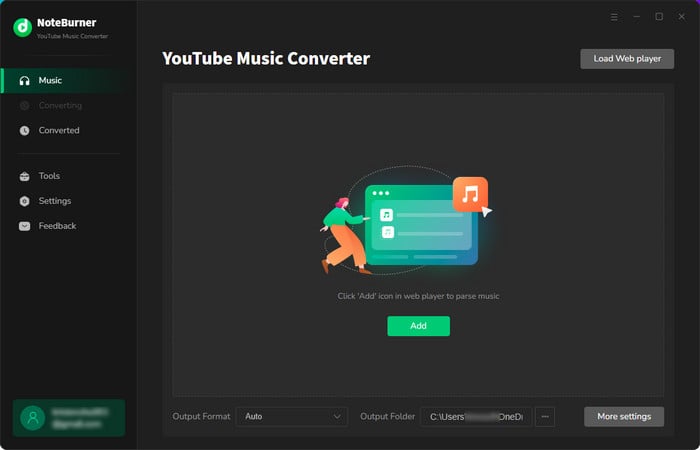
Step 2 Select the song/playlist/album you want to download, then click the floating "+" button in the bottom right corner to choose music, and click "Add".
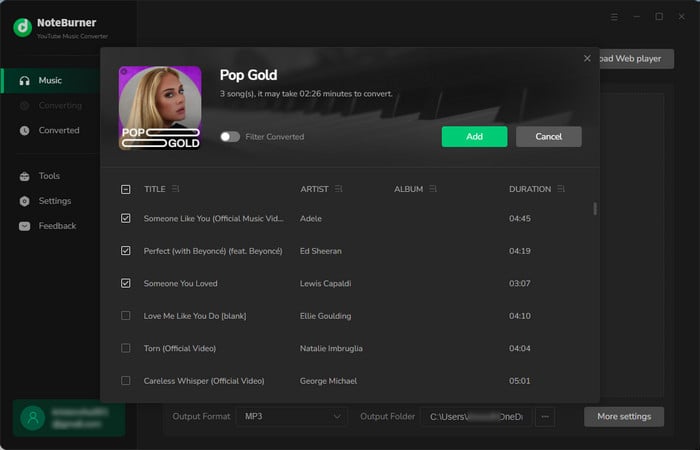
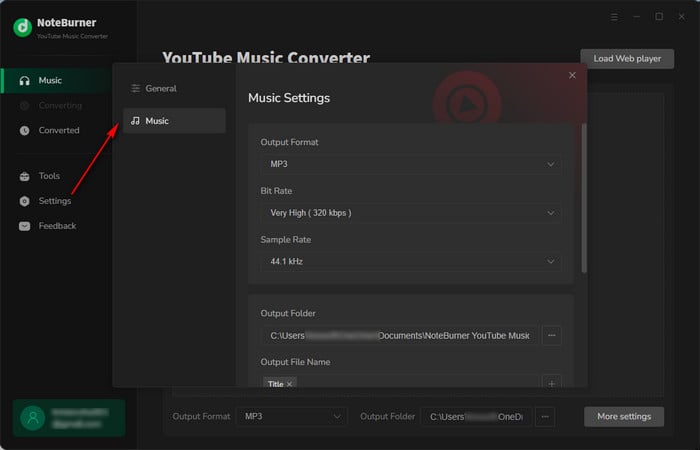
Step 3 In the settings window, set the conversion mode, the format you want to output, and the output folder, etc.
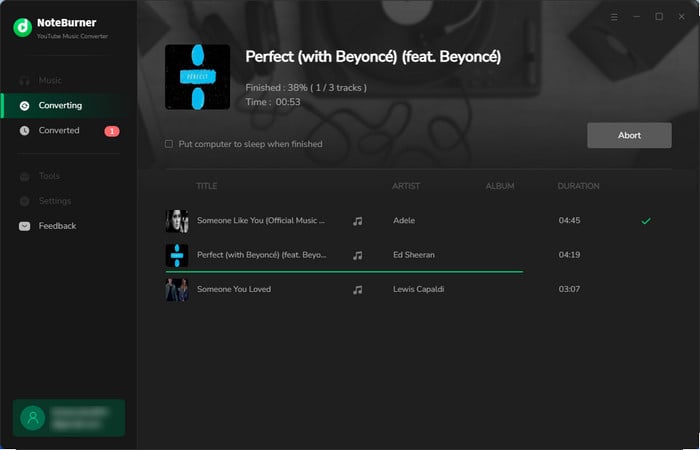
Step 4 Click the "Convert" button, and the song you have selected will be downloaded in a short time.
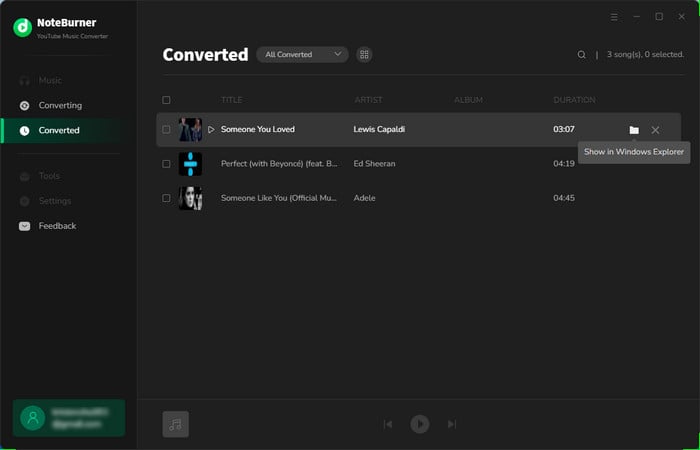
Step 5 After the download is complete, click on "History" in the left column, where you will find the downloaded music.
Disclaimer: For personal/educational use only. 🚫 Do not distribute downloaded music/video for commercial use.
Yes, but with some limitations. You need a YouTube Music Premium subscription, which allows you to download songs, albums, and playlists for offline playback.
Lyrics are usually available offline since they are cached with the song data, but some tracks may still require an internet connection to display the lyrics, especially if the lyrics haven't been loaded before. Therefore, make sure to play the song at least once after downloading to ensure the lyrics are fully cached locally.
No. Currently, YouTube Music does not offer a feature to copy lyrics, whether on the mobile app or the web player. If you need the lyrics, you can:
Not directly. However, many YouTube Music lyrics come from third-party lyric platforms (such as Musixmatch). If a song lacks lyrics, you may be able to contribute them through the source platform.
No. Currently, YouTube Music does not support customizing the lyrics interface. You cannot manually adjust the font size, font color, background transparency, or lyrics scrolling speed.
Yes. YouTube Music offers a lyric translation feature. (If you're playing a song in a foreign language, follow the steps in Part 1 to view the lyrics on your mobile device. A "Translate" button will appear at the bottom of the screen; tap it to view the translated lyrics.)
Note:
If you play YouTube Music via Android Auto or Apple CarPlay, you may notice that lyrics do not show on your car's screen. This is mainly for safety reasons; to reduce distractions while driving, Android Auto and CarPlay only show essential playback information such as the album cover, song title, artist, playback progress bar, and the buttons for skip, pause, and favorites.
By following the steps in this guide, you should know how to see lyrics on YouTube Music and share your favorite lyrics with friends. You'll also gain a detailed understanding of why some songs may not have lyrics, and what to do when YouTube Music lyrics are missing.
If you prefer to enjoy music offline, NoteBurner YouTube Music Converter is a great choice — why not download your favorite music right now and save it as a permanent local file?
Note: The free trial version of NoteBurner YouTube Music Converter allows you to convert the first 1 minute of each song. You can buy the full version to unlock this limitation and enable all its features.
 What's next? Download NoteBurner YouTube Music Converter now!


Free download any video or music from YouTube to MP4, MKV, M4A, WEBM and MP3 format.

One-stop music converter for Spotify, Apple Music, Amazon Music, TIDAL, YouTube Music, etc.

Convert Spotify Songs, Playlists, or Podcasts to MP3, AAC, WAV, AIFF, FLAC, and ALAC format.

Convert Apple Music, iTunes M4P Music, or Audiobook to MP3, AAC, WAV, AIFF, FLAC, and ALAC.

Convert Amazon Music to MP3, AAC, WAV, AIFF, FLAC, and ALAC, preserving quality up to Ultra HD.

Convert TIDAL songs at up to 10x faster speed with HiRes FLAC quality preserved.

Convert Deezer HiFi Music to MP3, AAC, WAV, AIFF, FLAC, and ALAC at 10x faster speed.

Transfer playlist between Spotify, Apple Music, Amazon Music, YouTube Music, and more.