
Burning a CD is still the simplest way to play your music in an older car stereo, keep a copy that does not depend on a subscription, or hand an album to someone who does not stream. If your library lives in Amazon Music, though, the usual approach of dragging songs into a burning app does not work.

Yes, but not directly, and what you have to do first depends on where the songs came from.
Songs you bought from Amazon download as ordinary MP3 files. You can burn them to a CD right away with any burning app, and nothing else is needed.
Songs from Amazon Music Unlimited or Prime Music cannot be burned directly. Streaming tracks are downloaded in a protected format that only the Amazon Music app can play, so burning software will not read them. To burn Amazon songs onto a CD, you first convert them into a plain audio format such as MP3 or WAV, then burn those files.
That is what the rest of this guide covers: how to convert Amazon Music to MP3 or WAV, and then three ways to burn the results to CD on Windows and Mac.
Related Article: Burn Spotify Playlists to CD on Windows/Mac | Burn Apple Music to CD
Before you burn anything, pick the disc type. This one choice decides whether the CD plays in your car, and it is the reason most burned discs get rejected.
| Comparison | Audio CD | Data CD (MP3 CD) |
|---|---|---|
| How much fits | About 80 minutes, roughly 18–20 songs | About 700 MB, often 150+ songs |
| Plays in | Any CD player, including old car stereos and home decks | Only players that list MP3 support |
| What is written | Standard CD audio tracks, 16-bit / 44.1 kHz | Your MP3 files, copied as files |
| Song titles on screen | Only if the burner writes CD Text | Usually yes, from the ID3 tags |
| Best for | Car stereos, older hi-fi systems, gifts | Newer car head units, long road trips |
Short version: if the disc is for a car or you are not sure what will play it, burn an Audio CD. If you want as many songs as possible on one disc and you know the player handles MP3, burn a Data CD.
One detail worth knowing: when you burn an Audio CD, the burning software converts your files back into standard CD audio. So a 320 kbps MP3 and a WAV file both end up as CD audio tracks, but the MP3 has already lost some data that cannot be restored. If audio quality matters to you, convert to WAV or FLAC in the next step rather than MP3.
A short checklist that saves a wasted disc:
1. A writable drive. Most laptops no longer include one. If yours does not, an external USB CD/DVD burner costs very little and works on both Windows and Mac.
2. Blank CD-R discs. CD-R is the safer choice for music. Many car stereos and older CD players cannot read CD-RW at all. A standard 700 MB / 80-minute disc is what you want.
3. Roughly 700 MB of free space on your drive for the converted files.
4. Decide your format now. WAV or FLAC if you are burning an Audio CD, MP3 if you are burning a Data CD. You will choose this in Part 1.
One habit worth keeping: burn at a slower speed rather than the maximum your drive offers. It takes a few more minutes and produces fewer discs that skip.
To get Amazon Music into a format a CD burner can read, you need a converter. NoteBurner Amazon Music Converter downloads songs, albums, playlists, and podcasts from Amazon Music Unlimited (including HD and Ultra HD) and Prime Music, and saves them as MP3, AAC, WAV, FLAC, AIFF, ALAC, EAC3, or AC4 files that keep their ID3 tags. It runs on both Windows and Mac, and it includes a CD burning tool, which Part 2 uses.

Download the version for your computer, install it, and open it. You will be asked to choose a source. The "Amazon Music App" source keeps the highest available quality; the "Web Player" source converts faster. For a CD, the Web Player source is usually the better choice: a CD stores audio at 16-bit / 44.1 kHz, so the extra quality the app source preserves is discarded when the disc is written. On a Mac the app source also converts in real time, which means waiting the full length of every track.
If you also want to keep the converted files as a digital backup, choose the Amazon Music App source instead, so the files hold the highest quality your plan provides.
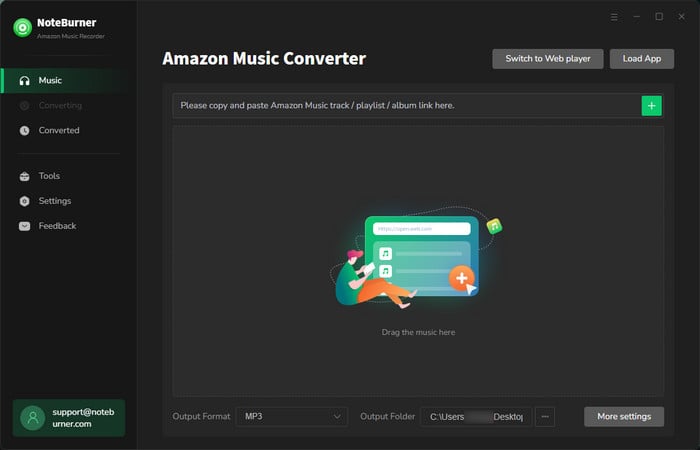
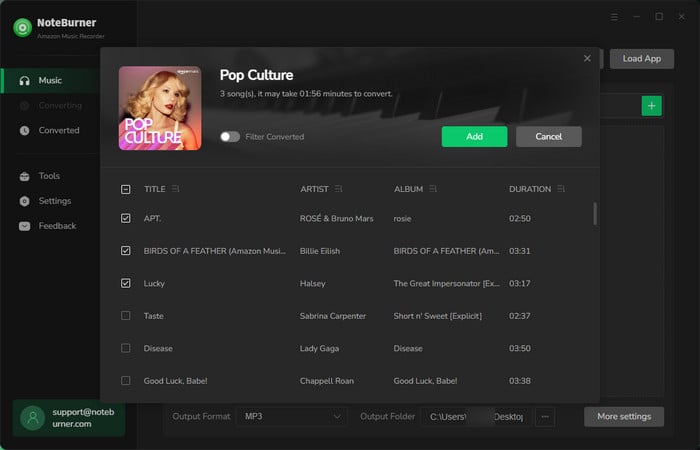
Drag a playlist, album, or artist from the Amazon Music app into NoteBurner, or paste a playlist link. Tick the songs you want and click "Add".
Keep an eye on the total running time. An Audio CD holds about 80 minutes, so around 18 to 20 songs.
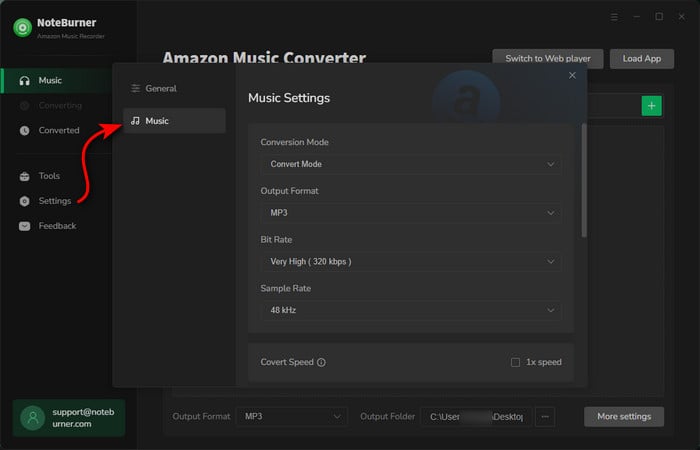
Click the settings button and pick the output format:
Set the output folder to somewhere easy to find, such as a new folder on your desktop.
Click "Convert". When it finishes, click "History" and then the folder icon to open the converted files.
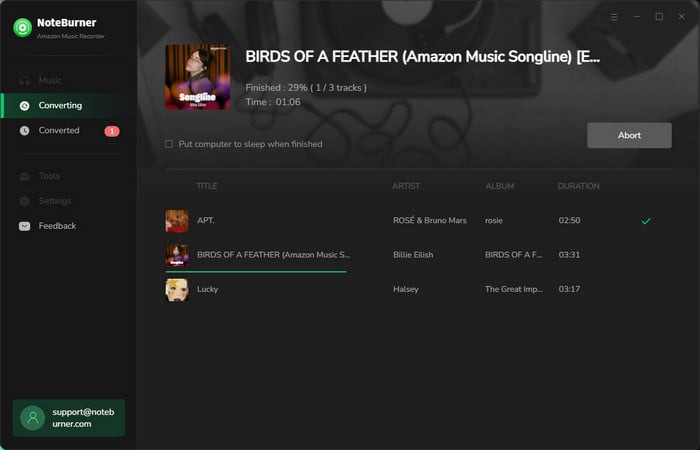
Now that the songs are ordinary audio files, any burning app will take them. Here are three ways: one inside NoteBurner, and two using software already on your computer.
Whichever you use, arrange the songs in the order you want before you start. Burners follow the order of your burn list or playlist, not the file names.
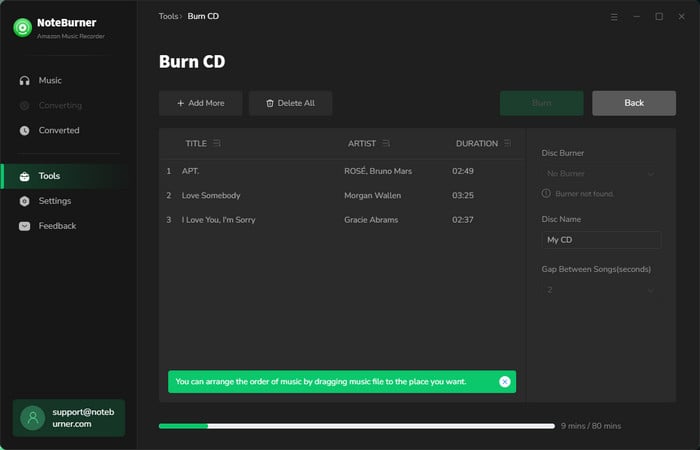
If you converted the songs with NoteBurner, you do not need a second app. The Burn CD tool is included and free to use with audio files already on your computer.
Step 1: Insert a blank CD-R into your drive.
Step 2: In NoteBurner, open "Tools > Burn CD".
Step 3: Click "Add" and select your converted songs. You can also add any other music files already on your computer. Drag them into the order you want; the burn list order becomes the track order on the disc.
Step 4: Choose the disc type. Pick Audio CD for car stereos and older players, or MP3 CD to fit more songs.
Step 5: Set the burn speed lower than the maximum, then click "Burn".
When the disc ejects, it is ready to play.
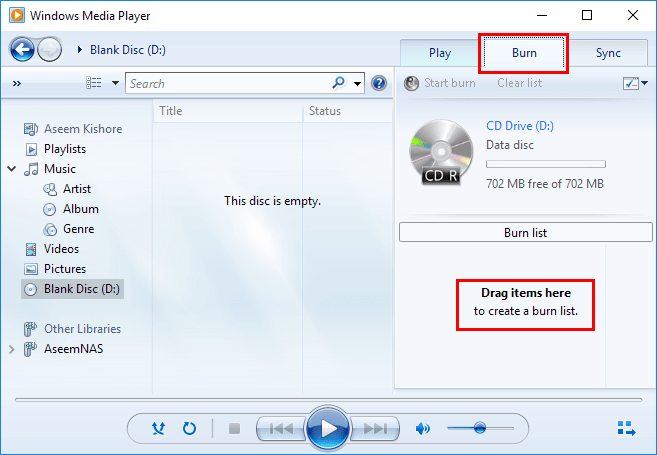
Windows includes a free CD burner at no cost. On Windows 11 it is slightly hidden: the new Media Player app does not burn discs, so you need the older version.
Step 1: Insert a blank CD-R.
Step 2: Press Start and type "Windows Media Player Legacy", then open it. On Windows 10, search for "Windows Media Player" instead.
Step 3: Click the "Burn" tab in the right pane.
Step 4: Click the small menu icon above the burn list and choose "Audio CD" or "Data CD".
Step 5: Drag your converted Amazon songs into the burn list, then click "Start burn".
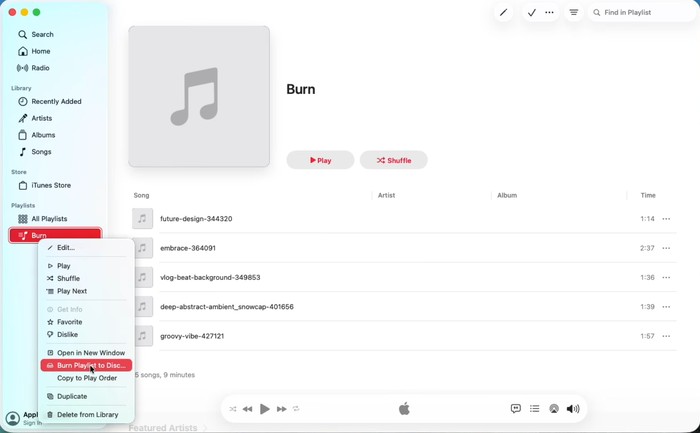
On macOS, the Music app handles CD burning. iTunes has not been part of macOS since Catalina, so the steps below use Music.
Step 1: Open the Music app and choose "File > Add to Library", then select your converted songs.
Step 2: Go to "File > New > Playlist", name it, and drag the songs in. The playlist order becomes the track order on the disc.
Step 3: Insert a blank CD-R.
Step 4: Right-click the playlist and choose "Burn Playlist to Disc".
Step 5: In the window that appears, choose Audio CD or MP3 CD, lower the burn speed, then click "Burn".
The burning itself does not cost anything. Every option below writes a proper Audio CD, and a few are already installed on your computer.
| CD burner | Platform | Audio CD | Cost |
|---|---|---|---|
| NoteBurner, built-in Burn CD tool | Windows, Mac | Yes | Free for audio files already on your computer. Converting Amazon Music tracks needs the full version |
| Windows Media Player Legacy | Windows 10, 11 | Yes | Free, included with Windows. On Windows 11, search for "Windows Media Player Legacy" |
| Apple Music app | macOS | Yes | Free, included with macOS |
| BurnAware Free | Windows | Yes | Free |
What actually costs money is the step before burning: turning protected Amazon Music tracks into files a burner can read. There is no free way to do that reliably, which is why a converter is the paid part of this guide rather than the disc burning.
Yes. Purchased tracks download as ordinary MP3 files with no protection, so you can drag them into any burning app. Only Amazon Music Unlimited and Prime Music tracks need converting first.
The most common reason is that the disc was burned as a Data CD rather than an Audio CD. Older car players only read standard CD audio tracks. Burning the same songs as an Audio CD usually fixes it, and CD-R works better than CD-RW in car stereos.
An Audio CD holds about 80 minutes of music, roughly 18 to 20 songs. A Data CD holds about 700 MB of MP3 files, often more than 150 songs, but it only plays on devices that support MP3.
Use an external USB CD burner. They are inexpensive, need no setup beyond plugging them in, and work the same way on Windows and Mac.
Yes. Once the songs are written to the disc, they are ordinary audio tracks and no longer connected to your account. The CD keeps playing whether or not you stay subscribed.
Not for the burning itself. NoteBurner's Burn CD tool works with audio files already on your computer at no cost, and Windows Media Player and Apple Music are free as well. The full version is what converts Amazon Music Unlimited or Prime tracks into a burnable format — the trial converts only the first 1 minute of each song.
For an Audio CD, choose WAV or FLAC. The burner converts your files back into CD audio anyway, so starting from MP3 means the audio has already been compressed once before that happens. For a Data CD, choose MP3 at 320 kbps, since the point of a Data CD is fitting more songs on one disc.
Disclaimer: All tools are for personal/educational use only. 🚫 To avoid legal issues, do not distribute burned music discs for commercial use.
Purchase MP3s from Amazon Music or use NoteBurner Amazon Music Converter to convert Amazon songs to MP3 so that you can transfer Amazon playlist to MP3 player easily.
Burning Amazon Music to CD comes down to two steps. Convert the songs into a plain format, then burn them as an Audio CD if the disc is for a car or an older player, or as a Data CD if you want more songs on one disc.
NoteBurner Amazon Music Converter handles both steps: it saves Amazon Music Unlimited and Prime tracks as MP3, WAV, FLAC, and other formats with ID3 tags intact, and its CD burner writes the disc without a second app. The free trial converts the first 1 minute of each song, so you can see how it works before buying.
A last note on the discs themselves: keep them out of direct sunlight and store them in cases. A well-burned CD-R outlasts most of the devices that play it.



