
 By Annie Cale
"Is there any software that can both download and edit music?"
If you've been searching for a tool that can both record and edit music, you've probably noticed that most programs only do one or the other. Some are designed purely for downloading or recording audio, while others focus only on editing. Finding a single app that handles both tasks well is surprisingly rare.
In this article, we'll introduce 5 music recording and editing software tools, making them great all-in-one solutions for casual music lovers and beginners. Whether you want to create podcasts, edit YouTube audio, record streaming music, or work on personal audio projects, there's an option here for you.
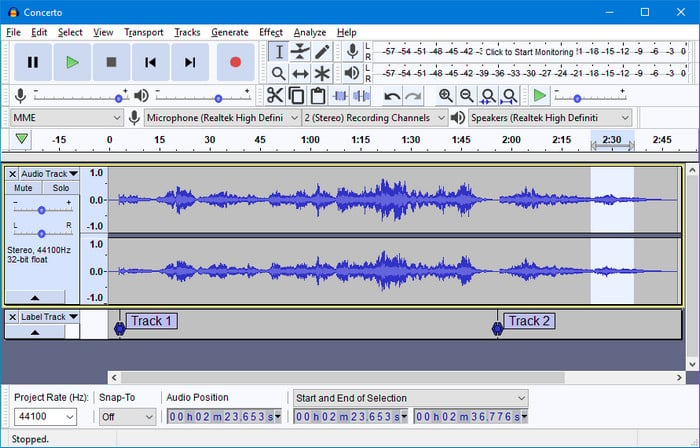
As an open-source audio recording and editing program, Audacity is already familiar to many music lovers. It works on Windows, Mac, and Linux. Audacity can be used for both recording and editing audio, but its editing capabilities are especially powerful.
Step 1 Download and open Audacity.
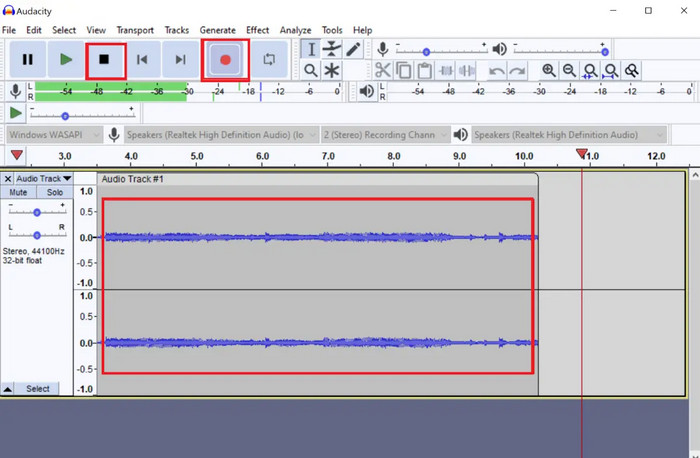
Step 2 Click Edit (top-right corner) > Preferences > Audio Settings > Host > Select Windows WASAPI (Windows) or Core Audio (Mac), and adjust other settings if needed.
Step 3 Click the red record button, then play the audio you want to record.
Step 4 Click the black square button to stop recording.
Step 5 Click File (top-right corner) > Export Audio, set the file name, output folder, and format, then click Export.
✅ Want to download high-quality music? Try NoteBurner Music One to download high-quality music at 10x speed.
Step 1 Click File (top-right corner) > Import > Audio, import an audio file, or use a previously recorded file directly.
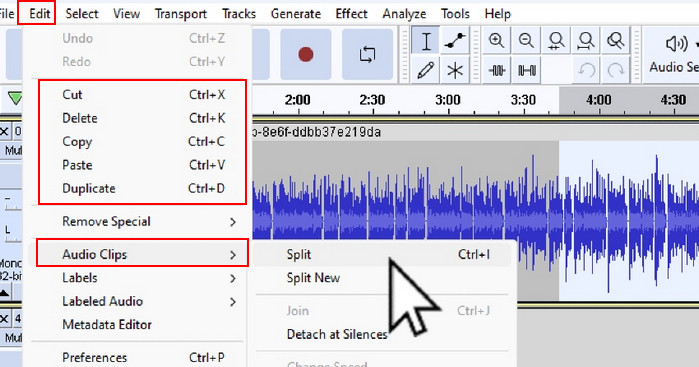
Step 2 Select the part of the audio you want to edit, then click Edit (top-right corner) to make basic edits or apply effects.
Step 3 Click File (top-right corner) > Export Audio, set the file name, output folder, and format, then click Export.
Searching for a free Audacity alternative to convert music to MP3? NoteBurner offers fast, high-quality conversions and supports various streaming services.
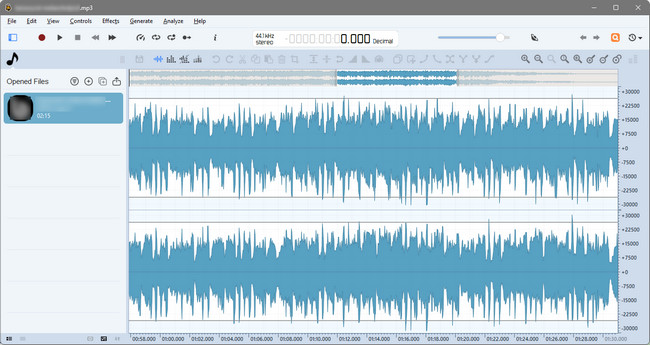
Ocenaudio is a lightweight and easy-to-use free music editing tool. It runs fast due to its low system load and strikes a perfect balance between functionality and simplicity.
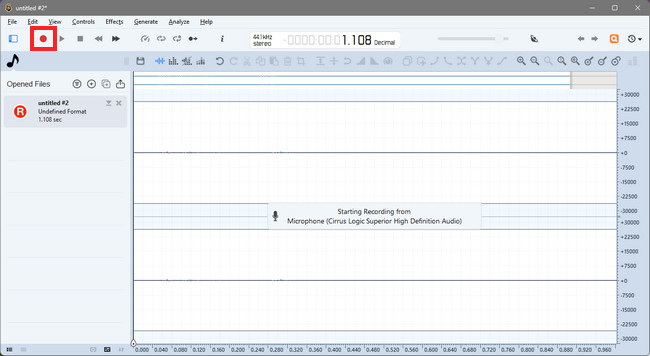
Ocenaudio cannot record internal system audio by default. To enable this feature, you need to turn on "Stereo Mix" and set it as the input device.
Step 1 Download and open Ocenaudio.
Step 2 Click Edit (top-right corner) > Preferences > Sound > Mixer Backend, set WASAPI (Windows); Record Device/Options, select Stereo Mix, and adjust other settings if needed.
Step 3 Click the red record button, then play the audio you want to record. Click the red record button again to pause recording.
Step 4 Click File (top-right corner) > Save as..., then save the file.
✅ NoteBurner Music One — Supports downloading music from multiple popular streaming services.
Step 1 Click File (top-right corner) > Open, import an audio file, or use a previously recorded file directly.
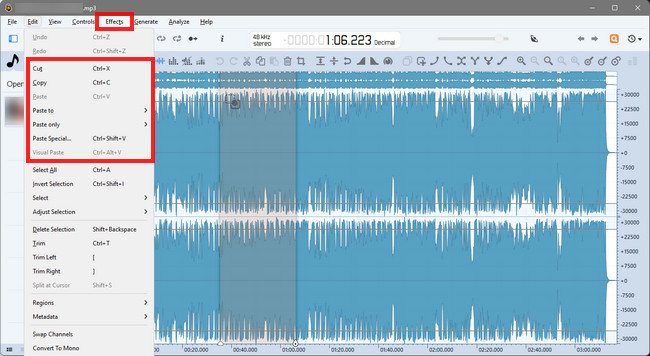
Step 2 Select the part of the audio you want to edit, then click Edit (top-right corner) to make basic edits or apply effects.
Step 3 Click File (top-right corner) > Save as..., then save the file.
Wavosaur is a compact and portable free music recording software known for being lightweight and suitable for on-the-go audio processing. It requires no installation and takes up almost no storage space on your device.
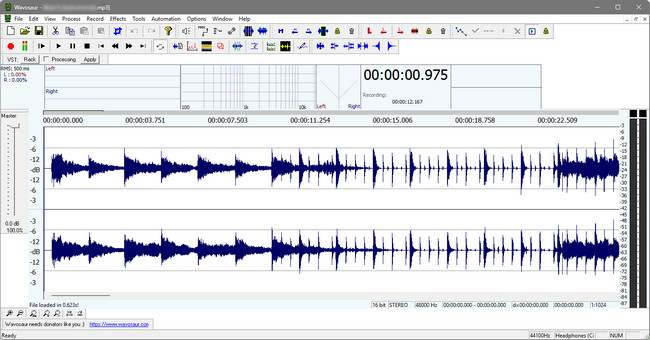
Wavosaur cannot record internal system audio by default. To enable this feature, you need to turn on "Stereo Mix" and set it as the input device.
Step 1 Download and open Wavosaur.
Step 2 Click Options (top menu) > Audio configuration, adjust audio settings and other preferences.
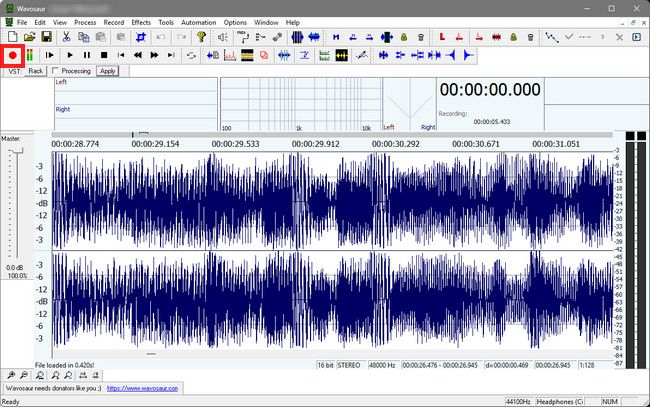
Step 3 Click the red record button, then play the audio you want to record. Click the red record button again to pause recording.
Step 4 Click File (top-right corner) > Save as..., then save the file.
✅ Try NoteBurner Music One to download the original track with vocals removed with just one click.
Step 1 Click File (top-right corner) > Open..., import an audio file, or use a previously recorded file directly.
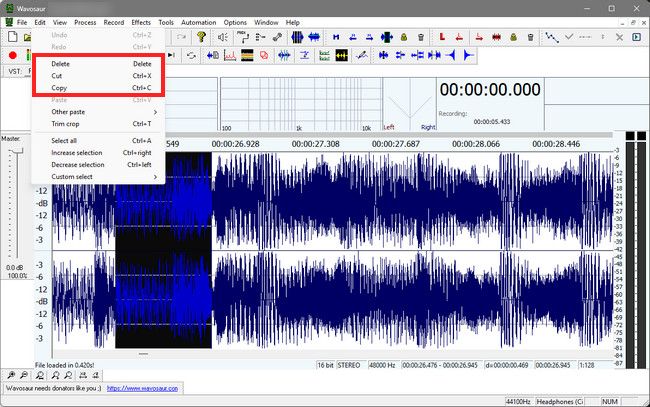
Step 2 Select the part of the audio you want to edit, then click Edit (top-right corner) to make basic edits or apply effects.
Step 3 Click File (top-right corner) > Save As..., then save the file.
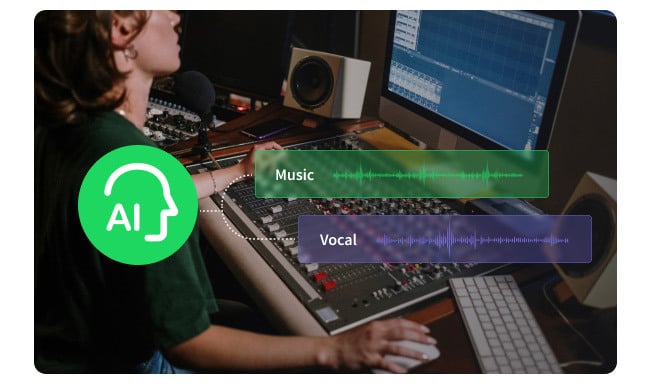
NoteBurner AI Vocal Remover is the top choice for a free, efficient, and high-quality tool to separate vocals from any song.
OBS Studio is an open-source software for recording and live streaming, rather than a traditional audio editor. However, it's also a powerful tool for music recording — especially when you need to capture multiple audio sources at the same time.
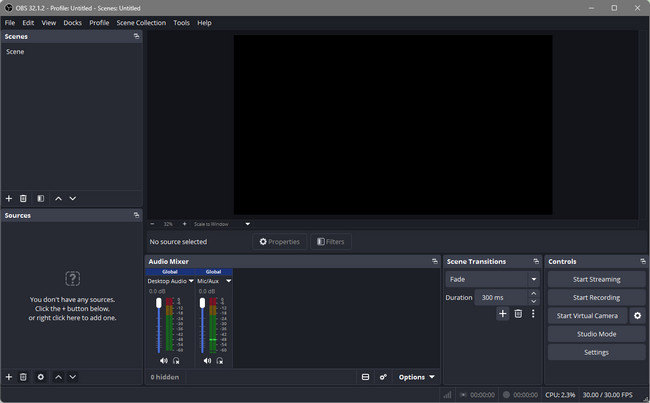
Step 1 Download and open OBS Studio.
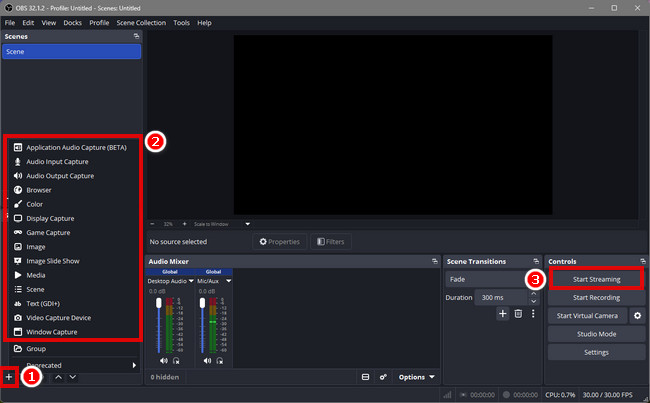
Step 2 Click the "+" button (bottom-left corner) of the Sources panel to add a media source.
Step 3 In the Controls (bottom-right corner), click "Start Recording" to begin. When finished, click "Stop Recording".
Step 4 Click File (top-right corner) > Show Recordings, find the recorded files.
Note: OBS Studio does not include audio editing features. You can import the recorded video into tools like Ocenaudio or other converters to extract and edit the audio, then export it as an audio file.
✅ Want to save songs to a CD, try NoteBurner Music One — burn CDs with just one click.
NoteBurner Music One is an all-in-one solution designed for music downloading, conversion, and basic editing. Unlike traditional free music recording software that records audio in real time, NoteBurner downloads tracks directly at much faster speeds while preserving audio quality. Best of all, it also offers access to over 10,000 popular podcasts across a wide range of genres, all available for free download.
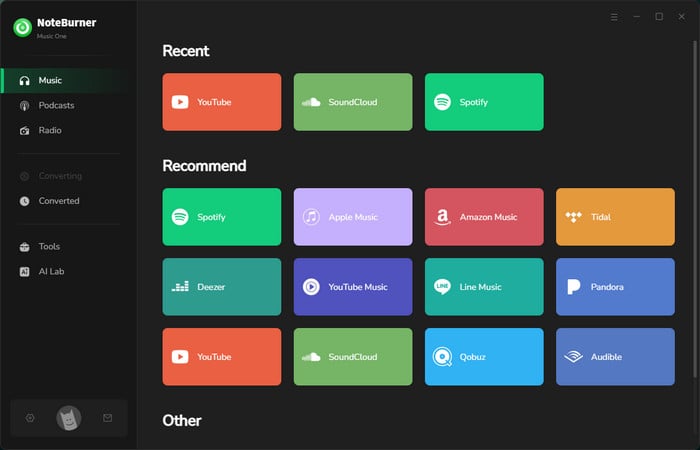

Step 1 Download and open NoteBurner Music One.
Step 2 Select the music platform you want to download from.
Step 3 Click the gear icon (lower-left corner) to set the output format, out folder, and other preferences.
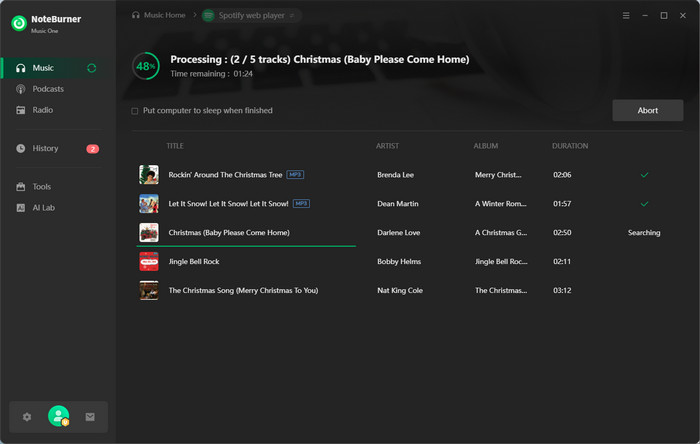
Step 4 Choose a playlist or search for songs, then click the floating "+" button (bottom-right corner) to add them.
Step 5 Once added, click "Convert" to start downloading.
Step 6 After downloading, you can find your files in the "History" section.
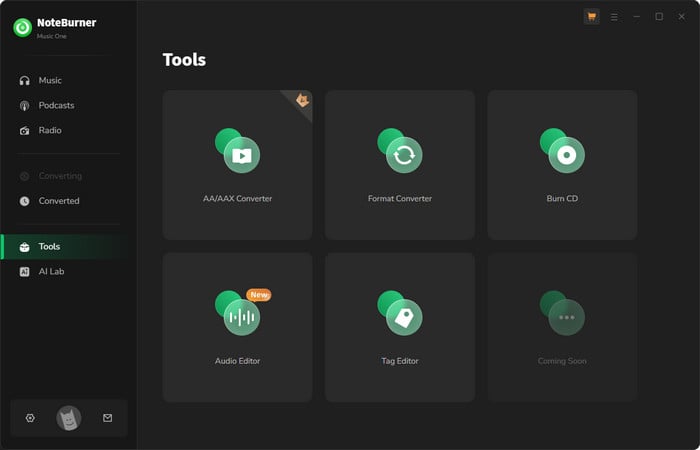
Step 1 Click Tools (left sidebar) > Audio Editor.
Step 2 Import or drag and drop your audio file to start basic editing or apply effects.
Step 3 Click Save (top-right corner), then set the file name, output folder, format, and click OK.
Tip: In NoteBurner Music One, the Tools section also includes other useful features besides Audio Editor, such as Format Converter, CD Burner, Tag Editor, and the highly practical Vocal Remover.
Disclaimer: All tools are for personal/educational use only. 🚫 To avoid legal issues, do not distribute downloaded music/video for commercial use.
| Features | Audacity | Ocenaudio | Wavosaur | OBS Studio | NoteBurner Music One |
|---|---|---|---|---|---|
| Platforms | Windows / Mac / Linux | Windows / Mac / Linux | Windows | Windows / Mac / Linux | Windows / Mac |
| Output formats | MP3, WAV, FLAC, AAC, OGG, AIFF, and more | MP3, WAV, FLAC, OGG | WAV, MP3 | MP4, MKV, FLV (video) | MP3, AAC, WAV, AIFF, FLAC, ALAC |
| Supported streaming services | ❌️ | ❌️ | ❌️ | ❌️ | Spotify, Apple Music, Amazon, Tidal, YouTube Music, and more |
| Mic recording | ✅️ | ✅️ | ✅️ | ✅️ | ❌️ |
| System Audio Recording | ✅ | ✅ | ✅ | ✅ | ✅ |
| Multi-track Audio Editing | ✅ | ❌ | ❌ | ❌ | ❌ |
| Basic Audio Editing | ✅ | ✅ | ✅ | ❌ | ✅ |
| Audio Effects Support | ✅ | ✅ | ✅ | ❌ | Limited |
| Noise Reduction | ✅ | ✅ | ✅ | ✅️ | ❌ |
| Batch download playlists | ❌ | ❌ | ❌ | ❌ | ✅️ |
| Fast conversion speed | 1x (real-time) | 1x (real-time) | 1x (real-time) | 1x (real-time) | Up to 10x speed |
| Lossless quality | ✅ | ✅ | ✅ | Limited | Up to 320 kbps |
| Format converter (local files) | ✅ | ✅ | ✅ | ❌️ | ✅️ |
| ID3 tag preservation | Manual | Manual | ❌ | ❌ | ✅ Auto |
| Tag Editor | ✅ | ✅ | ❌ | ❌ | ✅ |
| Vocal Remover | ❌️ | ❌ | ❌️ | ❌ | ✅ |
| CD Burner | ❌ | ❌ | ❌ | ❌ | ✅ |
| Ads | ❌ | ❌ | ❌ | ❌ | ❌ |
Primary music editing: Audacity and Ocenaudio are both great choices for everyday audio editing. They are free tools that work well for trimming, basic mixing, and general audio adjustments.
Primary music downloading: NoteBurner Music One is a strong option for downloading music. It requires payment for downloading features, but its built-in editing tools are available for free use.
Recommended workflow: Use NoteBurner Music One to download music first, then move the files into Audacity or Ocenaudio for further editing.
Yes. Audacity is still one of the most powerful free music editing tools available today. It offers solid recording tools, plugin support, and effective noise reduction features, making it a reliable choice for people who are just starting out and those who have experience.
Yes. These tools are generally safe to use as long as you download them from official sources. They have been widely tested and used by the community, and there is no proof that they contain malware when obtained from trusted websites.
A good combination is Audacity + OBS Studio + NoteBurner Music One.
These three tools help you record edit audio and capture media, making it easier to manage both audio and video content in a complete workflow.
Among the 5 free recording and editing tools introduced in this article, there's likely one that fits your needs. If music downloading is your top priority, NoteBurner Music One is definitely worth a try. It supports all major streaming platforms and offers a much faster download experience compared to the other 4 recording-based tools. Traditional recording software captures audio in real time, which means recording a song usually takes the full length of the track. NoteBurner does not rely on real-time recording, making the download process much faster. Additionally, the downloaded music can be kept permanently, allowing you to transfer it to any device for offline playback or keep it as a personal backup collection.
Note: The free trial version of NoteBurner Music One is limited to converting the first 1 minute of each song. You can buy the full version to unlock the limitation.




