

How to Back up & Restore Spotify Music Library
Never worry about losing your Spotify music collection again. NoteBurner Music One & Spotify Music Converter now support backing up and restoring your Spotify music library withine a few seconds! With the "Backup option, you can securely save your music data, such as playlists, liked songs, albums, and artists. With the "Restore" option, you can restore the Spotify database instantly from a backup file anytime. Whether you're switching Spotify accounts, moving to a new computer, or reinstalling the NoteBurner converter, your library stays organized and easily recoverable.
Part 1. How to Back Up Your Spotify Music Library with NoteBurner?
Launch the NoteBurner converter, choose Spotify App source or Web player source, and sign in to your Spotify account.
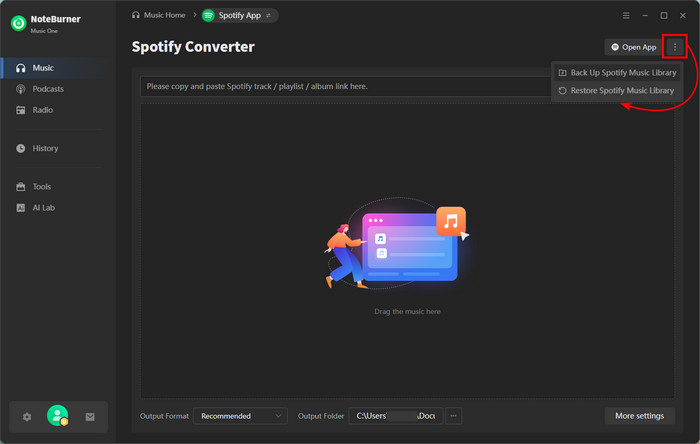
On the Music tab, click a vertical ellipsis icon next to the "Open App", then select "Back up Spotify Music Library.". (On the Spotify web player, this option appears next to Pop out Player.).
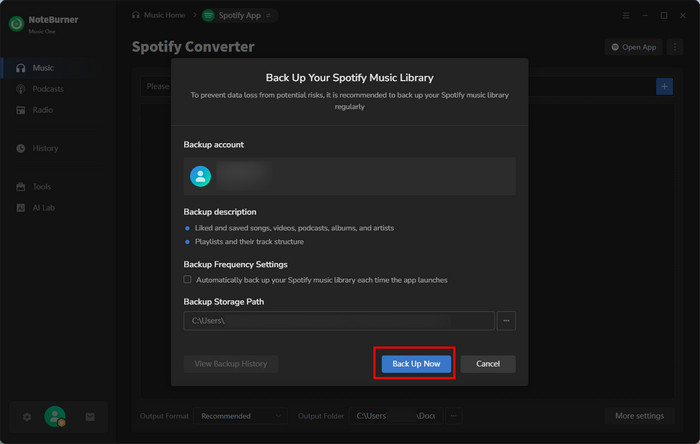
Set the backup frequency and storage location, then confirm "Back Up Now." The backup will start shortly.
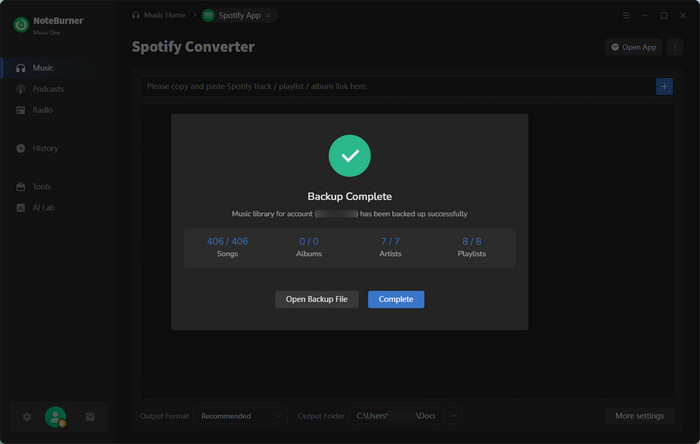
Once completed, click "Open Backup File" to view your Spotify database (.json).
Part 2. How to Restore Your Spotify Music Library with NoteBurner?
Sign in to your Spotify account in NoteBurner.
Click a vertical ellipsis icon on the Music interface, then choose "Restore Spotify Music Library." (This restore option is next to "Pop out Player" if you're on the Spotify web player).
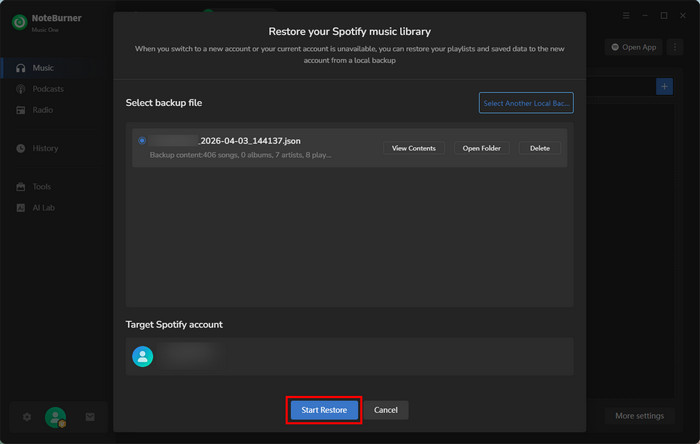
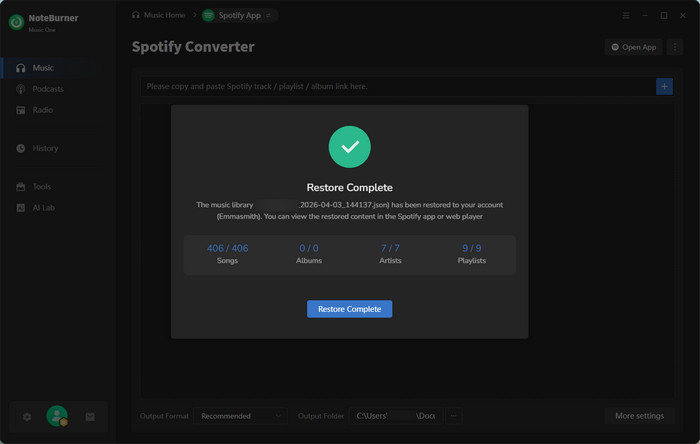
Select the backup file for the target Spotify account, then click on "Start Restore." The process completes within seconds.
Done! Now you can check the restored content in the Spotify app or web player.
Haven't resolved your problem? Feel free to contact us via Email: [email protected]
- NoteBurner Music One for Win & Mac
- Spotify Music Converter Windows
- Spotify Music Converter for Mac
- Apple Music Converter Windows
- Apple Music Converter for Mac
- Amazon Music Recorder for Windows
- Amazon Music Recorder for Mac
- Tidal Music Converter for Windows
- Tidal Music Converter for Mac
- YouTube Music Converter for Win
- YouTube Music Converter for Mac
- Deezer Music Converter
- Line Music Converter
- Download Center
- NoteBurner Store
