

NoteBurner Amazon Music Recorder FAQs
Q1. How to register NoteBurner Amazon Music Recorder?
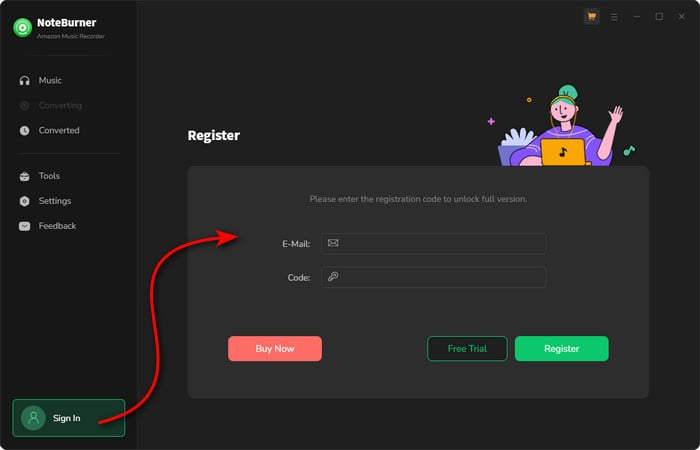
Install the latest version of NoteBurner Amazon Music Recorder on your computer. Then launch NoteBurner. Directly click the Register icon (on the bottom left), and there will be a registration popup dialog, where you can copy and paste the registration email and license code as below.
Q2. What can I do if I encounter registration failures?
1. Please make sure you are running the right program. Please download the latest version of NoteBurner through the Download Center.
2. The registration entry is case-sensitive. Please make sure you do not insert any blanks before or after the registration email and license code.
3. This registration code can only be used on one device. If it’s already activated on another device, please sign out of or deactivate that device first, then try again.
4. Should the problem persist, please contact us by e-mail at [email protected] for help.
Q3. Why am I limited to converting the first 1 minute of each audio?
It's the limitation of the trial version. To unlock the restriction, please purchase a license. If you already bought a license, please register the program to get access to the full version.
Q4. What kind of music does NoteBurner Amazon Music Recorder support converting and exporting to?
NoteBurner Amazon Music Recorder supports converting Amazon Music, albums, and playlists to MP3/AAC/WAV/FLAC/AIFF/ALAC.
Q5. How to sort out the output audios by Artist, Album and others?
Open NoteBurner Amazon Music Recorder and click the Settings icon. Under the output settings, you can choose how to organize your converted files by Artist, Album, Playlist, Genre, Year, or Disc Number. If you don't select any options, all converted songs will be saved in the same folder.
Q6. Does NoteBurner Amazon Music Recorder support to convert Amazon HD Songs?
Yes. NoteBurner Amazon Music Recorder can retain up to Amazon Ultra HD audio quality after conversion. Please first choose Amazon Music App source first, then go to Settings, select Record Mode as conversion mode and Recommend as output format.
Note: Amazon Music Free account does not support preserving the audio quality up to HD or Ultra HD. For the max quality of Amazon Music, you need to use a Amazo Music Unlimited account for music conversion.
Q7. Does NoteBurner Amazon Music Recorder support to download Amazon Music Dolby Atmos Audio?
Yes. For how to download Amazon Music in Dolby Atmos EAC3/AC4, please check the full guide.
Choose to download songs from "Amazon Music Web Player" so that you can download Amazon songs at 10X speed. You can find the mode swapping icon at the top left corner.
Please note that before conversion, there will be a pop-up window prompting you to log into your Amazon Music account. But don't worry, it will not take any other information from your account other than the songs.
Solution 1. Make sure you are properly signed in to your music account and that your subscription is active and working normally.
Solution 2. Check for updates: Make sure you are using the latest version of NoteBurner Amazon Music Converter. Go to Menu and select Check for Updates to see if a newer version is available.
Solution 3. Clear the Cache
Basic Cache Cleaning: Go to NoteBurner's Menu > Clear Cache.

Complete Cache Removal:
For Windows PC:
1. Open the following folder: C:\Users\USERNAME\AppData\Roaming\ Find the folder for the corresponding program.
2. Delete the program folder.
3. Restart the program and try again.
For Mac:
1. Open Finder.
2. From the top menu bar, select Go > Go to Folder..., or press Command + Shift + G.
3. Enter the following path: ~/Library/Application Support/
4. Find the folder for the corresponding program, delete the program folder, then restart the program and try again.
Solution 4. Try switching to another download mode, such as App Mode or Web Player Mode, and then retry the conversion.
Solution 5. Check for updates: Make sure you are using the latest version of your NoteBurner program. Go to Menu and select Check for Updates to see if a newer version is available.
Solution 6. Check whether your current IP address or region is subject to any restrictions. If you’re using a VPN, try turning it off or switching to a different server/region, then try again.
If the issue can't be fixed by the recommended solutions above, please send us the following information by e-mail at [email protected].
- What's your Windows OS or macOS? And what's your NoteBurner version?
- What's the error message you've received?
- Do you have Prime Music, Amazon Music Unlimited, or Amazon Music HD membership? or are you an Amazon Music Free user?
- Which source did you select—App or Web Player? What output format and audio quality did you choose?
- Does the problem happen to a certain audio file or all audio files?
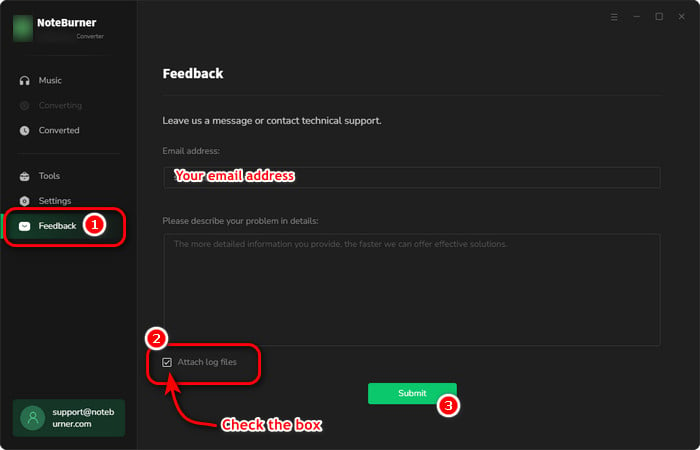
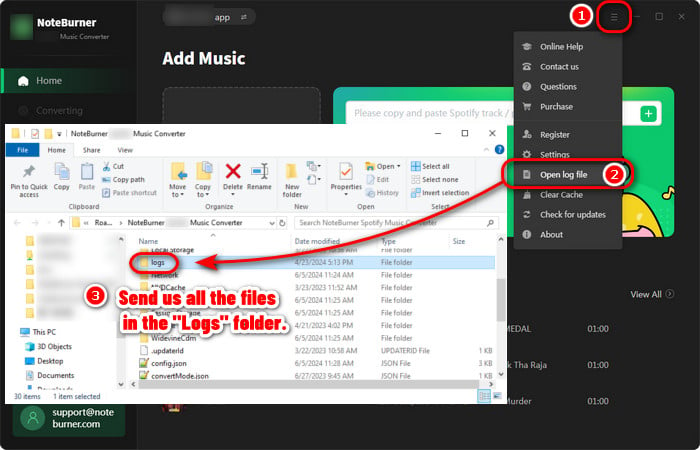
- Please send us the log files of NoteBurner:
- Method 1: You can directly send us the Feedback with the logs attached.
- Method 2: You can find them by going to NoteBurner Spotify Music Converter, Menu > Open Log File, and manually send us all the log files in the pop-up folder.
- NoteBurner Music One
- Spotify Music Converter Windows
- Spotify Music Converter for Mac
- Apple Music Converter Windows
- Apple Music Converter for Mac
- Amazon Music Converter for Windows
- Amazon Music Converter for Mac
- YouTube Music Converter for Windows
- YouTube Music Converter for Mac
- Deezer Music Converter for Windows
- Deezer Music Converter for Mac
- LINE Music Converter for Windows
- LINE Music Converter for Mac
- Download Center
- NoteBurner Store
- How to register?
- Encountered registration failures?
- Only converted first 1 minute of each track? How to do?
- How to sort out the output audios by Artist, Album and others?
- Does NoteBurner Amazon Music Recorder support to convert Amazon HD Songs?
- Does NoteBurner Amazon Music Recorder support to download Amazon Music Dolby Atmos Audio?
- How to Make NoteBurner Amazon Music Converter Work at 10X Speed?
- How to fix the issue of conversion failure?
