
Songs you download from Amazon Music are DRM-protected audio files that only play inside the Amazon Music app. They can't be copied to an MP3 player, a USB drive, or a car stereo, and they stop working once your subscription ends. To get real MP3 files, you need to convert Amazon Music to MP3 with a third-party tool.
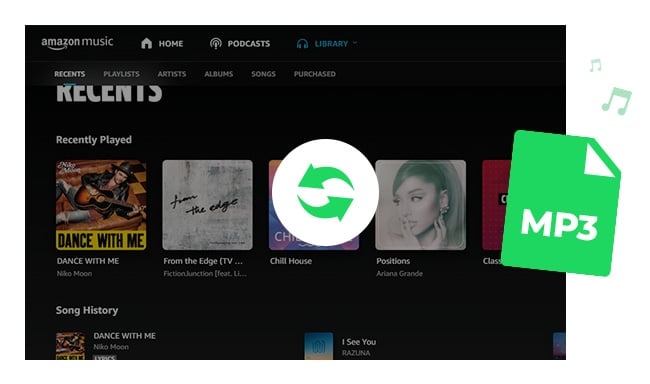
This applies to both plans, just in different ways. With Amazon Music Unlimited, you can download any song, album or playlist for offline listening. With Amazon Music Prime, offline downloads are limited to All-Access Playlists — a curated selection you can play on demand — while the rest of the catalogue is shuffle-only. Either way, the downloaded files never leave the app.
Below we walk through two methods to convert Amazon Music to MP3, both free and paid. Part 5 compares them side by side, with our conversion test results for NoteBurner.
Short answer: not directly. Amazon Music lets you download eligible songs for offline listening, but those downloads play only inside the Amazon Music app. No official setting turns them into standard MP3 files.
Amazon Music Prime is included with an Amazon Prime membership and gives you access to a catalogue of over 100 million songs. Most of that catalogue plays in shuffle mode, while a curated selection of All-Access Playlists supports on-demand playback, unlimited skips and offline downloads. Amazon Music Unlimited is a separate paid subscription with on-demand access to the full catalogue, plus HD, Ultra HD and Spatial Audio.
Here's what both plans have in common, and why this page exists: Amazon's subscription downloads stay inside the Amazon Music app. Cancel your subscription, and every track you downloaded goes silent — you were renting them, not keeping them.
| Comparison | Amazon Music Prime | Amazon Music Unlimited |
|---|---|---|
| Cost | Included with Prime | Separate paid subscription |
| Catalogue | 100M+ songs | 100M+ songs |
| On-demand playback | Selected All-Access Playlists | Entire catalogue |
| Offline download | Selected All-Access Playlists | Songs, albums and playlists |
| Audio quality | Standard | Standard / HD / Ultra HD / Spatial |
| Playable outside the app | No | No |
| Kept after subscription ends | No | No |
If you need real MP3 files you can use outside the Amazon Music app, the methods below cover desktop converters and recording software — free and paid.
NoteBurner Amazon Music Converter downloads and converts Amazon Music tracks into ordinary audio files — MP3, AAC, FLAC, WAV, AIFF or ALAC. Once converted, they behave like any other music file on your drive: copy them to a USB stick, load them onto an MP3 player or an Apple Watch, play them in the car, and keep them after you cancel your subscription.
It works with both Amazon Music Prime and Unlimited accounts on Windows 7–11 and macOS 11–27. There are two download sources, and the choice is a trade-off: Web Player Mode converts at up to 10X with up to HD quality, while App source is slower but can retain up to Ultra HD. Speeds differ by platform — Part 3 has the breakdown. ID3 tags, lyrics and album artwork carry over either way.


What it costs: the free trial converts the first minute of each song, which is enough to confirm it works with your account before you buy. For a longer breakdown, see our NoteBurner Amazon Music Converter review.
Ready to start? Part 3 has the step-by-step. Still comparing? Part 5 puts NoteBurner and Audacity side by side with our test results.
NoteBurner offers two download sources. Web Player prioritizes speed, while App prioritizes source quality. Conversion speed also differs by platform, especially on Mac.
| Audio Source | Web Player | Amazon Music App |
|---|---|---|
| Speed on Windows | Up to 10X | Up to 5X |
| Speed on Mac | Up to 10X | 1X (real time) |
| Maximum quality | Up to HD | Up to Ultra HD |
| Amazon Music app required | No | Yes |
| Best for | MP3 output, large playlists | FLAC / ALAC, Ultra HD tracks |
On Mac, use Web Player Mode — App source converts in real time there. On Windows, either works: Web Player Mode for MP3, App source if you want FLAC or ALAC at Ultra HD.
Step 1 Launch NoteBurner and choose a mode
Open NoteBurner Amazon Music Converter and pick Web Player Mode or Amazon Music App source on the start screen. Web Player Mode loads Amazon Music inside NoteBurner, so the desktop app isn't needed; App source opens the Amazon Music app alongside it. Sign in to your Amazon account if prompted.
Step 2 Set MP3 as the output format
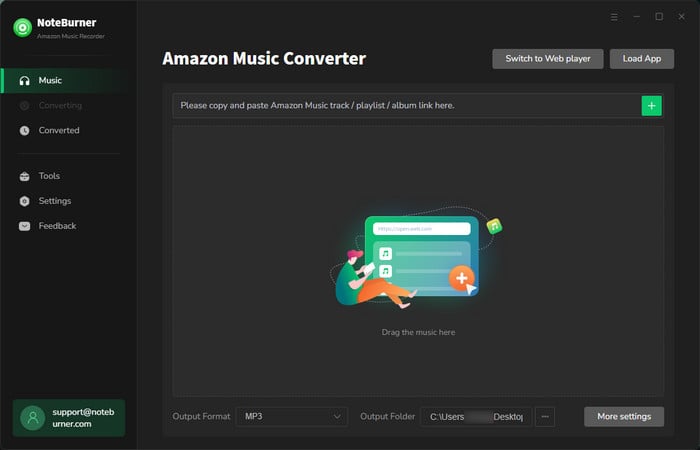
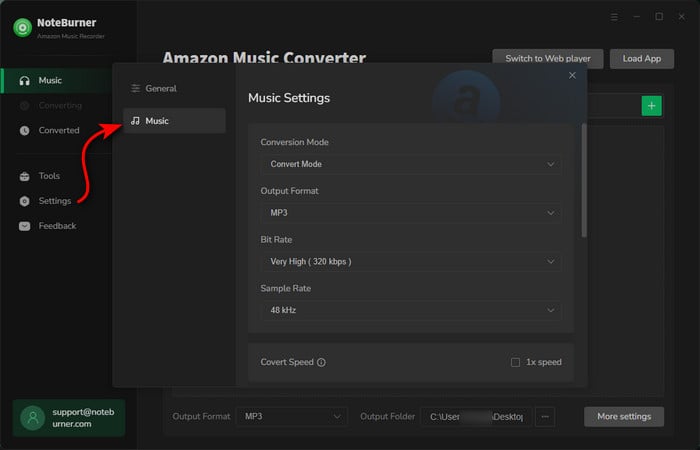
Open Settings and select MP3. You can also set the bit rate, sample rate, output folder, and how files are sorted — choosing artist or album here saves tidying up later.
Step 3 Add songs, albums or playlists
Web Player Mode: open the song, album or playlist in the built-in web player and click the floating "+" button to load the tracks from that page.
App source: click the floating "+" button on an open playlist or album, drag tracks in from the Amazon Music app, or paste an Amazon Music URL into NoteBurner.
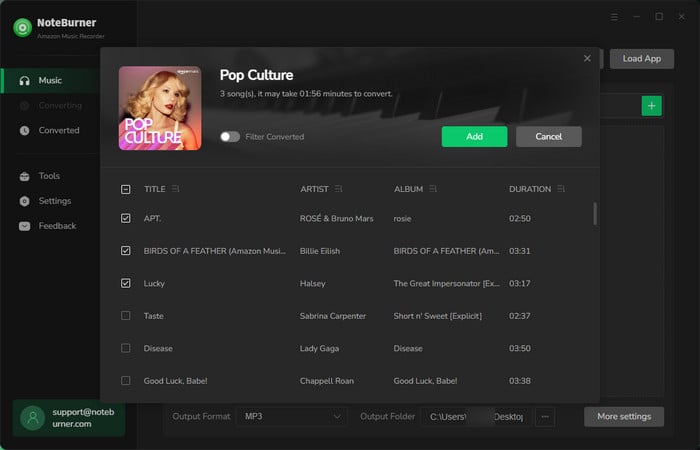
Tick the tracks you want and click Add.
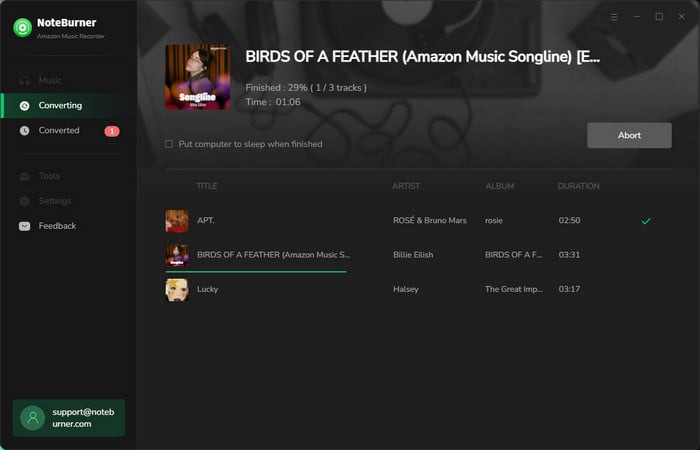
Step 4 Start converting Amazon Music to MP3
Click Convert. Web Player Mode runs at up to 10X on both platforms; App source reaches up to 5X on Windows but converts in real time on Mac.
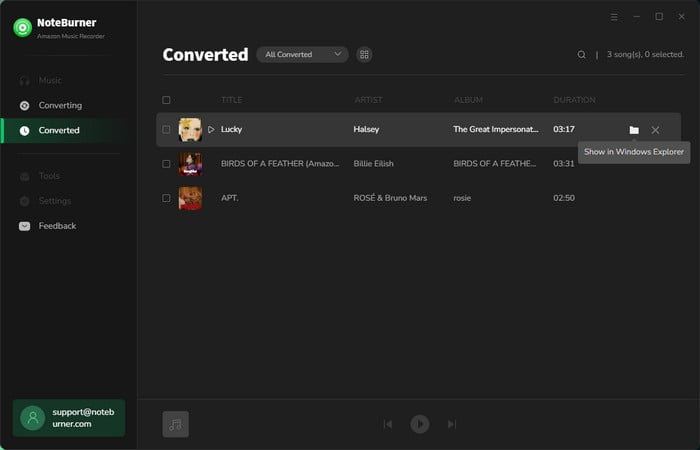
Step 5 Find your converted MP3 files
Open the History tab and click the folder icon beside a track to jump to it on your drive. These are standard MP3 files now — copy them to a USB stick, transfer them onto an MP3 player, or back them up like anything else.
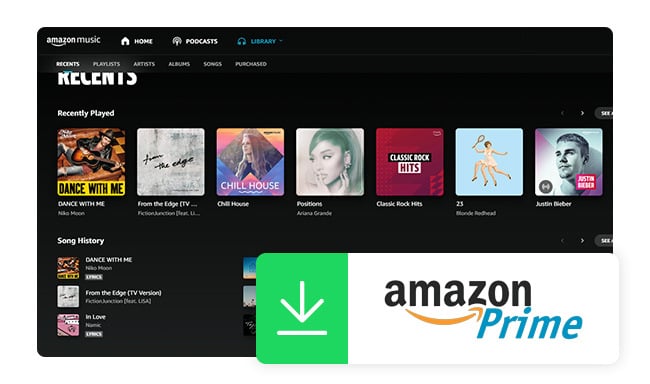
Are you looking for a tool to rip music from Amazon Prime Music? This article will present a professional Prime Music to MP3 Converter for you.
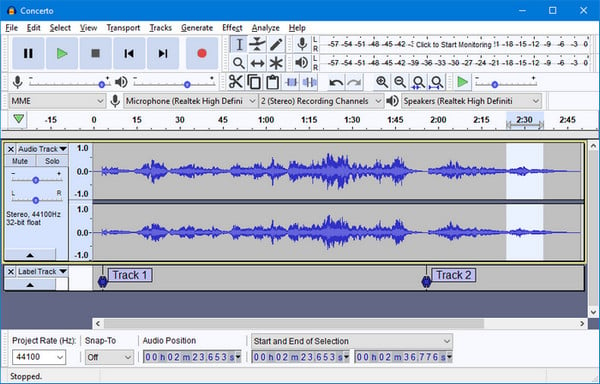
If you are looking for a free way to save Amazon Music as MP3, Audacity is the usual choice. Note that it's an audio recorder and editor, not a downloader — it captures whatever your computer is playing, so you play the song in Amazon Music and Audacity records it, then exports the result as MP3.
Step 1 Open Audacity, click Audio Setup and set Host to Windows WASAPI. Then pick your speakers or headphones as the recording device — look for the device name ending in (loopback), or Audacity will record your microphone instead of the music.
On Mac, Audacity can't capture system audio by default — you'd need an audio-routing tool such as BlackHole first.
Step 2 Go to Transport > Transport Options and turn off Software Playthrough. Mute notifications and close anything else playing audio, since those sounds get recorded too.
Step 3 Start playing the Amazon Music song, then click the red Record icon. Click Stop when the track ends.
Step 4 Go to File > Export Audio, choose MP3 as the format, set the bit rate and folder, then click Export. This is where you actually get the MP3 file — until you export, the recording only exists as an Audacity project.
Note: Audacity records in real time at 1X speed, so a 1-hour playlist takes about an hour. It also won't split a playlist into separate tracks or carry over titles, artists and album artwork — you'd add those by hand. That's fine for a few songs; for a whole library, NoteBurner Amazon Music to MP3 Converter handles the batching and metadata automatically.
| Comparison | NoteBurner Amazon Music Converter | Audacity |
|---|---|---|
| Type | Desktop converter | Audio recorder |
| Conversion Speed | Up to 10X (Web Player) | 1X real time |
| Our test | 50-song playlist finished in well under an hour | Takes as long as the playlist plays |
| Output formats | MP3, AAC, WAV, AIFF, FLAC, ALAC | MP3, WAV, FLAC and others |
| Maximum quality | Up to Ultra HD (App source) | Depends on playback |
| Batch conversion | Yes | No |
| Track splitting | Automatic | Manual |
| Metadata & artwork | Preserved automatically | Added by hand |
| Price | Paid (free trial: first minute per song) | Free |
| Best for | Playlists, albums, whole libraries | A few tracks, no budget |
Test note: Tested in September 2026 on Windows 11 with NoteBurner Amazon Music Converter V3.4.4 in Web Player Mode, using a 50-song Amazon Music playlist. Actual conversion time depends on your network and hardware. Figures for App source and for Mac will differ — App source runs at up to 5X on Windows and in real time on Mac. Audacity records in real time by design, so its conversion time always matches the playback length of the tracks.
For anything more than a few songs, the time and manual work are what decide it. Try NoteBurner free to see how it handles your own playlist.
Yes, but only when you purchase music from the Amazon Digital Music Store, which is separate from the streaming service. Music purchased there can be downloaded as standard MP3 files that are yours to keep.
You can use Audacity as a completely free desktop method. Instead of downloading Amazon Music directly, Audacity records the audio while it plays on your computer and then lets you export the recording as MP3.
The trade-off is convenience: Audacity records in real time at 1X speed and doesn't automatically preserve song titles, artists or album artwork, so it works best for a handful of tracks rather than a whole music library.
NoteBurner also offers a free trial that converts the first minute of each track — enough to confirm it works with your account before you decide.
That depends on your Amazon Music plan and the download source you select.
MP3 uses lossy compression either way. If your priority is preserving lossless audio quality rather than reducing file size, convert to FLAC or ALAC instead.
Yes. NoteBurner works with Amazon Music Prime accounts as well as Unlimited. The difference is source quality, not access: Prime provides Standard-quality audio, while Unlimited can provide HD and Ultra HD.
NoteBurner Amazon Music Converter is a desktop program for Windows and Mac, so its full conversion process is done on a computer. After conversion, you can transfer the MP3 files to your phone for offline playback.
For Android, connect the phone to your computer and copy the MP3 files to its storage. For iPhone, sync the files through Apple Music on Mac or iTunes on Windows. Once transferred, the MP3 files can be played with compatible music apps on your phone.
For most people, NoteBurner in Web Player Mode is the practical choice — up to 10X conversion speed, batch processing and automatic metadata. If you only need a few tracks and would rather not pay, Audacity records them for free, at the cost of real-time speed and manual tagging. See the comparison table for speed, quality and limitations side by side.
Disclaimer: All tools are for personal/educational use only. 🚫 To avoid legal issues, do not distribute downloaded music/video for commercial use.
Amazon Music Prime and Unlimited downloads stay inside the Amazon Music app and cannot be exported as standard MP3 files — and they stop working once your subscription ends. If you want MP3 files you can store locally, move between devices or play outside Amazon Music, the best method depends mainly on how much music you need to save.
For playlists, albums or a larger music library, NoteBurner Amazon Music Converter is the more practical option. Web Player Mode supports batch conversion at up to 10X speed and preserves song titles, artists, album artwork and other metadata automatically — on Mac it is clearly the faster route. Choose App source on Windows when retaining up to Ultra HD quality matters more than speed.
For just a few tracks, Audacity is a completely free alternative. It records Amazon Music in real time and exports the result as MP3, but you will need to wait for each track to play and manage the metadata yourself.



