
 By Annie Cale
Switching streaming services is easy—until you realize your playlists won't come with you. Spotify, Apple Music, Tidal, YouTube Music—each platform locks your library inside its own ecosystem with DRM protection, making direct transfers impossible.
But there are workarounds. This guide covers the most effective tools to transfer playlists between streaming services, so you don't have to rebuild everything from scratch.
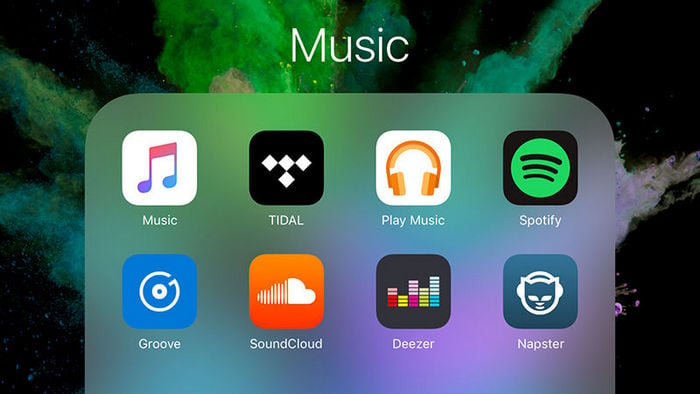
Apple Music songs are tied to the Apple ecosystem. You can't play them on Android, or Chromebook, let alone move them to another streaming service. If you're planning to switch from Apple Music to Spotify or any other platform, you'll need a converter to get around that restriction.
NoteBurner Apple Music Converter is built for exactly this. It downloads Apple Music songs as MP3, AAC, WAV or FLAC, keeps the original audio quality, and runs at up to 10X faster speed. Once done, your songs are regular audio files you can play on any device or move to whatever service you like.
Read More: How to Move Apple Music Library to YouTube Music
Step 1 Download and Launch NoteBurner Apple Music Converter, and choose "iTunes App" as the download source.
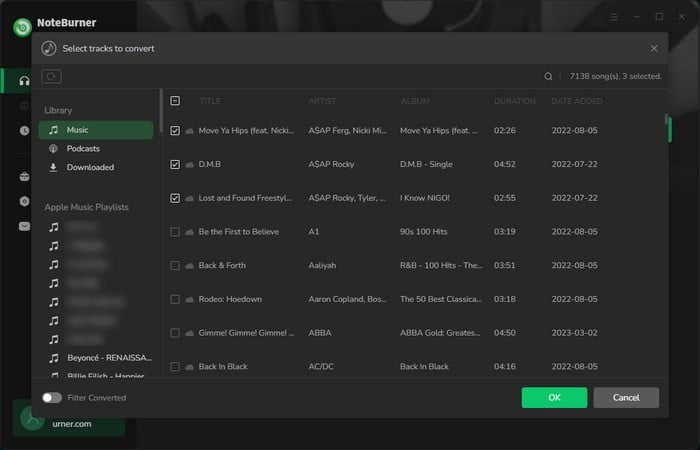
Step 2 Click the button "+Add" to add music, it will pop up a window, which will show you all of the songs you have downloaded from Apple Music. You can choose any song you want to convert.
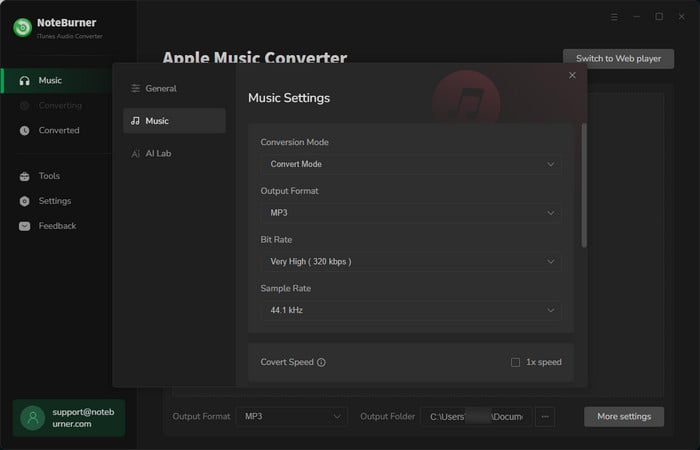
Step 3 After the successful adding, please click the button "Settings" to choose the output format as you need, in the pop-up window, you can set output path, output quality, and output format including MP3, AAC, FLAC, AIFF, WAV, and ALAC.
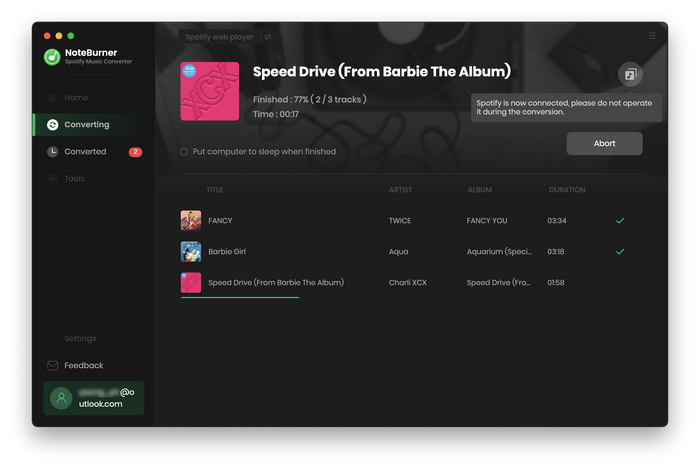
Step 4 After completing the above steps, the final one is clicking the button "Convert". Just a few second, it will succeed. After converting, the DRM restriction is removed from Apple Music tracks, the converted music are DRM-free, you can transfer them freely to other music services for streaming.
NoteBurner Spotify Music Converter is arguably the most well-known Spotify playlist transferring tool. As the name suggests, Spotify Music Converter is focused on Spotify users who want to migrate to other music site. This program can help you download music or playlist from Spotify even you are a Spotify Free user, and convert them to plain MP3, AAC, FLAC, AIFF, WAV, or ALAC. Spotify Music Converter is both easy and fast. With its help, you can download your favorite playlist from Spotify and upload to other music service with a few clicks.
Read More: How to Transfer Spotify Music to iTunes Library
Step 1 Download and install this powerful program -- NoteBurner Spotify Music Converter.
Step 2 Click the "Menu" button on the top-right interface, and then choose Registration in the drop-down list, you will get the register window below.
Step 3 Click the Settings button on the bottom left to choose output format. In Convert settings, you can choose output format (MP3, AAC, FLAC, AIFF, WAV, or ALAC), conversion mode (Intelligent Mode, Spotify Record, WebPlayer Download, or YouTube Download), output quality (320kbps, 256kbps, 192kbps, 128kbps).
Step 4 When finish customization, click "Convert" button to start conversion. After conversion done, you can find the converted audios by clicking History button and import them to other music site as you prefer.
If you want to import music from some online music site, like SoundCloud, VEVO, Vimeo, MySpace, YouTube, Facebook to other site, nothing is more helpful than Any Audio Converter. Any Audio Converter is such a reliable MP3 Music Downloader, with which you can record music from YouTube, Facebook, Dailymotion, Vimeo, SoundCloud and other 100+ sites and can also convert these downloaded songs to other audio format such as MP3, AAC, ALAC, AIFF, WAV, and FLAC. Besides, Any Audio Converter offers a built-in toolkit: including AA/AAX Converter, a Format Converter, CD Burner, ID3 Tags Editor, AI Vocal Remover and a Music Player.
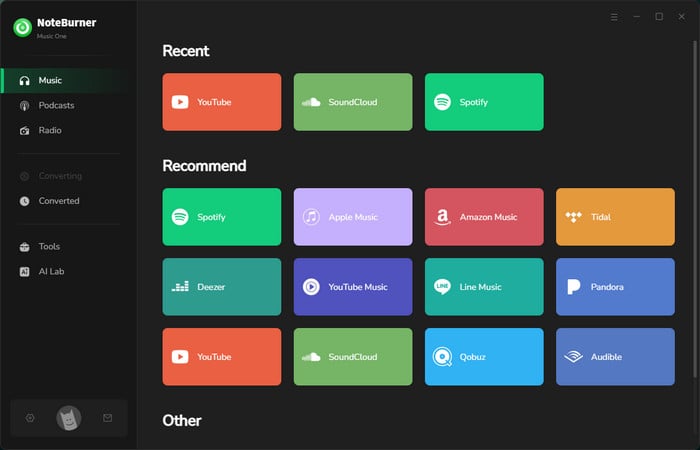
What streaming service are you using? We've introduced three tools to help you transfer your playlists from Apple Music, Spotify, SoundCloud, and YouTube to other music services: NoteBurner Apple Music Converter, NoteBurner Spotify Music Converter, Any Audio Converter. All of them are petty great playlist transferring tools. Choose the best fit among them according your need, begin to switch now!



