
Waking up to your favorite Amazon Music songs sounds perfect, but Amazon Music doesn’t offer a built-in "set as alarm" feature. Depending on your device, you may need to rely on Alexa or convert Amazon tracks for use with your phone’s default Clock app.
Below, I’ll show you two reliable ways to use Amazon Music as your morning alarm in 2026 — one with Alexa and one with NoteBurner for full flexibility on iPhone and Android.
Related Article: How to Set Spotify Song as Alarm on iPhone & Android
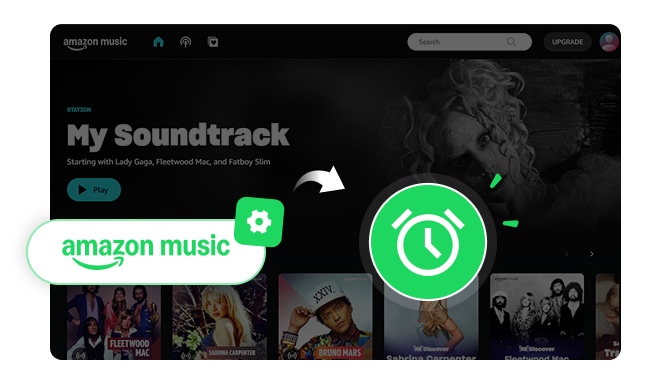
If you want to use Amazon Music as an alarm sound with an Amazon Alexa-enabled speaker (like an Amazon Echo), here’s how to set it up:

Just tell Alexa the alarm time and what music you want. For example:
Alexa will then schedule the alarm — when it goes off, your chosen song/playlist/artist will play instead of a standard beep.
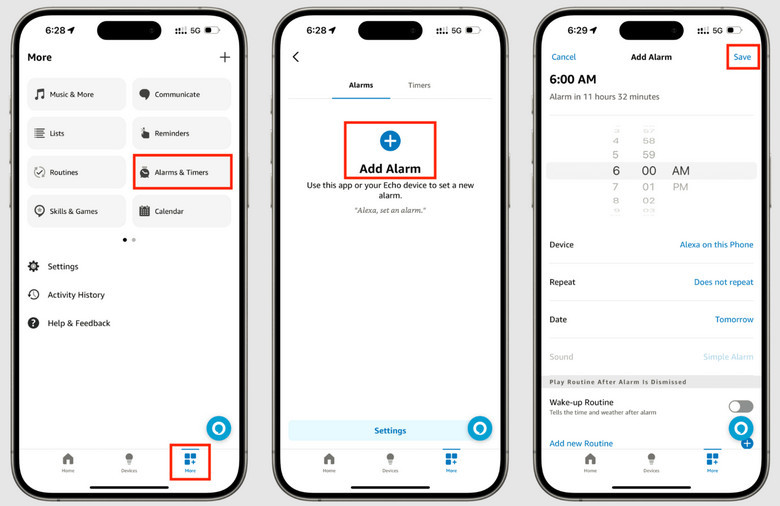
If you prefer setting alarms manually:
Step 1 Open the Alexa app on your phone.
Step 2 Tap More > Alarms & Timers.
Step 3 Tap the "+" to add a new alarm. Choose time, device, and repetition settings.
Step 4 Tap Sound. If you previously used a music-alarm via voice, you should see your song/playlist listed under "Music Tones" — select it.
Step 5 Save the alarm. When it rings, the music you selected will play.
If you want your phone’s Clock app to customize Amazon Music as an alarm, you’ll need the song in a normal audio format. Because Amazon Music songs are protected, your phone can’t use them directly as alarm sounds on iPhone or Android. NoteBurner Amazon Music Converter helps you download songs from Amazon Music as MP3, AAC, WAV, FLAC, AIFF, or ALAC while keeping their original quality.
The steps are simple. Add Amazon Music to NoteBurner, choose your output format, and convert it to a local file. After transferring the file to your phone, you can set it as an alarm just like any other audio track. With this method, you can easily set Amazon Music as an alarm on your phone and wake up to the exact sound you prefer every morning.

The program is available in both Windows and Mac versions. Here we will use the Windows version as an example to guide you in converting Alarm songs from Amazon Music to MP3 format, so you can set Amazon Music as alarm easily.
Step 1 Download and Launch NoteBurner Amazon Music Converter
Download, install and launch NoteBurner Amazon Music Converter. Choose the "Amazon Music App" or Amazon Music web player download source.
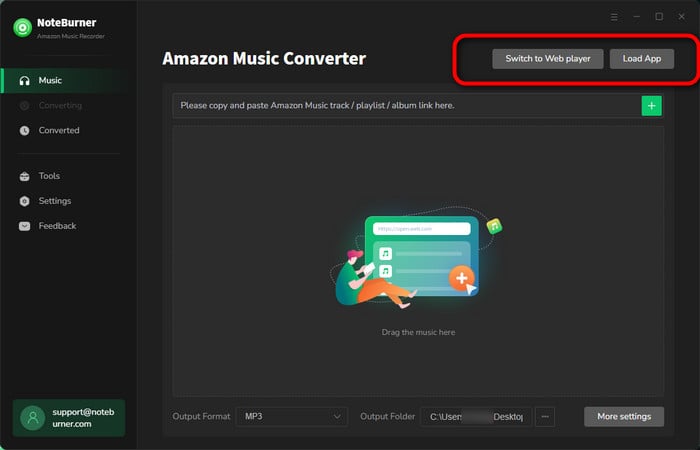
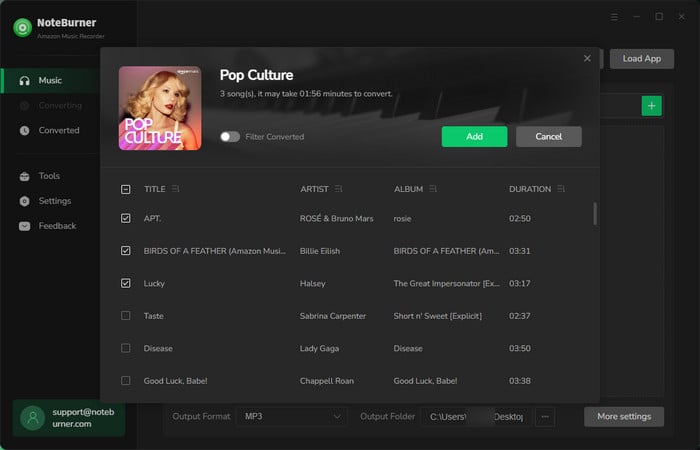
Step 2 Add Amazon Alarm Tracks to NoteBurner
Simply drag and drop a song or playlist from the Amazon Music app to NoteBurner, then click Add.
Step 3 Customize Output Settings
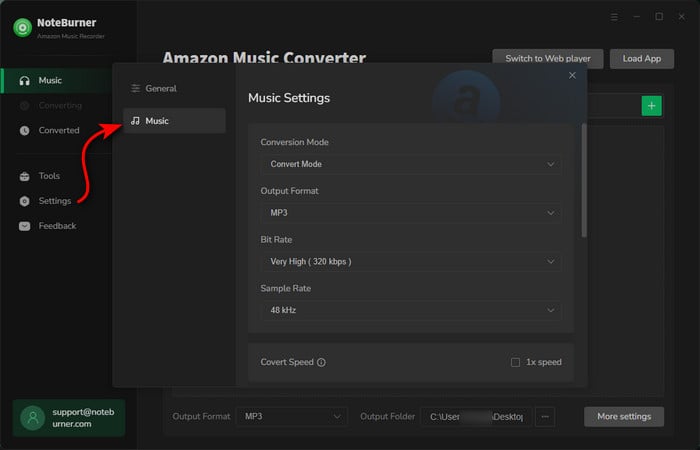
Click the "Settings" button on the bottom left. Here you can choose output format (MP3/AAC/FLAC/WAV/AIFF/ALAC), output quality (320kbps, 256kbps, 192kbps, 128kbps), as well as output path.
Step 4 Convert Alarm Sounds from Amazon to MP3
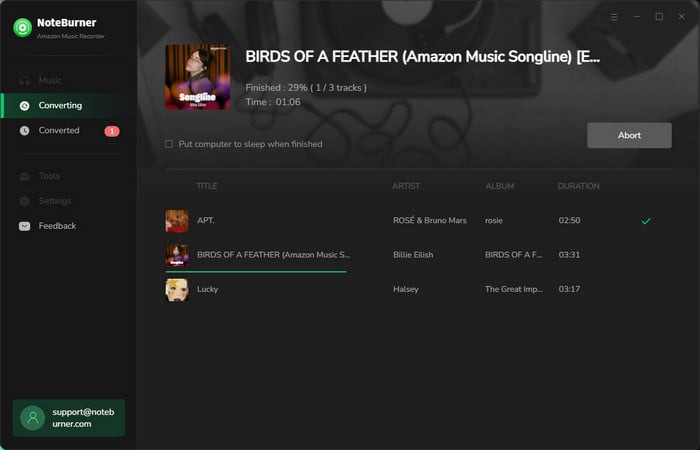
Click the "Convert" button to start downloading Amazon Music to MP3, or another audio format on your PC.
Step 5 Find Downloaded Amazon Alarm Sounds
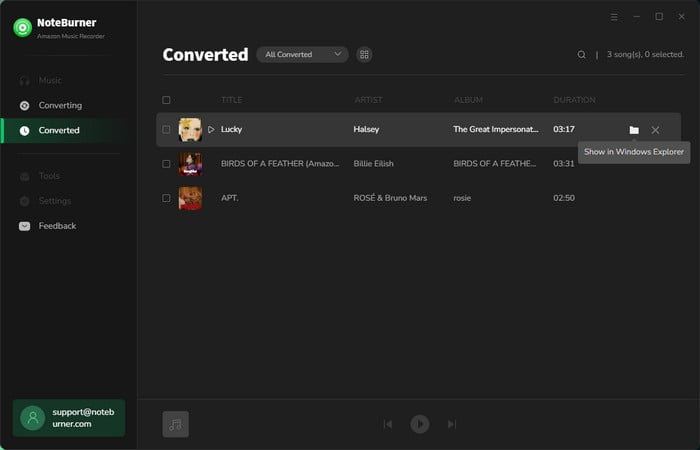
After conversion, click the "History" button to view your downloaded Alarm tracks. Click the "Folder" icon next to a song to locate the files on your computer.
iPhone cannot directly set a local MP3 file from Files as an alarm. You must add the song to your Apple Music library first (via iTunes/Finder on a computer). Once the song appears in your iPhone’s Music app, you can use it as an alarm.
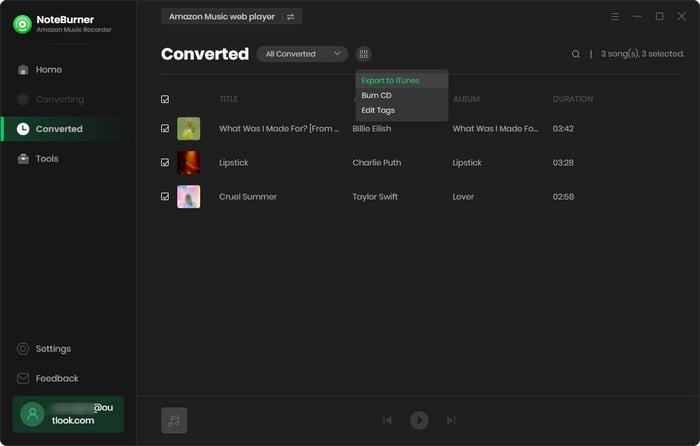
Step 1 On the "History" window of the NoteBurner, select the songs you want to transfer, then click "Export to iTunes".
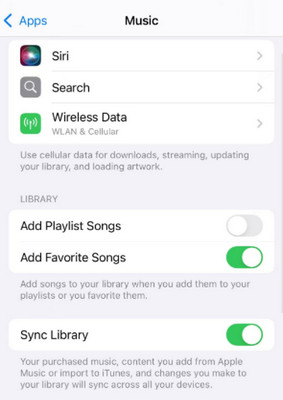
Step 2 Open your iPhone, go to "Settings > Apps > Music". Then turn on "Sync Library". Later, you'll find the Amazon songs are automatically synced to your iTunes library/ or Apple Music list on the phone.
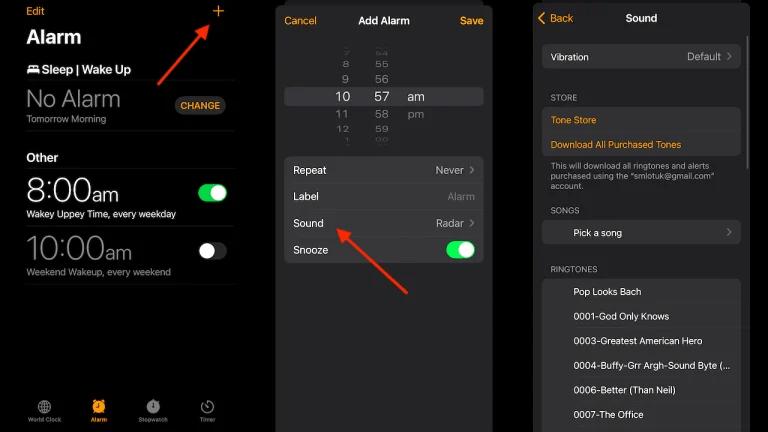
Step 3 Open the Clock app. Go to Alarm, and tap "+" to create a new alarm.
Step 4 Then tap Sound → Songs → Pick a song. Choose the Amazon Music track you synced to your iPhone and save the alarm.
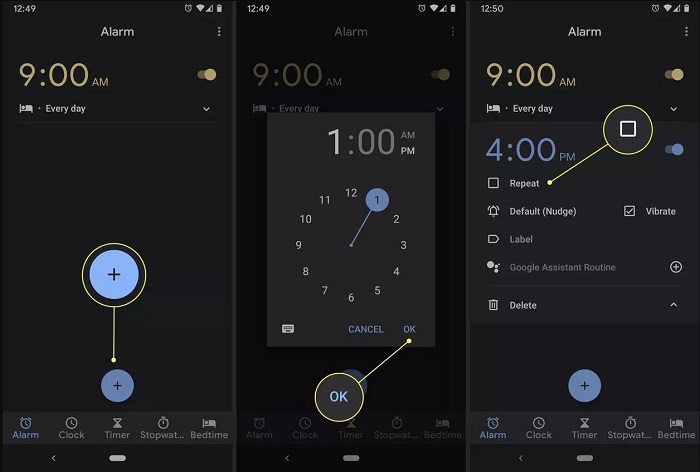
Step 1 Transfer the converted Amazon songs from your computer to your Android phone via a USB cable.
Step 2 Open the Clock app, go to Alarm, and create an alarm.
Step 3 Tap Alarm sound → Add new, then browse and select your local Amazon song.
Step 4 Save the alarm. It will now play your selected song when it rings.
Disclaimer: For personal/educational use only. 🚫 Do not distribute downloaded music/video for commercial use.

Purchase MP3s from Amazon Music or use NoteBurner Amazon Music Converter to convert Amazon songs to MP3 so that you can transfer Amazon playlist to MP3 player easily.
A: No, your phones can’t use Amazon Music streams as alarm sounds. The songs are protected, so the Clock app simply can’t access them. If you want to wake up to a specific Amazon Music track, the practical solution is to convert it into a normal audio file and save it on your device. Once it’s a regular MP3 or M4A, you can set it as your alarm without needing Alexa.
A: Because the Clock app can only read built-in tones or local audio files. Streaming apps like Amazon Music don’t provide files your phone can access, so they simply won’t show up in the alarm sound list.
A: This usually means Alexa couldn’t play your original choice. The track may be unavailable in your region, temporarily not playable, or not included in your current Amazon Music plan. When that happens, Alexa picks a similar song so the alarm still goes off on time.
A: The alarm will still ring, but Alexa can’t stream your chosen track. Instead, it switches to a default alarm sound, so you won't miss your wake-up time even if Amazon Music isn’t working.
A: No. The iPhone Clock app doesn’t support streaming music for alarms. Only local audio files work, even if you later cancel subscription.
Using Amazon Music as an alarm in 2026 really comes down to what device you prefer. Alexa works well if you want a quick voice command to wake up to a song or playlist. If you’d rather rely on your phone’s Clock app, converting the tracks to local audio gives you the freedom to use the exact music you want without streaming limits.
For users who want something that works consistently on iPhone, Android, or even offline devices, NoteBurner offers a simple way to save your Amazon tracks and set Amazon Music as an alarm just like any regular audio file. Once the songs are on your phone, choosing one as your alarm feels just like setting any other tone—simple, familiar, and a nice way to wake up to music you actually like.
The free trial version of NoteBurner Amazon Music Converter enables you to convert the first 1 minute of each song. You can unlock the time limitation by purchasing the full version.



